Wink
Wink Hub
PWHUB-WH01
Gateway
01.0
ZM5202
6.51.00
0x017F (383)
0x0001 (1)
0x0001 (1)
ZC10-14080002
2014-08-04 21:26:40.174297
N/A
Static Controller
Central Static Controller
The Wink HUB is the, quick and simple way to connect you and the products you rely on in the home. Wink allows you to confidently interact with and operate many different products – all from an Apple or Android mobile device.
The Wink HUB allows you to easily manage your suite of smart home products while the Wink app gives you the comfort of knowing your home is safe wherever you are. Living in the future has never been so easy. The Wink hub allows your diverse collection of smart products to speak the same wireless language, so you can easily control them -- and customize their interactions-- from the Wink app on your mobile device By connecting products to the Wink app with the Hub, you can: • Control lights, locks, and more from anywhere in the world • Receive text or email alerts when loved ones return home • Program smart devices to operate based on your schedule
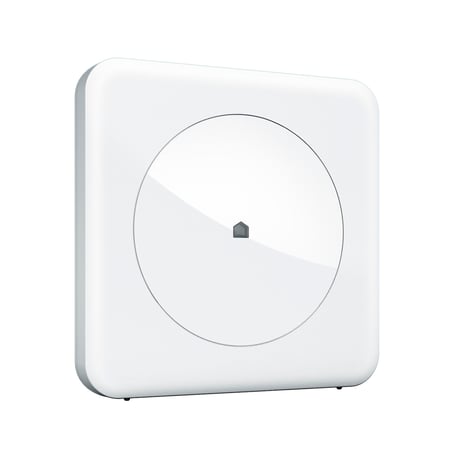
Product Picture
The HUB is placed into learn mode using the Z-Wave Controls interface located under the HUB's settings menu. Within the Z-Wave Controls interface is a ""Learning Mode"" button which will manually place the HUB into learn mode.
NA
The HUB does not have a master factory reset function that will reset all radios. However, it does support a reset for Z-Wave products. The HUBs Z-Wave controller is reset using the Z-Wave Controls interface located under the HUB's settings menu. Within the Z-Wave Controls interface is a ""Reset Z-Wave"" button which will remove all nodes and reset the Z-Wave radio.
NA
Including a product into the Wink HUB is done using the Wink mobile app (iOS or Android). After installing the app and creating an account, the app allows you to select from a list of Wink compatible products. Among these products User's can find Wink specific and generic Z-Wave devices. After selecting a device the Wink app will provide step by step instructions explaining how to include the device. At the appropriate point in the sequence, the app will also place the HUB into inclusion mode. An alternate option is to use the Z-Wave Controls interface located under the HUB's settings menu. Within the Z-Wave Controls interface is a ""Inclusion Mode"" button which will manually place the HUB into inclusion mode.
Excluding a product from the Wink HUB is done using the Wink mobile app (iOS or Android). After including a device it will show up in the controllable products list. Navigating to the device settings will expose a ""Remove"" button that is used to begin the exclusion sequence. Depending on the device the remove button may launch step by step instructions explaining how to exclude the device. At the appropriate point in the sequence, the app will also place the HUB into exclusion mode. An alternate option is to use the Z-Wave Controls interface located under the HUB's settings menu. Within the Z-Wave Controls interface is a ""Exclusion Mode"" button which will manually place the HUB into exclusion mode.