HomeSeer
HomeSeer HomeTroller-SEL
HT-SEL
Central Controller
N/A
SW
6.51.06
0x000C (12)
0x0001 (1)
0x0003 (3)
ZC10-15050002
2015-05-07 10:12:47.9344
N/A
Static Controller
Central Static Controller
HomeTroller-SEL is our fastest and most affordable "SE" series controller!
HomeTroller-SEL is our fastest and most affordable "SE" series controller! The unit is designed to control light switches, thermostats, door locks, audio / video equipment, cameras, garage doors, water valves, energy monitors and much more. Click here to review the complete list of supported technologies. Home owners can access HomeTroller-SEL at home or via the cloud with just about any smartphone, tablet or table-top touchscreen. Our FREE standard cloud-based "myHomeSeer Remote" service provides easy remote access without storing your sensitive data in the cloud. With HomeSeer, your intelligence stays at home, ensuring better security and reliability. Main Features: - Controls Light Switches, Thermostats, Door Locks, Garage Doors, Water Valves, Energy Monitors, Environmental Sensors, Cameras and More! - Runs all Linux-compatible HomeSeer Drivers (plug-ins) - Compatible with Apple and Andoid smartphones and tablets - Includes voice control and programming features - Can issue spoken messages for alerts, announcement and reminders - Available in standard and PRO versions
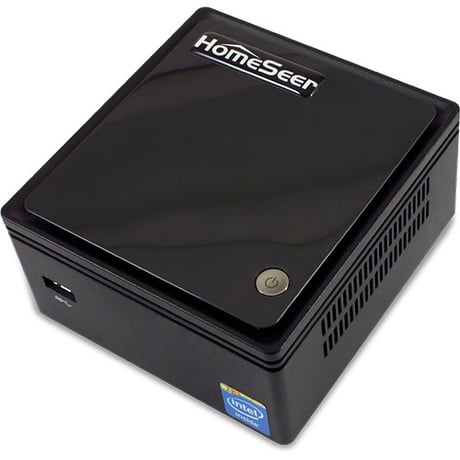
Product Picture
From the UI, select the Plugins menu, then the Z-Wave Plugin, then choose the Controller Management option. In the list of actions for the Z-Wave interface, choose ""Receive Network from Another Controller"", and follow the on-screen prompts.
Please use this procedure only as a last resort as existing nodes in the network will be orphaned and unable to be controlled. Access the Interfaces page from the UI. Click on the Z-Wave plug-in link on the interfaces page to be taken to the diagnostics page for the plug-in, then press the Factory Reset button at the top of the page.
From the UI, select the Plugins menu, then the Z-Wave Plugin, then choose the Controller Management option. In the list of actions for the Z-Wave interface, choose ""Add/Include a Node"", and follow the on-screen prompts.
From the UI, select the Plugins menu, then the Z-Wave Plugin, then choose the Controller Management option. In the list of actions for the Z-Wave interface, choose ""Remove/Exclude a Node"", and follow the on-screen prompts.
| Type | Value(s) |
|---|
| Meter type |
|---|
| Electric Meter Consumption |
| Gas Meter Consumption |
| Water Meter Consumption |