HomeSeer
HomeSeer HomeTroller Zee S2
HT-ZEE-S2
Central Controller
N/A
SW
6.51.06
0x000C (12)
0x0001 (1)
0x0003 (3)
ZC10-15050003
2015-05-07 10:28:39.7216
N/A
Static Controller
Central Static Controller
HomeTroller Zee S2 is the most affordable HomeSeer controller ever. The unit is designed to control light switches, thermostats, door locks, audio / video equipment, cameras, garage doors, water valves, energy monitors and much more.
HomeTroller Zee S2 is the most affordable HomeSeer controller ever. The unit is designed to control light switches, thermostats, door locks, audio / video equipment, cameras, garage doors, water valves, energy monitors and much more. Click here to review the complete list of supported technologies. Home owners can access HomeTroller Zee S2 at home or via the cloud with just about any smartphone, tablet or table-top touchscreen. Our FREE standard cloud-based "myHomeSeer Remote" service provides easy remote access without storing your sensitive data in the cloud. With HomeSeer, your intelligence stays at home, ensuring better security and reliability. Main Features: - Powerful Home Automation Gateway Controller - Includes Free myHomeSeer Remote Access Service - No Monthly Fees - Supports Z-Wave, Insteon, X10 and much more - Easy to Set Up - Includes Powerful Event Engine - Includes Free Apple and Android Mobile Device Apps - Supports Voice Control and Voice Programming via Android Mobile Devices - Supports Spoken Announcements, Alerts and Reminders - Fully Customizable Email and Text Alerts - Supports Z-Wave Locks, Thermostats, Lights, Water Valves, Sensors and more.
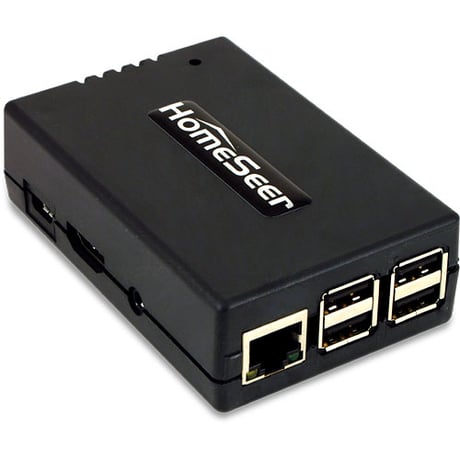
Product Picture
From the UI, select the Plugins menu, then the Z-Wave Plugin, then choose the Controller Management option. In the list of actions for the Z-Wave interface, choose ""Receive Network from Another Controller"", and follow the on-screen prompts.
Please use this procedure only as a last resort as existing nodes in the network will be orphaned and unable to be controlled. Access the Interfaces page from the UI. Click on the Z-Wave plug-in link on the interfaces page to be taken to the diagnostics page for the plug-in, then press the Factory Reset button at the top of the page.
From the UI, select the Plugins menu, then the Z-Wave Plugin, then choose the Controller Management option. In the list of actions for the Z-Wave interface, choose ""Add/Include a Node"", and follow the on-screen prompts.
From the UI, select the Plugins menu, then the Z-Wave Plugin, then choose the Controller Management option. In the list of actions for the Z-Wave interface, choose ""Remove/Exclude a Node"", and follow the on-screen prompts.
| Type | Value(s) |
|---|
| Meter type |
|---|
| Electric Meter Consumption |
| Gas Meter Consumption |
| Water Meter Consumption |