Talk-Z
Talk-Z
MPU100ZW
Central Controller
01
ZM5202
6.51.06
0x0222 (546)
0x0010 (16)
0x0010 (16)
ZC10-15060027
2015-06-24 10:17:39.856
N/A
Static Controller
Central Static Controller
Talk-Z is a bridging device that connects Z-Wave devices to Wi-Fi AP in the customer premises enables customers monitor and control Z-Wave devices everywhere through Smart phone and PC.
Talk-Z is a bridging device that connects Z-Wave devices to Wi-Fi AP in the customer premises enables customers monitor and control Z-Wave devices everywhere through Smart phone and PC. Talk-Z is physically installed between Z-Wave devices and Wi-Fi AP benefits to extend wireless coverage more than double. Built-in AC plug on Smart Home Bridge makes easy to install. Talk-Z has two buttons, that one for Z-Wave pairing and the other one for Wi-Fi connection.
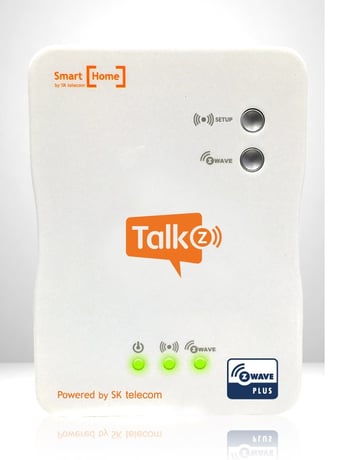
Product Picture
How to add Talk-Z as a secondary controller into an existed estbablised network. 1. From the Talk-Z Page(web page), select Learn Mode. 2. Click Go button. 3. Enter Add Mode on the primary or inclusion controller 4. If this mode is successful, you can see the device's information in the Talk-Z Page(web page).
Use this procedure only in the event that the network primary controller is missing or otherwise inoperable. If Talk-Z is your primary controller, use of this procedure could result in your Z-Wave devices being orphaned and having no central controller to communicate with; use this procedure with caution. This implies that Z-Wave network back to its factory settings 1. From the Talk-Z page, press the Reset button. 2. To confirm reset, press the yes button. 3. If this process is successful, All node information disappeared in Talk-Z
1. From the Talk-Z page (web page), select Add Device or Add Device (Secure). 2. Click Go button. Now that the Talk-Z is looking for a device, the device must allow itself to be found. This process depends on the device. Some have a button, perhaps labeled ""Add"" or ""Include"" that you must press. Others enter the Add mode simply by inserting a battery or removing a plastic strip separating the battery from a contact. Consult the manufacturer's documentation packaged with the device for details; Instructions for many devices can be found on manufacturer's websites. 3. After the device is connected, you can see the device's information in the Talk-Z Page (web page)
2. From the Talk-Z page, select Remove Device. 2. Click Go button. Now that the gateway is looking for a device to remove, the device must allow itself to be found.This process depends on the devcie. Putting the device into remove mode may require pressing a button or removing a battery. Consult the manufacturer's documentation packaged with the device for details; Instructions for many devices can be found on manufacturer's websites. 3. After the device is disconnected, the deleted device is disappeared in the Talk-Z page.