Jasco Products Company
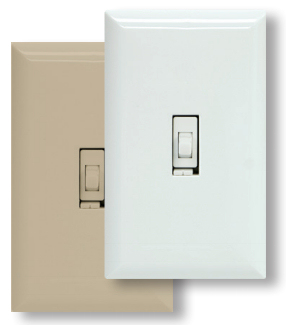
Jasco In-Wall Smart Dimmer (White Toggle)
14322.0
Light Dimmer Switch
HW: 255
ZM5202
6.51.06
0x0063 (99)
0x4944 (18756)
0x3137 (12599)
ZC10-15060025
2015-06-19 13:25:40.0248
N/A
Enhanced 232 Slave
Always On Slave
Wirelessly control, schedule or dim lights from anywhere. Works with dimmable LED, CFL, halogen and incandescent bulbs
Transform any home into a smart home with the Jasco Z-Wave Smart Toggle Dimmer. The in-wall Dimmer can easily replaces any standard in-wall switch remotely controls a light in your home. Your home will be equipped with ultimate flexibility with the Jasco Z-Wave Smart Toggle Dimmer, capable of being used by itself or with up to four add-on switches. Screw terminal installation provides improved space efficiency when replacing existing switches. The Jasco Z-Wave Smart Toggle Dimmer is compatible with any Z-Wave certified gateway, providing access to many popular home automation systems. Take control of your home lighting with Jasco Z-Wave Smart Lighting Controls! Z-Wave is the world’s largest ecosystem of interoperable smart home products. Z-Wave lighting controls provide an easy-to-install and affordable system to control lighting and small appliances in your home. Add GE Z-Wave lighting controls to a Z-Wave certified gateway to access and control your home from anywhere in the world using your smartphone, tablet or computer as a home automation command center. Never worry if you accidentally left the lights on because you can turn them off remotely or program your lights to go on/off at specific times. Create customized lighting scenes for any occasion such as a “go to sleep” scene or a “movie night” scene. Give the illusion that someone is home by programming the lights to turn on/off while you are away—perfect for deterring crime and adding additional security!"


4 - Default
DefaultSize: 1 byte
Default: 0
Minimum: 0
Maximum: 0
Possible values
| From | To | Desription |
|---|---|---|
| 0 | 0 | Default |
7 - Dim Rate Adjustment
Dim Rate Adjustments When receiving a Z-Wave Dim CommandSize: 1 byte
Default: 1
Minimum: 0
Maximum: 0
Possible values
| From | To | Desription |
|---|---|---|
| 1 | 99 | Number of steps or levels |
8 - Dim Rate Adjustment
Dim Rate Adjustments When receiving a Z-Wave Dim Command For values over 127, consult your controller's user guide; some controllers may require values above 127 to be entered using the 2's complement value or using hexadecimal notationSize: 1 byte
Default: 3
Minimum: 0
Maximum: 0
Possible values
| From | To | Desription |
|---|---|---|
| 1 | 255 | timing of the steps |
9 - Dim Rate Adjustments
Dim Rate Adjustments When receiving a Z-Wave Dim CommandSize: 1 byte
Default: 1
Minimum: 0
Maximum: 0
Possible values
| From | To | Desription |
|---|---|---|
| 1 | 99 | number of steps or levels |
10 - Dim Rate Adjustments
Dim Rate Adjustments When manually controlling dimming For values over 127, consult your controller's user guide; some controllers may require values above 127 to be entered using the 2's complement value or using hexadecimal notationSize: 1 byte
Default: 3
Minimum: 0
Maximum: 0
Possible values
| From | To | Desription |
|---|---|---|
| 1 | 255 | timing of the steps |
11 - Dim Rate Adjustments
Dim Rate Adjustments When receiving an All-On or All-Off commandSize: 1 byte
Default: 1
Minimum: 0
Maximum: 0
Possible values
| From | To | Desription |
|---|---|---|
| 1 | 99 | number of steps or levels |
12 - Dim Rate Adjustments
Dim Rate Adjustments When receiving an All-On or All-Off command For values over 127, consult your controller's user guide; some controllers may require values above 127 to be entered using the 2's complement value or using hexadecimal notationSize: 1 byte
Default: 3
Minimum: 0
Maximum: 0
Possible values
| From | To | Desription |
|---|---|---|
| 1 | 255 | timing of the steps |
Adding your device to a Z-wave network: 1. Follow the instructions for your Z-wave certified controller to include a device to the Z-wave network. 2. Once the controller is ready to include your device, press up and release on the toggle to include it in the network. 3. Once your controller has confirmed that the device has been included, refresh the Z-wave network to optimize performance. Please reference the controller’s manual for instructions. Now you have complete control to turn your fixture ON/OFF or dim according to groups, scenes, schedules and interactive automations programmed by your controller. If your Z-wave certified controller features Remote Access, you can now control your fixture from your mobile devices.
To exclude and reset the device 1. Follow the instructions for your Z-wave certified controller to exclude a device from the Z-wave network. 2. Once the controller is ready to Exclude your device, press up and release on the toggle to exclude it from the network.
To return your switch to factory defaults: 1. Quickly press ON (Up) button three (3) times then immediately press the OFF (Down) button three (3) times. Note: This should only be used in the event your network’s primary controller is missing or otherwise inoperable.