Powerhouse Dynamics
SiteSage
950-000012
Gateway
HW: 69
ZM5202
6.51.06
0x0170 (368)
0x0000 (0)
0x0000 (0)
ZC10-15080023
2015-08-26 14:38:40.5096
N/A
Static Controller
Central Static Controller
The SiteSage Gateway enables SiteSage sensor data to be uploaded wirelessly to the cloud via Ethernet, WiFi, Modbus, or Z-Wave protocols.
The SiteSage Gateway enables SiteSage sensor data to be uploaded wirelessly to the cloud via Ethernet, WiFi, Modbus, or Z-Wave protocols. The SiteSage Gateway supports TCP-IP via Ethernet (802.3) 10/100base-T, proxy servers and SSL encryption, DCP or static IP configurations, 802.11 b/g, WEP/WPA-2 wireless security, 802.15.4 (2.4 GHz) communications with the SiteSage Energy Monitor and Controller, Mpdbus connection with the SiteSage Controller, and Z-Wave (900 MHz) with the optional USNAP module. Physical connections include: - 10/100 RJ-45 Ethernet Port - High Speed RJ-14 Serial Port - One-Wire Input; 3 Digital I/O - USNAP 2.0 Modular Connector A 5 VDC-AC Adapter is supplied. Dimensions are 5.25"L x 3.25"H x 1.5"W, and weight is 6oz.
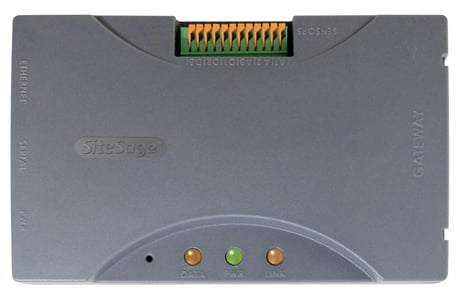
Product Picture
To place the SiteSage Gateway in Learn Mode, use a browser, navigate to the IP address of the SiteSage Gateway and select the Z-Wave tab. Press the ""Manage"" button to show the advanced menu. Select ""Join Network"" to include the SiteSage Gateway on an existing Z-Wave network.
To reset the SiteSage Gateway to Factory Default, use a browser, navigate to the IP address of the SiteSage Gateway and select the Z-Wave tab. Press the ""Manage"" button to show the advanced menu. Press the ""Reset to Defaults"" button. Please note that if you do this, it will remove all nodes from the network, and all devices will need to be re-included.
When a Z-Wave enabled SiteSage Gateway powers on, or resets, it will automatically enter Inclusion mode for 2 minutes. The Gateway LEDs will flash orange. During this time you can include Z-Wave devices onto the SiteSage Gateway's Z-Wave network, but following the instructions provided by the product's manufacturer. Alternatively you can cause the SiteSage Gateway to enter inclusion mode by accessing the IP address of the Gateway with a WEB browser, and navigating to the Z-Wave tab and press the ""Add"" button.
To exclude a Z-Wave product from the SiteSage Gateway, place the SiteSage Gateway into Exclusion mode. This can be done by using a paper clip and pressing the Reset button once on the Gateway while it is in Inclusion Mode, or by accessing the IP address of the Gateway and navigating to the Z-Wave tab. Press the ""Remove"" button to place the SiteSage Gateway into Exclusion mode.