Aeotec
Smart Dimmer 6
ZW099-A02
Light Dimmer Switch
HW: 63 FW: 1.02
ZM5101
6.51.06
0x0086 (134)
0x0103 (259)
0x0063 (99)
ZC10-15100013
2015-09-25 11:19:14.138
N/A
Enhanced 232 Slave
Always On Slave
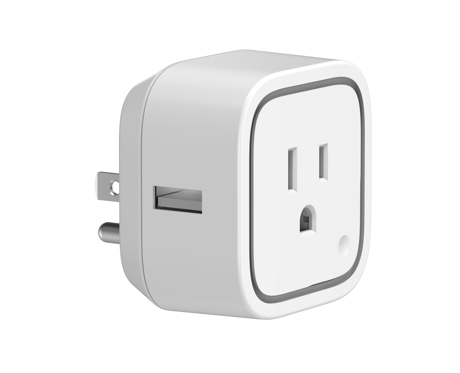
Smart Dimmer 6 is a plug-in on/off/dim switch module that also provides energy metering.
Aeotec Smart Dimmer 6 is a low-cost Z-Wave Dimmer plug-in module specifically used to enable Z-Wave command and control (on/off/dim) of any plug-in tool. It can report immediate wattage consumption or kWh energy usage over a period of time. In the event of power failure, non-volatile memory retains all programmed information relating to the unit’s operating status. Its surface has a Smart RGB LED, which can be used for indicating the output load status or strength of the wireless signal. You can configure its indication colour according to your favour. The Smart Dimmer 6 is also a security Z-Wave device and supports Over The Air (OTA) feature for the products firmware upgrade.


3 - Current Overload Protection
This parameter is used for the overload protection, which means the load will be disconnected after 2 minutes when the current more than 2.6A.Size: 1 byte
Default: 0
Minimum: 0
Maximum: 0
Possible values
| From | To | Desription |
|---|---|---|
| 0 | 0 | Overload Protection Disabled |
| 1 | 1 | Overload Protection is Enabled |
20 - Configure the output load status after re-power on
Configure the output load status after re-power on the Smart Switch.Size: 1 byte
Default: 0
Minimum: 0
Maximum: 0
Possible values
| From | To | Desription |
|---|---|---|
| 0 | 0 | The output load status will be the same as the previous state before a power outage. |
| 1 | 1 | The output load status will be ON state after re-power on. |
| 2 | 2 | The output load status will be OFF state after re-power on. |
33 - Change the color value of RGB LED for testing
This parameter is only used for customer checking/testing the product's RGB color via changing the RGB values.Size: 4 bytes
Default: 0
Minimum: 0
Maximum: 0
Possible values
| From | To | Desription |
|---|---|---|
| 0 | 255 | Reserved |
| 255 | 65535 | Range of red color value. |
| 65536 | 16777215 | Range of green color value. |
| 16777215 | 2147483647 | Range of blue color value. |
80 - Enable/Disable to send notifications to associated devices to associated devices.
This parameter is used to Enable/Disable to send notifications to associated devices (in Group 1) when the state of Smart Dimmer’s load is changed. (0=Send nothing, 1=Send hail CC, 2=Send basic report CC).Size: 1 byte
Default: 0
Minimum: 0
Maximum: 0
Possible values
| From | To | Desription |
|---|---|---|
| 2 | 2 | Send BASIC Report Command |
| 0 | 0 | Send Nothing (Disabled) |
| 1 | 1 | Send HAIL Command |
81 - Configure the state of LED
This parameter is used to configure the LED state when the Smart Dimmer is in Energy mode/Momentary indicate mode/Night light mode.Size: 1 byte
Default: 0
Minimum: 0
Maximum: 0
Possible values
| From | To | Desription |
|---|---|---|
| 1 | 1 | The state of LED will follow with the output load state, but will turn off after 5 seconds if there is no any switch action.(Momentary indicate mode) |
| 2 | 2 | The state of LED will the same with Night light mode state configured by parameter 83. |
| 0 | 0 | The state of LED will follow with the output load state(Energy mode) |
83 - Configure the LED indication status when it is in Night light mode
This parameter is used to configure the LED indication status when the current mode is Night light mode.Size: 4 bytes
Default: 1774619
Minimum: 0
Maximum: 0
Possible values
| From | To | Desription |
|---|---|---|
| 0 | 255 | Set the indication value of red Led. |
| 256 | 65535 | Set the indication value of green Led. |
| 65536 | 16777215 | Set the indication value of blue Led. |
84 - Configure the brightness level for the LED indication
This parameter is used to configure the brightness level for the LED indication. Brightness level range is 0 to 100%.Size: 1 byte
Default: 50
Minimum: 0
Maximum: 0
Possible values
| From | To | Desription |
|---|---|---|
| 0 | 100 | Brightness level range is 0 to 100%. |
90 - Enable/Disable the function of parameter 91 and 92.
This parameter is used to Enable/Disable the function of parameter 91 and 92 (1=Enabled, 0=Disabled).Size: 1 byte
Default: 1
Minimum: 0
Maximum: 0
Possible values
| From | To | Desription |
|---|---|---|
| 0 | 0 | Configuration Parameters 91 and 92 are Disabled |
| 1 | 1 | Configuration Parameters 91 and 92 are Enabled |
91 - Induce an automatic report
This parameter is used to induce an automatic report when the change of the current power is more/less than the threshold in wattage.Size: 2 bytes
Default: 25
Minimum: 0
Maximum: 0
Possible values
| From | To | Desription |
|---|---|---|
| 0 | 32767 | The threshold can be set from 0 to 32767 watt. |
92 - Induce an automatic report
This parameter is used to induce an automatic report when the change of the current power is more/less than the threshold in percentage.Size: 1 byte
Default: 5
Minimum: 0
Maximum: 0
Possible values
| From | To | Desription |
|---|---|---|
| 0 | 100 | The threshold can be set from 0 to 100 percent. |
101 - To set which report need to be sent.
This parameter is used to configure which reports need to be sent in Report Group 1. The values corresponding to the first four bits of the parameter value may be combined to create different combinations of reports that you wish to have sent. For example, instantaneous Current is the value 2 and instantaneous Watts is the value 4, so setting parameter 101 to a value of 6 will result in both instantaneous Current and instantaneous Watts to be reported. See the full description of the parameter values for other possible settings.Size: 4 bytes
Default: 0
Minimum: 0
Maximum: 0
Possible values
| From | To | Desription |
|---|---|---|
| 8 | 8 | Report Accumulated kWh |
| 2 | 2 | Report Instantaneous Current (Amperes) |
| 4 | 4 | Report Instantaneous Watts |
| 1 | 1 | Report Instantaneous Voltage |
102 - To set which report need to be sent.
This parameter is used to configure which reports need to be sent in Report Group 2. The values corresponding to the first four bits of the parameter value may be combined to create different combinations of reports that you wish to have sent. For example, instantaneous Current is the value 2 and instantaneous Watts is the value 4, so setting parameter 102 to a value of 6 will result in both instantaneous Current and instantaneous Watts to be reported. See the full description of the parameter values for other possible settings.Size: 4 bytes
Default: 0
Minimum: 0
Maximum: 0
Possible values
| From | To | Desription |
|---|---|---|
| 1 | 1 | Report Instantaneous Voltage |
| 4 | 4 | Report Instantaneous Watts |
| 8 | 8 | Report Accumulated kWh |
| 2 | 2 | Report Instantaneous Current (Amperes) |
103 - To set which report need to be sent.
This parameter is used to configure which reports need to be sent in Report Group 3. The values corresponding to the first four bits of the parameter value may be combined to create different combinations of reports that you wish to have sent. For example, instantaneous Current is the value 2 and instantaneous Watts is the value 4, so setting parameter 103 to a value of 6 will result in both instantaneous Current and instantaneous Watts to be reported. See the full description of the parameter values for other possible settings.Size: 4 bytes
Default: 0
Minimum: 0
Maximum: 0
Possible values
| From | To | Desription |
|---|---|---|
| 4 | 4 | Report Instantaneous Watts |
| 8 | 8 | Report Accumulated kWh |
| 1 | 1 | Report Instantaneous Voltage |
| 2 | 2 | Report Instantaneous Current (Amperes) |
111 - Set the interval time of sending report.
This parameter is used to set the interval time of sending report in Report Group 1. (The unit of time is second).Size: 4 bytes
Default: 600
Minimum: 0
Maximum: 0
Possible values
| From | To | Desription |
|---|---|---|
| 0 | 268435456 | Interval Seconds |
112 - Set the interval time of sending report.
This parameter is used to set the interval time of sending report in Report Group 2. (The unit of time is second).Size: 4 bytes
Default: 600
Minimum: 0
Maximum: 0
Possible values
| From | To | Desription |
|---|---|---|
| 0 | 268435456 | Interval Seconds |
113 - Set the interval time of sending report.
This parameter is used to set the interval time of sending report in Report Group 3. (The unit of time is second).Size: 4 bytes
Default: 600
Minimum: 0
Maximum: 0
Possible values
| From | To | Desription |
|---|---|---|
| 0 | 268435456 | Interval Seconds |
200 - Partner ID
This parameter is used to configure the partner ID. (0== Aeon Labs Standard Product, 1~255== others).Size: 1 byte
Default: 0
Minimum: 0
Maximum: 0
Possible values
| From | To | Desription |
|---|---|---|
| 0 | 0 | Aeon Labs Standard Product |
| 1 | 255 | Partner ID of Partner Product |
252 - Enable/Disable Lock Configuration
This parameter is used to enable/disable Lock all configuration parameters. (0 =disable, 1 = enable)Size: 1 byte
Default: 0
Minimum: 0
Maximum: 0
Possible values
| From | To | Desription |
|---|---|---|
| 0 | 0 | All configuration parameters are configurable. |
| 1 | 1 | All configuration parameters are not configurable (Locked). |
254 - Device Tag
This parameter is used to save the device tag, which will be written/ assigned in factory/ manufacturer.Size: 2 bytes
Default: 0
Minimum: 0
Maximum: 0
Possible values
| From | To | Desription |
|---|---|---|
| 0 | 32767 | Device Tag |
255 - Reset to default factory setting
This parameter is used to reset product to default factory setting. (There are just 2 values can be used).Size: 4 bytes
Default: 0
Minimum: 0
Maximum: 0
Possible values
| From | To | Desription |
|---|---|---|
| 1431655765 | 1431655765 | Reset the product to default factory setting and be excluded from the Z-wave network. |
| 1 | 1 | Resets all configuration parameters to default setting. |
Turn the primary controller of Z-Wave network into inclusion mode, short press the product’s Action button that you can find on the product's housing.
Turn the primary controller of Z-Wave network into exclusion mode, short press the product’s Action button that you can find on the product's housing.
Press and hold the Action button that you can find on the product's housing for 20 seconds and then release. This procedure should only be used when the primary controller is inoperable.
1, Support ""Over the Air Firmware Updating"" and “Z-Wave Security”. 2, Its surface has a Smart RGB LED, which can be used for indicating the output load status.