Telldus
TellStick ZNet Lite
TZNetLite
Gateway
HW: 1 FW: 1.00:01.00
ZM5304
6.51.06
0x0176 (374)
0x0001 (1)
0x0002 (2)
ZC10-15125004
2015-11-04 21:16:33.5788
N/A
Static Controller
Central Static Controller
Z-Wave Gateway
Personalise your experience and set up your very own smart home. With this gateway at the centre and adding other devices, your home will be smarter than ever before. This Z-Wave gateway with built-in 433 MHz transmitter combines the best of two worlds. Z-Wave provides high reliability, long range and two-way communication while 433 MHz provides broad compatibility. All configuration for the gateway is made in our cloud service, Telldus Live!. Schedules can be made at fixed times or depending on the sunrise and sunset. Event enabled control from incoming signals or sensors allows you to automate your home for real. The additional service Telldus Live! Pro gives you additional features, such as the ability to receive an e-mail or SMS when things happen in your system, such as data from a thermo or motion sensor. Schedules and Events runs locally on TellStick ZNet Lite even if internet is not available. The smartphone app Telldus Live! Mobile makes it possible to use your mobile phone as a remote control to the devices in your home, wherever you are in the world.
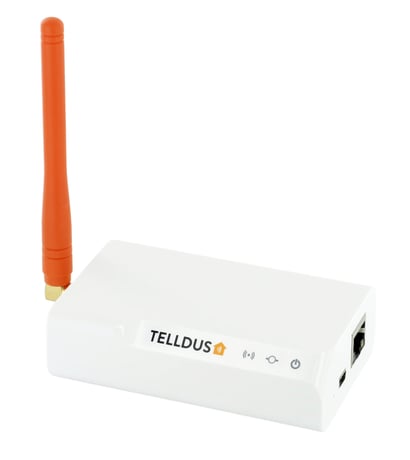
Product Picture
Navigate to the profile page in Telldus Live!. http://live.telldus.com/profile/index Click on the gateway Click Change settings Click Z-Wave settings Set the primary controller into add mode. Click “Start learn mode”. TellStick ZNet Lite will now be included into the other Z-Wave network.
Navigate to the profile page in Telldus Live!. http://live.telldus.com/profile/index Click on the location Click Change settings Click Z-Wave settings Click Reset controller Please note! Only use the reset procedure when the primary controller is missing or inoperable.
Navigate to the device page in Telldus Live!. http://live.telldus.com/device/index Click on the + icon Select the Z-Wave logo and follow on-screen instructions.
Click the device that should be removed. Click Edit device. Click Exclude device. If the device is not included in the network or you don't have any devices: Navigate to the profile page in Telldus Live!. http://live.telldus.com/profile/index Click on the gateway Click Change settings Click Z-Wave settings Click Exclude any device Check the manual for the specific product how to exclude the device.