2GIG
2GIG GC3
2GIG-GC3-345
Central Controller
HW: 0 FW: 4.05:02.00
ZM5304
6.51.06
0x009B (155)
0x4350 (17232)
0x3330 (13104)
ZC10-16015004
2016-01-06 10:44:52.2952
N/A
Static Controller
Central Static Controller
The 2GIG GC3 is the premium security and automation panel in the 2GIG product family, designed to enhance your lifestyle and protect your home and small business.
The GC3 is the most capable and robust system that 2GIG has ever made. With a 7” color, capacitive touch screen and a full upgrade to the user-interface, GC3 installation time is 30% faster and more accurate, too. UI features include single screen zone programming, elimination of unnecessary or redundant steps, One-Touch Arming, and easy-to-see Status. These features, along with many others, make GC3 the easiest, most intuitive experience of any security system in the industry. Smart Home Control has been at the heart of all 2GIG panels since the very beginning. The new GC3 panel makes working with smart home devices simpler than ever before. Programming new smart home devices is a snap. Each GC3 comes equipped with a Z-Wave module making it ready to be the heart of Smart Home right out of the box.
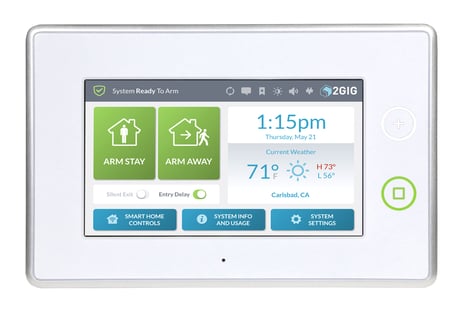
Product Picture
Place the primary controller into inclusion mode. From the GC3 Home Screen enter System Settings using the Master Code. Tap on Smart Home Settings and then tap on the Advanced Settings tile. Tap on the Controller Learn tile to put the GC3 into learn mode. With the primary controller in inclusion mode, the GC3 will be added to the network.
From the GC3 Home Screen enter System Settings using the Master Code. Tap on Smart Home Settings and then tap on the Advanced Settings tile. Tap on the Reset Controller tile. The system will present a confirmation. Tap the confirmation. The system will reset the GC3 Z-Wave network. Use this procedure only in the event that the network primary controller is missing or otherwise inoperable.
From the Home Screen enter System Settings using the Master Code. Tap on Smart Home Settings and then tap on the Add Devices tile. This will put the GC3 panel into listening mode. Trigger device to be added following the device's instructions. The system will give a notification when the device has been added.
From the Home Screen enter System Settings using the Master Code. Tap on Smart Home Settings and then tap on the Remove Devices tile. This will put the GC3 panel into exclusion mode. Trigger device to be revmoved following the device's instructions. The system will give a notification when the device has been removed.