Piper
Piper nv Smart Home Security System
90-00007
Gateway
HW: 1 FW: 1.03
ZM5202
6.51.06
0x0106 (262)
0x0003 (3)
0x0002 (2)
ZC10-16115326
2016-11-30 20:37:23.273782
N/A
Static Controller
Central Static Controller
Yes
Piper is a smart home security system with no required monthly fees that you control from your mobile device.
Piper is a smart home security system with no required monthly fees that you control from your mobile device. It combines advanced video monitoring technology with valuable sensor information to immediately alert you of what’s going on while you’re away.
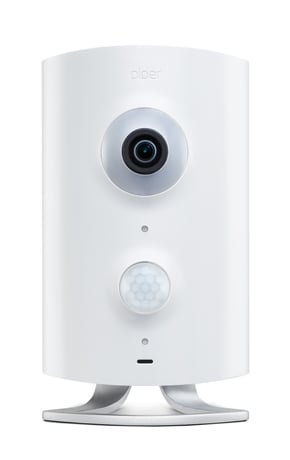
Product Picture
The Smart Switch is used to control and automate lights and appliances through Piper with no installation required. Once you have finished setting up Piper, follow these instructions to add a Smart Switch to it: Plug the switch into an electrical outlet that is within 50 feet of where Piper is located. Plug your light or appliance into the switch and make sure that the light or appliance is turned on. You may have to press the button on the plug-in module once to get your light or appliance to turn on. On the Piper app dashboard, tap the “Settings” button in the top right Tap “Z-Wave Accessories”, “Add”, then “Start” Once you’re prompted to press the button on the Z-Wave device, press the button on the switch. Once Piper and smart switch have been included, give it a name (like “living room lamp”) and press save. The switch is now ready to work with Piper! It will now be visible in the security rules as an action and under the “Controls” page to automate it.
To exclude a Z-Wave device that has been included with Piper, go to the app's Settings from the Dashboard, select ""Z-Wave Accessories"", ""Remove"", then ""Start"". Press the button on the Z-Wave accessory you want to remove, and it will be excluded from Piper.
Z-Wave Learn Mode The Z-Wave learn mode procedure can be used to add Piper to any other existing Z-Wave network. Additionally, Piper can use the Z-Wave learn mode procedure to receive Z-Wave network information from another Z-Wave controller. To enter Z-Wave Learn Mode, navigate to the Wireless Accessories screen (Settings->Wireless Accessories). On the Wireless Accessories screen, tap “Advanced Options”. The resulting screen will display the option to “Add Piper to Z-Wave Network”. Tapping this button and following onscreen instructions, will allow the user to add Piper to an existing Z-Wave network. The same button applies for removing Piper from a Z-Wave network.
Z-Wave Network Reset The Z-Wave network reset procedure performs a default factory reset on Piper’s Z-Wave controller component, which clears all user and Z- Wave network settings. A new Z-Wave network will be established. Afterwards, any previously existing Z-Wave devices must be reset and then added to the new network via the Piper app. The Reset Z-Wave option is located under Settings->Wireless Accessories->Advanced Options Please use this procedure only when the network primary controller is missing or otherwise inoperable
| Type | Value(s) |
|---|