Homelive
Homelive Base
NA930
Gateway
04
ZM5202
6.51.06
0x008C (140)
0x0001 (1)
0x0022 (34)
ZC10-16020002
2016-02-15 17:46:30.6576
N/A
Static Controller
Central Static Controller
Orange has developed Homelive, a unique solution that links you to the connected objects in your home, allowing you to manage your appliances remotely. Choose from a range of intelligent sensors and connected devices, brought to you by Orange’s partners: weather monitors, thermostats, light switches, sound and movement detectors, and smoke detectors, to name but a few.
Orange has developed Homelive, a unique solution that links you to the connected objects in your home, allowing you to manage your appliances remotely. Choose from a range of intelligent sensors and connected devices, brought to you by Orange’s partners: weather monitors, thermostats, light switches, sound and movement detectors, and smoke detectors, to name but a few. The Homelive app lets you control all the connected appliances in your home from one place, accessible from your smartphone or tablet. You can even set up custom alerts, tailored to your needs. With Homelive, you can configure your house from your smartphone or tablet to suit your daily routine. You can, for example, arrange for the heating to come on automatically depending on the outside temperature, or program the lights to switch on at dusk.
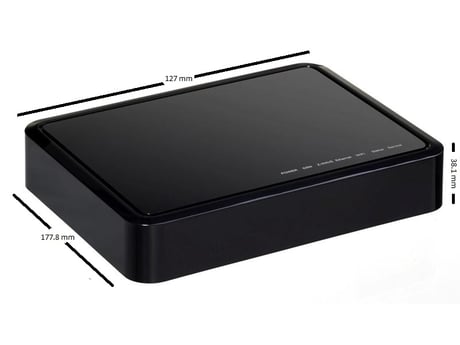
Product Picture
To include the controller into an existing Z-Wave network, use the UI and follow the steps below. Click on Settings -> Z-Wave Settings -> Advanced, select 'Copy Z-Wave network from a primary controller. This will shift the controller to have a secondary controller role and will receive data from the primary controller in the network.
Please use this procedure only in the event that the system primary controller is missing or otherwise inoperable. To reset the controller, press the reset button for 20 seconds. This will reset it to factory default.
The controller has a in built sim for internet backup.
To include a Z-Wave product into the network, you can use the UI and follow the on- screen instructions that read as follows: Select Add device -> Pick the device to be included in the network from the list -> Follow the steps for inclusion of the device -> Once the device is detected, save the name of the device and the device completes the configuration process. [Attached images along with the manual]. For an installer who wishes to carry out a manual setup of devices, tap the Z-Wave button on the controller. To exit the inclusion mode on the controller, tap the Z-Wave button again.
To exclude a Z-Wave product into the network, you can use the UI and follow the on- screen instructions that read as follows: Navigate to the device -> Select the delete device option -> Choose to un-pair and follow the instructions. [Attached images along with the manual]. For an installer who wishes to manually exclude a Z-Wave product from the network, hold the Z-Wave button down for 3 seconds.