FIBARO
FIBARO Swipe
FGGC-001
Wall Controller
HW: 1 FW: 3.02:03.11
ZM5101
6.51.06
0x010F (271)
0x0D01 (3329)
0x3000 (12288)
ZC10-16045047
2016-04-14 11:06:04.882
N/A
Enhanced 232 Slave
Portable Slave
FIBARO Swipe is a battery-powered, wireless, Z-Wave gesture controller.
FIBARO Swipe is a revolutionary, battery or Micro USB powered gesture control pad that allows you to control devices through the Z-Wave network. Swipe your hand up, down, left or right in front of the pad, make circular gestures and use sequences of gestures to get full and intuitive control of your smart home. Installed device perfectly matches your interior design, as it resembles a picture frame. You can even personalize it with your favourite picture. Gesture controlled menu allow to add/remove or reset the device without dismounting it. The device is equipped with a buzzer that confirms performed gestures and other actions.
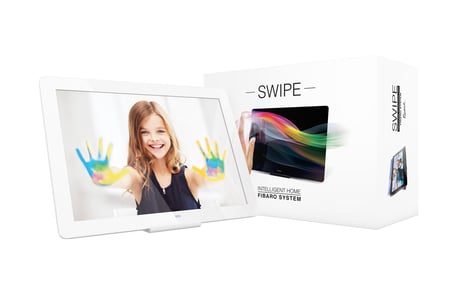
Product Picture


1 - Device orientation
Parameter determines orientation of the Swipe in relation to its default position. Required for proper gestures recognition.Size: 1 byte
Default: 0
Minimum: 0
Maximum: 0
Possible values
| From | To | Desription |
|---|---|---|
| 3 | 3 | 90 degree counter-clockwise rotation |
| 0 | 0 | default orientation |
| 1 | 1 | 180 degree rotation |
| 2 | 2 | 90 degree clockwise rotation |
2 - Buzzer - acoustic signal settings
Buzzer - acoustic signal settings. NOTE Active acoustic signals can be selected in parameter 4.Size: 1 byte
Default: 1
Minimum: 0
Maximum: 0
Possible values
| From | To | Desription |
|---|---|---|
| 1 | 1 | gestures detection is signalled |
| 0 | 0 | gestures detection is not signalled |
3 - LED diode - visual indicator settings
Visual indication of gestures detection.Size: 1 byte
Default: 0
Minimum: 0
Maximum: 0
Possible values
| From | To | Desription |
|---|---|---|
| 1 | 1 | gestures detection is indicated |
| 0 | 0 | gestures detection is not indicated |
4 - Buzzer - signalling result of gesture recognition
Acoustic signalling of gesture recognition result (using the built-in buzzer). NOTE Parameter 4 is relevant only if parameter 2 is set to 1.Size: 1 byte
Default: 3
Minimum: 0
Maximum: 0
Possible values
| From | To | Desription |
|---|---|---|
| 2 | 2 | only failed recognition is signalled |
| 3 | 3 | successful and failed recognition is signalled |
| 1 | 1 | only successful recognition is signalled |
5 - Powering mode - interval of updating the current mode
This parameter determines how often the device checks if the USB power supply is connected and updates powering mode if needed.Size: 2 bytes
Default: 4
Minimum: 0
Maximum: 0
Possible values
| From | To | Desription |
|---|---|---|
| 0 | 0 | powering mode is not updated |
| 1 | 1080 | (in minutes) - time interval |
6 - Power saving mode (battery mode)
This parameter determines operation of gesture detection when battery powered. When Standby Mode is selected, hold gesture must be performed to exit power saving mode and reactivate normal gesture recognition. The device in Standby Mode consumes the least battery life. When Simple Mode mode is selected, gesture recognition is always active, but only slowly performed gestures will be recognized properly (high battery consumption).Size: 1 byte
Default: 0
Minimum: 0
Maximum: 0
Possible values
| From | To | Desription |
|---|---|---|
| 2 | 2 | the Swipe does not enter power saving mode |
| 0 | 0 | Standby Mode |
| 1 | 1 | Simple Mode |
7 - Hold gesture to enter the menu
This parameter allows to choose if the menu can be entered using the Hold gesture. CAUTION After disabling the Hold gesture in parameter 7, menu can be entered by using the B-button only!Size: 1 byte
Default: 0
Minimum: 0
Maximum: 0
Possible values
| From | To | Desription |
|---|---|---|
| 0 | 0 | Hold gesture to enter the menu enabled |
| 1 | 1 | Hold gesture to enter the menu disabled |
10 - Scenes sent to the controller
Defines which actions result in sending scenes to 1st “Lifeline” group. NOTE Parameter 10 values may be combined, e.g. 1+2=3 means that scenes for flick UP and DOWN are enabled.Size: 1 byte
Default: 15
Minimum: 0
Maximum: 0
Possible values
| From | To | Desription |
|---|---|---|
| 8 | 8 | scenes for flick RIGHT gesture enabled |
| 1 | 1 | scenes for flick UP gesture enabled |
| 16 | 16 | scenes for clockwise circular gesture enabled |
| 2 | 2 | scenes for flick DOWN gesture enabled |
| 4 | 4 | scenes for flick LEFT gesture enabled |
| 32 | 32 | scenes for counter-clockwise circular gesture enabled |
11 - Associations in Z-Wave network security mode
Parameter defines how commands are sent in specified association groups: as secure or non-secure. Parameter is active only in Z-Wave network security mode. It does not apply to 1st “Lifeline” association group. NOTE Parameter 11 values may be combined, e.g. 1+2=3 means that 2nd & 3rd group are sent as secure.Size: 1 byte
Default: 31
Minimum: 0
Maximum: 0
Possible values
| From | To | Desription |
|---|---|---|
| 4 | 4 | 4th group „Flick LEFT” sent as secure |
| 8 | 8 | 5th group „Flick RIGHT” sent as secure |
| 1 | 1 | 2nd group ”Flick UP” sent as secure |
| 2 | 2 | 3rd group ”Flick DOWN” sent as secure |
| 16 | 16 | 6th group „Circular AirWheel” sent as secure |
12 - Control mode of 2nd - 5th „Flick UP/DOWN/LEFT/RIGHT” association groups and scenes
Parameter allows to choose control mode for 2nd-5th groups and scenes. By default, Toggle Mode is active, meaning that a single flick turns ON the group and the same flick turns it OFF, doubled flicks are inactive. After disabling Toggle Mode a single flick will turn the device ON and the same flick doubled will turn it OFF. NOTE Parameter 12 values may be combined, e.g. 1+2=3 means that 2nd & 3rd group are selected. NOTE Disabling Toggle Mode will introduce delay when performing single gestures.Size: 1 byte
Default: 15
Minimum: 0
Maximum: 0
Possible values
| From | To | Desription |
|---|---|---|
| 2 | 2 | Toggle Mode enabled for 3rd association group |
| 4 | 4 | Toggle Mode enabled for 4th association group |
| 8 | 8 | Toggle Mode enabled for 5th association group |
| 1 | 1 | Toggle Mode enabled for 2nd association group |
13 - Rate of smooth level control
Parameter allows to choose how long the hand has to be held near the center of the pad after "AirWheel" gesture for the associated devices to reach their maximum/minimum level.Size: 2 bytes
Default: 255
Minimum: 0
Maximum: 0
Possible values
| From | To | Desription |
|---|---|---|
| 255 | 255 | default settings of controlled devices |
| 0 | 10 | duration in seconds |
22 - SWITCH ON control frame value for FLICK DOWN gesture
This parameter allows to set value sent in SWITCH ON command frame to the association group.Size: 2 bytes
Default: 255
Minimum: 0
Maximum: 0
Possible values
| From | To | Desription |
|---|---|---|
| 255 | 255 | |
| 0 | 99 |
23 - SWITCH OFF control frame value for FLICK DOWN gesture
This parameter allows to set value sent in SWITCH OFF command frame to the association group.Size: 2 bytes
Default: 0
Minimum: 0
Maximum: 0
Possible values
| From | To | Desription |
|---|---|---|
| 0 | 99 | |
| 255 | 255 |
24 - SWITCH ON control frame value for FLICK LEFT gesture
This parameter allows to set value sent in SWITCH ON command frame to the association group.Size: 2 bytes
Default: 255
Minimum: 0
Maximum: 0
Possible values
| From | To | Desription |
|---|---|---|
| 255 | 255 | |
| 0 | 99 |
25 - SWITCH OFF control frame value for FLICK LEFT gesture
This parameter allows to set value sent in SWITCH OFF command frame to the association group.Size: 2 bytes
Default: 0
Minimum: 0
Maximum: 0
Possible values
| From | To | Desription |
|---|---|---|
| 0 | 99 | |
| 255 | 255 |
26 - SWITCH ON control frame value for FLICK RIGHT gesture
This parameter allows to set value sent in SWITCH ON command frame to the association group.Size: 2 bytes
Default: 255
Minimum: 0
Maximum: 0
Possible values
| From | To | Desription |
|---|---|---|
| 0 | 99 | |
| 255 | 255 |
27 - SWITCH OFF control frame value for FLICK RIGHT gesture
This parameter allows to set value sent in SWITCH OFF command frame to the association group.Size: 2 bytes
Default: 0
Minimum: 0
Maximum: 0
Possible values
| From | To | Desription |
|---|---|---|
| 255 | 255 | |
| 0 | 99 |
30 - Sequence learning mode
SEQUENCES OF GESTURES Parameter activated by the main Z-Wave controller. Change its value to launch sequence learning procedure for the desired slot. NOTE Sequences does not allow to use same gestures next to each other.Size: 1 byte
Default: 0
Minimum: 0
Maximum: 0
Possible values
| From | To | Desription |
|---|---|---|
| 0 | 0 | learning mode disabled |
| 1 | 6 | launch sequence learning for selected slot |
31 - 1st gestures sequence (SLOT 1)
Value containing sequence of gestures. See "Sequences of gestures" on page 12 for more information. NOTE Parameters 31-36 can also be used to manually set a sequence according to details described in "Sequences of gestures" on page 12.Size: 2 bytes
Default: 0
Minimum: 0
Maximum: 0
Possible values
| From | To | Desription |
|---|---|---|
| 0 | 1076 |
32 - 2nd gestures sequence (SLOT 2)
Value containing sequence of gestures. See "Sequences of gestures" on page 12 for more information.Size: 2 bytes
Default: 0
Minimum: 0
Maximum: 0
Possible values
| From | To | Desription |
|---|---|---|
| 0 | 1076 |
33 - 3rd gestures sequence (SLOT 3)
Value containing sequence of gestures. See "Sequences of gestures" on page 12 for more information.Size: 2 bytes
Default: 0
Minimum: 0
Maximum: 0
Possible values
| From | To | Desription |
|---|---|---|
| 0 | 1076 |
34 - 4th gestures sequence (SLOT 4)
Value containing sequence of gestures. See "Sequences of gestures" on page 12 for more information.Size: 2 bytes
Default: 0
Minimum: 0
Maximum: 0
Possible values
| From | To | Desription |
|---|---|---|
| 0 | 1076 |
35 - 5th gestures sequence (SLOT 5)
Value containing sequence of gestures. See "Sequences of gestures" on page 12 for more information.Size: 2 bytes
Default: 0
Minimum: 0
Maximum: 0
Possible values
| From | To | Desription |
|---|---|---|
| 0 | 1076 |
36 - 6th gestures sequence (SLOT 6)
Value containing sequence of gestures. See "Sequences of gestures" on page 12 for more information.Size: 2 bytes
Default: 0
Minimum: 0
Maximum: 0
Possible values
| From | To | Desription |
|---|---|---|
| 0 | 1076 |
1) Place the Swipe within the direct range of your Z-Wave controller. 2) Set the main controller in (security/non-security) add mode (see the controller’s manual). 3) Move and hold your hand close to the centre of the pad. 4) If the device is battery powered, high pitched beep will signal exiting the Standby Mode. 5) Loud sound sequence will confirm entering the menu, keep holding your hand. 6) After hearing two short beeps, withdraw the hand and perform swiping up gesture to confirm selection (two beeps will confirm validity). 7) Wait for the adding process to end. 8) Successful adding will be confirmed by the Z-Wave controller’s message and 3 short beeps.
1) Place the Swipe within the direct range of your Z-Wave controller. 2) Set the main controller in remove mode (see the controller’s manual). 3) Move and hold your hand close to the centre of the pad. 4) If the device is battery powered, high pitched beep will signal exiting the Standby Mode. 5) Loud sound sequence will confirm entering the menu, keep holding your hand. 6) After hearing two short beeps (green indicator colour), withdraw the hand and perform swiping up gesture to confirm selection (two beeps will confirm validity). 7) Wait for the removing process to end. 8) Successful removing will be confirmed by the Z-Wave controller’s message and sequence of 2 short beeps, pause, 1 short beep.
The Swipe needs to be woken up to receive information about the new configuration from the Z-Wave controller, like parameters and associations. Use 1st menu position to wake up the device or click the button on the back of the device once. 1) Move and hold your hand close to the center of the pad. 2) Loud sound sequence will confirm entering the menu, keep holding your hand. 3) Wait for the buzzer to indicate the 1st menu position (1 short beep) 4) Withdraw the hand and perform swiping up gesture to confirm selection (two beeps will confirm validity).
Reset procedure allows to restore the device back to its factory settings, which means all information about the Z-Wave controller and user configuration will be deleted. In order to reset the device: 1) Make sure the device is powered. 2) Move and hold your hand close to the center of the pad. 3) Loud sound sequence will confirm entering the menu, keep holding your hand. 4) Wait for the buzzer to indicate the 3rd menu position (3 short beeps) 5) Withdraw the hand and perform swiping up gesture to confirm selection (two beeps will confirm validity). Please use this procedure only when the network primary controller is missing or otherwise inoperable.