Lyric
Lyric Gateway
LCP300-L
Central Controller
HW: 1 FW: 4.32:04.00
ZM5202
6.51.06
0x0039 (57)
0x0001 (1)
0x0008 (8)
ZC10-16085196
2016-08-30 23:13:34.313004
N/A
Static Controller
Central Static Controller
Yes
Lyric Gateway combines a security system and home automation to operate the system locally or remotely using smart devices and easy to use Apps.
Lyric Gateway combines a security system and home automation with flexibility to operate your system locally using Wi-Fi connection or remotely over the internet using smart devices and easy to use Apps. This Gateway system can include wireless sensors to provide burglary protection and smoke and combustion detectors to provide early fire and carbon monoxide (CO) warnings (if installed). This Gateway system monitors sensors and system status to initiate alarms and generate alerts. The system can also send alarm and status messages to a central monitoring station via the cellular phone network or the Internet, if programmed to do so. This Gateway system and Z-Wave devices added to the system are linked together in a wireless network. Each device in the network is assigned a unique address and cannot be activated by a neighbor's Z-Wave controller. The Z-Wave network supports multiple controllers, allowing Z-Wave remote controls to be used throughout the home. This Gateway system can display live video from as many as eight Wi-Fi-connected cameras. This Gateway system uses 4-digit codes to restrict certain functions to selected users. A special 4-digit code can be set to trigger the system’s Duress function.
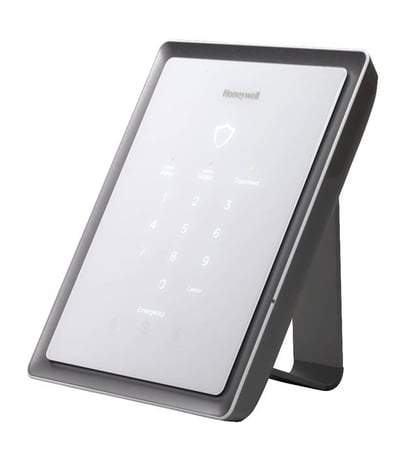
Product Picture
Press ""Automation"" on the Home screen, the Z-wave Device Management screen appears. Press the ""Down"" arrow. Press ""Tools"" and select ""Advanced Tools"". Enter the Master User code: 1234, the Advanced Tools screen appears and select ""Learn"".
Press ""Automation"" on the Home screen, the Z-wave Device Management screen appears. Press the ""Down"" arrow. Press ""Tools"" and select ""Advanced Tools"". Enter the Master User code: 1234, the Advanced Tools screen appears and select ""Factory Default Controller"". Note: If this controller is the primary controller for your network, resetting it will result in the nodes in your network being orphaned and it will be necessary after the reset to exclude and re-include all of the nodes in the network. If this controller is being used as a secondary controller in the network, use this procedure to reset this controller only in the event that the network primary controller is missing or otherwise inoperable
Press ""Automation"" on the Home screen, the Z-wave Device Management screen appears. Press the ""Down"" arrow. Press ""Tools"" and select ""Include Devices"".
Press ""Automation"" on the Home screen, the Z-wave Device Management screen appears. Press the ""Down"" arrow. Press ""Tools"" and select ""Exclude Devices"".
| Type | Value(s) |
|---|