Zooz
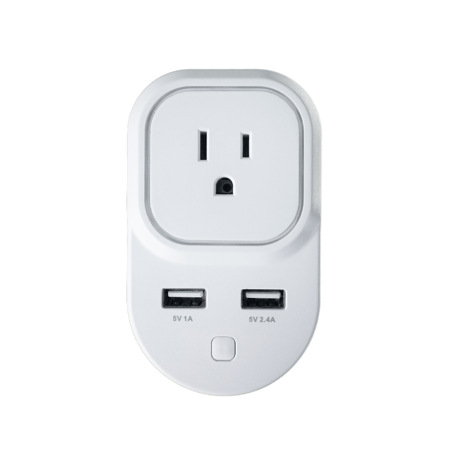
Zooz Z-Wave Smart Plug
ZEN06
On/Off Power Switch
HW: 1 FW: 1.00
ZM5101
6.51.08
0x027A (634)
0x0101 (257)
0x000A (10)
ZC10-16085160
2016-08-08 09:46:14.9328
N/A
Enhanced 232 Slave
Always On Slave
Enjoy wireless control of floor lamps and small appliances. This product features energy monitoring in live mode or over time (your Z-Wave gateway needs to support this feature) and AES signal encryption. Z-Wave Plus chip guarantees faster and more reliable communication.
Product features: - Manual and remote on / off control - Energy monitoring - Scene inclusion for custom automation scenarios when included to a Z-Wave gateway controller - LED indicator displaying Z-Wave signal strength and power usage - Security enabled Z-Wave device with AES signal encryption (requires a security enabled gateway controller for full functionality) - Z-Wave Plus with improved 500 chip for faster and safer wireless communication - Built-in range extender for a stronger, more reliable network - 2 USB charging ports for your smart phone or tablet (no Z-Wave functionality) - Built-in overload protection in Z-Wave outlet and USB ports Product Specifications: Model Number: ZEN06 Z-Wave Signal Frequency: 908.42 MHz Power: 110V, 60Hz Maximum Load: 15A, 1800W USB Charging Port Power: 1A and 2.4A Operating Temperature: 14 – 104 F Range: Up to 130 feet line of sight Installation and Use: Indoor only Dimensions: 4” x 2.5” x 1.2” Weight: 7oz


20 - Overload Protection
Overload protection will turn the Smart Plug’s relay off once voltage exceeds 16.5A for over 5 seconds when this setting is enabled. We DO NOT recommend changing this parameter’s value as it may result in device damage and malfunction.Size: 1 byte
Default: 1
Minimum: 0
Maximum: 0
Possible values
| From | To | Desription |
|---|---|---|
| 0 | 0 | Disabled |
| 1 | 1 | Enabled |
21 - On/Off Status Recovery After Power Failure
Choose the recovery state for your Smart Plug if power outage occurs.Size: 1 byte
Default: 0
Minimum: 0
Maximum: 0
Possible values
| From | To | Desription |
|---|---|---|
| 0 | 0 | Smart Plug remembers the status prior to power outage and turns back to it (default) |
| 1 | 1 | Smart Plug automatically turns ON once power is restored (it does not remember the status prior to power outage) |
| 2 | 2 | Smart Plug automatically turns OFF once power is restored (it does not remember the status prior to power outage) |
24 - On/Off Status Change Notifications
Your Smart Plug will automatically send a notification to the controller and other associated devices if its status changes from on to off or the other way round. Choose when you want it to send the report.Size: 1 byte
Default: 1
Minimum: 0
Maximum: 0
Possible values
| From | To | Desription |
|---|---|---|
| 0 | 0 | disabled (it will not send status change notifications) |
| 1 | 1 | sends notification if status is changed manually or remotely via Z-Wave (default) |
| 2 | 2 | sends notification ONLY if status is changed manually by pressing and releasing the Z-Wave button on the Smart Plug |
27 - LED Indicator Control
You can choose how the LED indicator displays power consumption on the smart plug.Size: 1 byte
Default: 0
Minimum: 0
Maximum: 0
Possible values
| From | To | Desription |
|---|---|---|
| 0 | 0 | LED indicator will display power consumption whenever the device is plugged in (LED stays on at all times) |
| 1 | 1 | LED indicator will display the level of power consumption for 5 seconds only whenever the device is turned on or off (LED indicator will stay off for most of the time) |
151 - Power Report Value Threshold
Choose how you want your Smart Plug to report power consumption to your controller and associated devices. The number entered as value corresponds to the number of Watts the appliance needs to go over for the change to be reported. So if 50 Watts are entered by default, the smart plug will report any change in power usage over 50 Watts (whether it’s at least 50 Watts more or 50 Watts less compared to previous report).Size: 2 bytes
Default: 50
Minimum: 0
Maximum: 0
Possible values
| From | To | Desription |
|---|---|---|
| 1 | 65535 | number of Watts the appliance needs to go over for the change to be reported |
| 0 | 0 | disabled (it will not report power consumption based on value change) |
152 - Power Report Percentage Threshold
Choose how you want your Smart Plug to report power consumption to your controller and associated devices by percentage rate. The number entered as value corresponds to the percentage in power usage change the appliance needs to go over for the event to be reported. So if 10% is entered by default, the Smart Plug will report any change in power consumption over 10% (whether it’s at least 10% more or 10% less power consumption compared to previous report).Size: 1 byte
Default: 10
Minimum: 0
Maximum: 0
Possible values
| From | To | Desription |
|---|---|---|
| 1 | 255 | percentage in power usage change the appliance needs to go over for the event to be reported |
| 0 | 0 | disabled (it will not report power consumption based on percentage change) |
171 - Power Report Frequency
Choose how often you want your Smart Plug to report power consumption (W) to your controller and associated device. The number entered as value corresponds to the number of seconds. So if 30 is entered by default, the Smart Plug will report power consumption every 30 seconds.Size: 4 bytes
Default: 30
Minimum: 0
Maximum: 0
Possible values
| From | To | Desription |
|---|---|---|
| 5 | 2678400 | number of seconds for the interval the Smart Plug will report power consumption |
| 0 | 0 | disabled (it will not report power consumption) |
172 - Energy Report Frequency
Choose how often you want your Smart Plug to report energy usage (KWH) to your controller and associated device. The number entered as value corresponds to the number of seconds. So if 300 is entered by default, the smart plug will report energy usage every 300 seconds (5 minutes).Size: 4 bytes
Default: 300
Minimum: 0
Maximum: 0
Possible values
| From | To | Desription |
|---|---|---|
| 5 | 2678400 | number of seconds for the interval the Smart Plug will report energy usage |
| 0 | 0 | disabled (it will not report energy usage) |
173 - Voltage Report Frequency
Choose how often you want your Smart Plug to report voltage (V) to your controller and associated device. The number entered as value corresponds to the number of seconds.Size: 4 bytes
Default: 0
Minimum: 0
Maximum: 0
Possible values
| From | To | Desription |
|---|---|---|
| 5 | 2678400 | number of seconds for the interval the Smart Plug will report voltage |
| 0 | 0 | disabled (default – it will not report voltage levels) |
174 - Electricity Report Frequency
Choose how often you want your Smart Plug to report levels of electrical current (A) to your controller and associated device. The number entered as value corresponds to the number of seconds.Size: 4 bytes
Default: 0
Minimum: 0
Maximum: 0
Possible values
| From | To | Desription |
|---|---|---|
| 5 | 2678400 | number of seconds for the interval the Smart Plug will report energy current |
| 0 | 0 | disabled (default – it will not report electrical current levels) |
Auto Z-Wave Inclusion 1. Put your Z-Wave controller in inclusion mode 2. Plug the smart plug into a grounded receptacle located within 3 feet from your Z-Wave gateway controller 3. LED indicator will flash blue 4. A new on / off device should be recognized by your Z-Wave controller Manual Z-Wave Inclusion 1. Plug the smart plug into a grounded receptacle located within 3 feet from your Z-Wave gateway controller 2. Put your Z-Wave controller in inclusion mode 3. Press and release the Z-Wave button 3 TIMES QUICKLY 4. LED indicator will flash blue 5. A new on / off device should be recognized by your Z-Wave controller Secure Z-Wave Inclusion 1. Plug the smart plug into a grounded receptacle located within 3 feet from your Z-Wave gateway controller 2. Put your Z-Wave controller in secure inclusion mode 3. Press and HOLD the Z-Wave button for at least 3 seconds 4. LED indicator will flash green 5. LED indicator will turn solid green once the inclusion is completed. Please allow 5 minutes for configuration. DO NOT press any buttons or move the device during that time 6. A new secure on / off device should be recognized by your Z-Wave controller
1. Plug the smart plug into a grounded receptacle located within 3 feet from your Z-Wave gateway controller 2. Put your Z-Wave controller in exclusion mode 3. Press and release the Z-Wave button 3 TIMES QUICKLY 4. LED indicator will flash orange 5. The smart plug should disappear from your controller's device list and LED indicator will remain solid orange for a few seconds to indicate exclusion
When your network’s primary controller is missing or otherwise inoperable, you may need to reset the device to factory settings manually. In order to complete the process, plug the smart plug into a grounded receptacle, then PRESS AND HOLD the Z-Wave button for AT LEAST 20 SECONDS. The LED indicator will stay solid yellow for 2 seconds to indicate successful reset. The plug will then automatically turn off. NOTE: All previously recorded activity and custom settings will be erased from the device’s memory. You may only reset your smart plug once it has been included to a Z-Wave network.
LED NOTIFICATIONS LED indicator on your smart plug will visually report power consumption and network range. How to read LED indicator colors? Burgundy = Smart Plug is off Blue = 0 – 300 W Cyan = 300 – 600 W Green = 600 – 900 W Yellow = 900 – 1200 W Red = 1200 – 1500 W Purple = 1500 – 1800 W Purple blink = over 1800 W LED Indicator Control Parameter 27: You can choose how the LED indicator displays power consumption on the smart plug Values: 0 – LED indicator will display power consumption whenever the device is plugged in (LED stays on at all times – default setting); 1 – LED indicator will display the level of power consumption for 5 seconds only whenever the device is turned on or off (LED indicator will stay off for most of the time) Size: 1 byte dec. How to test Z-Wave network range for my Smart Plug? You can easily check if the Smart Plug is within your Z-Wave controller’s range. Here is how: Press and hold the Z-Wave button for 6 to 9 seconds until the LED indicator turns violet. The LED indicator will then report signal strength. Flashing green = direct communication with the primary controller is established and still being diagnosed Solid green for 2 seconds = direct communication with the primary controller is stable Flashing orange = direct communication with the primary controller is intermittent and being diagnosed Solid orange = communication quality is fair Solid red = communication with the primary controller has failed Press and release the Z-Wave button to exit testing mode. NOTE: This function may only be activated once the Smart Plug has been included to a Z-Wave network.
| Type | Value(s) |
|---|