Zooz
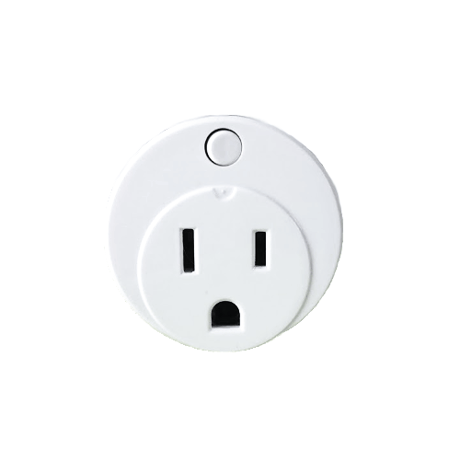
Zooz Z-Wave Mini Plug
ZEN07
On/Off Power Switch
HW: 65 FW: 3.70
ZM5202
6.51.06
0x027A (634)
0x0003 (3)
0x1087 (4231)
ZC10-16085170
2016-08-15 05:51:53.8504
N/A
Enhanced 232 Slave
Always On Slave
This Z-Wave Mini Plug brings reliable wireless on/off control with energy monitoring of floor lamps and small appliances to your smart home system. It's small enough to fit 2 in the same receptacle!
Product features: - Local and remote on/off control of lamps and small appliances - Energy monitoring in live mode or over time (your Z-Wave gateway needs to support this feature) - Scene inclusion for custom automation scenarios when included to a Z-Wave gateway controller - Advanced configuration to customize LED indicator display and Z-Wave button functionality - Automatic status recovery after power outage - Timer option to turn off the device automatically (your Z-Wave gateway needs to support this feature) - Z-Wave Plus with improved 500 chip for faster and safer wireless communication - Built-in range extender for a stronger, more reliable network - Super small size – easily fits two in a standard double receptacle Specs: Model Number: ZEN07 Z-Wave Signal Frequency: 908.42 MHz Power: 110V, 60Hz Maximum Load: 13A Power consumption: 0.13W Operating Temperature: 32 – 104 F Range: Up to 100 feet line of sight Installation and Use: Indoor only Dimensions: 1 ¾“ (diameter) x 1 1/8” Weight: 1 ½ oz


1 - Metering Report
Choose if you want the Mini Plug to send metering reports to the controller.Size: 1 byte
Default: 1
Minimum: 0
Maximum: 0
Possible values
| From | To | Desription |
|---|---|---|
| 0 | 0 | Metering disabled |
| 1 | 1 | Metering enabled |
2 - Metering Report Frequency
Choose how often you want the Mini Plug to send metering reports to the controller. The number entered as the value corresponds to the number of seconds. So if 300 is entered by default, the Mini Plug will report power consumption every 300 seconds (5 minutes).Size: 2 bytes
Default: 300
Minimum: 0
Maximum: 0
Possible values
| From | To | Desription |
|---|---|---|
| 1 | 65536 | Number of seconds metering report is sent to controller |
3 - Overload Protection
Use this parameter to adjust the maximum amount of electricity you want your Mini Plug to handle. The number entered as the value corresponds to the number of Amperes. Overload protection will turn the Mini Plug’s relay off once load exceeds 13A by default. It will also send a notification (NOTIFICATION_EVENT_POWER_MANAGEMENT_OVER_LOAD_DETECTED) to the controller and all associated devices. LED indicator on the device will blink red until the load is disconnected. Press the Z-Wave button ONCE to switch the alarm off. The value set in this parameter needs to be greater than the value in parameter 4.Size: 1 byte
Default: 13
Minimum: 0
Maximum: 0
Possible values
| From | To | Desription |
|---|---|---|
| 1 | 16 | Maximum number of Amperes to be accepted by the Mini Plug |
4 - Overload Notification
Use this parameter to adjust electricity value for LED notifications of heavy load. The LED indicator on the Mini Plug will light up yellow once electricity from the load is greater than the value set in this parameter. The relay will NOT turn off. The value set in this parameter can NOT be greater than the value in parameter 3.Size: 1 byte
Default: 12
Minimum: 0
Maximum: 0
Possible values
| From | To | Desription |
|---|---|---|
| 1 | 13 | Maximum number of Amperes that will trigger overload LED notification on the Mini Plug |
5 - LED Notifications
Use this parameter to turn LED notifications on or off.Size: 1 byte
Default: 1
Minimum: 0
Maximum: 0
Possible values
| From | To | Desription |
|---|---|---|
| 0 | 0 | LED disabled |
| 1 | 1 | LED enabled |
6 - Power Report Percentage Threshold
Choose how you want your Mini Plug to report power consumption, electricity, voltage, and energy usage to your controller and associated devices by percentage rate. The number entered as the value corresponds to the change in percentage the appliance needs to go over for the event to be reported. So if 5% is entered by default, the Mini Plug will report any change in power consumption (W), voltage (V), electricity (A), or energy usage (kWH) over 5% (whether it’s at least 5% more or 5% less compared to previous report).Size: 1 byte
Default: 5
Minimum: 0
Maximum: 0
Possible values
| From | To | Desription |
|---|---|---|
| 1 | 100 | Percentage of change in power consumption, voltage, electricity, or energy usage to be reported to controller by the Mini Plug |
7 - On/Off Status Recovery After Power Failure
Choose the recovery state for your Mini Plug if power outage occurs.Size: 1 byte
Default: 1
Minimum: 0
Maximum: 0
Possible values
| From | To | Desription |
|---|---|---|
| 0 | 0 | Mini Plug automatically turns OFF once power is restored (it does not remember the status prior to power outage) |
| 1 | 1 | Mini Plug remembers the status prior to power outage and turns back to it |
8 - Auto Turn-Off Timer
Parameter 8: Use this parameter to enable or disable the auto turn-off timer function. If this feature is enabled, the Mini Plug will automatically turn off after a fixed period of time (set in parameter 9).Size: 1 byte
Default: 0
Minimum: 0
Maximum: 0
Possible values
| From | To | Desription |
|---|---|---|
| 0 | 0 | timer disabled |
| 1 | 1 | timer enabled |
9 - Auto Turn-Off Timer Settings
Use this parameter to set the time after which you want the Mini Plug to automatically turn off once it has been turned on. The number entered as value corresponds to the number of minutes.Size: 2 bytes
Default: 150
Minimum: 0
Maximum: 0
Possible values
| From | To | Desription |
|---|---|---|
| 1 | 65535 | Number of minutes the Mini Plug will turn off after once the auto turn-off timer is enabled |
10 - Manual Control
Choose if you want to use the Z-Wave button to turn the Mini Plug on or off manually or if you want to disable this function. If this parameter is set to 0 (disabled), you will only be able to turn the Mini Plug on or off remotely using your Z-Wave gateway controller.Size: 1 byte
Default: 1
Minimum: 0
Maximum: 0
Possible values
| From | To | Desription |
|---|---|---|
| 0 | 0 | manual control disabled |
| 1 | 1 | manual control enabled |
1. Plug the Mini Plug into a grounded receptacle within the range of your Z-Wave network 2. Put your Z-Wave controller into inclusion mode 3. Press and release the Z-Wave button on the Mini Plug 3 TIMES quickly. The LED indicator will flash green. It will turn solid green once the process has been completed 4. A new on / off device should appear on your device list Troubleshooting Tips If you are unable to include the Z-Wave Mini Plug to your controller, please try one of the following: - Bring the Mini Plug closer to your Z-Wave controller or use a hand-held secondary controller to perform inclusion - Once in inclusion mode, press and release the Z-Wave button quickly 5-6 TIMES to ensure the command has gone through - Put your controller into EXCLUSION mode. Press and release the Z-Wave button quickly 3 TIMES, and then try adding it to your network again
1. Plug the Mini Plug into a grounded receptacle 2. Put your Z-Wave controller into exclusion mode 3. Press and release the Z-Wave button 3 TIMES quickly. The LED indicator will flash pink 4. The smart plug should disappear from your controller's device list If the first attempt is unsuccessful, please repeat the process following all steps carefully.
When your network’s primary controller is missing or otherwise inoperable, you may need to reset the device to factory settings manually. To complete the process, plug the Mini Plug into a grounded receptacle, then PRESS AND HOLD the Z-Wave button for AT LEAST 10 SECONDS until the LED indicator flashes red. Release the button. NOTE: All previously recorded activity and custom settings will be erased from the device’s memory.
| Type | Value(s) |
|---|