Leviton Manufacturing, Inc.
Plug-In Outlet
DZPA1
On/Off Power Switch
HW: 255 FW: 1.23
ZM5202
6.61.00
0x001D (29)
0x3601 (13825)
0x0001 (1)
ZC10-16095238
2016-09-20 12:01:41.034
N/A
Enhanced 232 Slave
Always On Slave
Plug-In Outlet designed for most residential lighting applications to plug-in devices (lamps, small appliances) utilizing Z-Wave Plus technology.
The wireless Leviton DZPA1 is a Z-Wave enabled plug-in outlet designed for use for most residential applications to control plug-in lamps, holiday lighting, or small appliances. The DZPA1 Plug-In Outlet is fully compatible with Z-Wave Plus certified controllers. Offers manual control to turn loads on/off. Manufacturer Parameters allow custom configuration via Z-Wave commands. Rated for 5A LED and CFL bulbs, 1800W incandescent bulbs, 1800W Fluorescent, 15A Resistive, and 1/2 HP Motor. These Z-Wave Plus devices support beaming, network wide inclusion, and over the air updates.
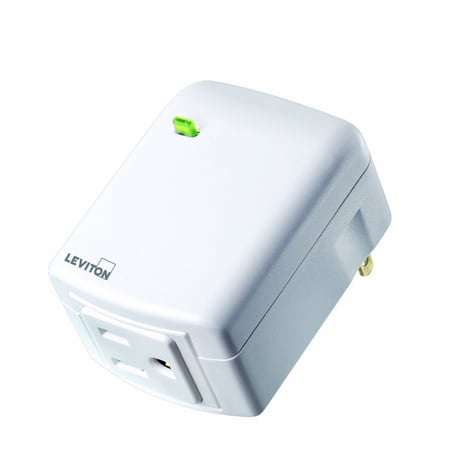
Product Picture


7 - Locator LED Status
Locator LED Status • Parameter No: 7, Length: 1 Byte • Valid Values = 0 to 255 (default 255) - 0 = LED Off - 254 (0xFE) = Status Mode - 255 (0xFF) = Locator ModeSize: 1 byte
Default: 255
Minimum: 0
Maximum: 0
Possible values
| From | To | Desription |
|---|---|---|
| 0 | 0 | LED Off |
| 254 | 254 | LED Status Mode |
| 255 | 255 | LED Locator Mode |
Leviton Decora SmartTM Z-Wave® devices support two methods of inclusion. When using a Z-Wave PlusTM certified controller choose Network Wide Inclusion. Network Wide Inclusion: Network Wide Inclusion allows your device to be added to the network using devices already in the network to assist with communication. Work your way from the closest devices to the controller outward. • Enter Programming Mode by holding the control button for 7 seconds, the Locator LED will blink amber. • Tap the control button one time. The Locator LED will quickly flash green. • The Decora SmartTM Z-Wave® device is ready to learn into the Z-Wave® network. • Follow directions in the Z-Wave® controller to complete the adding process. • Upon successful addition to network the LED will turn off and then blink green 3 times. • If the adding process is not successful the LED will flash red 3 times. Traditional Inclusion: For older controllers Traditional Inclusion is supported. Depending on the age of the controller the controller will need to be 3 to 35 feet from the device when including. • Enter Programming Mode by holding the control button for 7 seconds, the Locator LED will blink amber. • The Decora SmartTM Z-Wave® device is ready to add to the Z-Wave® network. • Follow directions in the Z-Wave® controller to enter learn mode. • Tap the control button one time. The Locator LED will quickly flash green. The Z-Wave® controller will begin to pair with the Decora Smart device. • Upon successful addition to the network the LED will turn off and then blink green 3 times. • If the adding process is not successful the LED will flash red 3 times.
When removing a device from a Z-Wave® network best practice is to use the exclusion command found in the Z-Wave® controller. • Enter Programming Mode by holding the control button for 7 seconds, the Locator LED will turn amber. • Follow directions in the Z-Wave® controller to enter exclusion mode. • Tap the control button one time. The Locator LED will quickly flash green. The Z-Wave® controller will exclude the Decora Smart device. • The Z-Wave® controller will confirm successful exclusion from the network.
When removing a device from a network it is best practice to use the Exclusion process. In situations where a device needs to be returned to factory default follow the following steps. A reset should only be used when a controller is inoperable or missing: • Holding the control button for a total of 14 seconds. - After the first 7 seconds the LED turns amber. - The Locator LED will quickly flash red/amber after 14 seconds. • Release the control button and the device will reset.
| Type | Value(s) |
|---|