Hank
RGB Bulb
HKZW-RGB01
Light Dimmer Switch
HW: 1 FW: 1.01
ZM5101
6.51.08
0x0208 (520)
0x0101 (257)
0x0004 (4)
ZC10-16095230
2016-09-09 15:06:01.6082
N/A
Enhanced 232 Slave
Always On Slave
RGB Bulb is a smart bulb enables Z-Wave remote command and control (on/off/dim). It has over 16,000,000 colors, you can choose its color according to your favour.
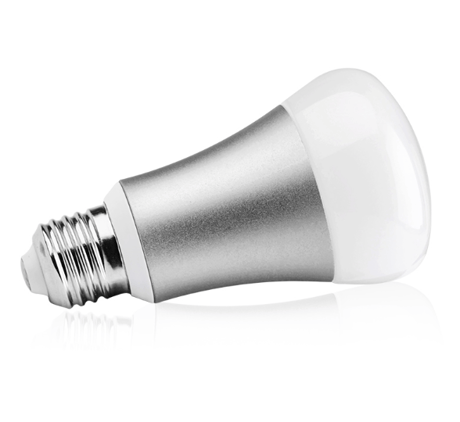
Product Picture


21 - Setting device status after power failure
Define how the RGB BULB will react after the power supply is back on.Size: 1 byte
Default: 0
Minimum: 0
Maximum: 0
Possible values
| From | To | Desription |
|---|---|---|
| 0 | 0 | Define how the RGB BULB will react after the power supply is back on. |
| 1 | 1 | RGB BULB memorizes its state after a power failure. |
| 2 | 2 | RGB bulb does not memorize its state after a power failure. |
24 - Notification when Load status change
RGB BULB can send notifications to associated device (Group Lifeline) when the status of the RGB BULB is changed.Size: 1 byte
Default: 1
Minimum: 0
Maximum: 0
Possible values
| From | To | Desription |
|---|---|---|
| 0 | 0 | The function is disabled |
| 1 | 1 | Send Basic report |
| 2 | 2 | Send BASIC REPORT only when the status of the RGB BULB is not changed by Z-WAVE command. |
255 - Reset to factory default
RGB BULB will exclude from the Z-Wave network with this particular command.Size: 4 bytes
Default: 0
Minimum: 0
Maximum: 0
Possible values
| From | To | Desription |
|---|---|---|
| 1431655765 | 1431655765 | Resetting to the factory default. |
To include RGB BULB into a Z-Wave network as a non-security device: (1) Make sure the power supply is disconnected and the RGB BULB is located within a direct Z-Wave network's main controller communication range. (2) Set the Z-Wave network main controller into learning mode (see Z-Wave network controller operating manual). (3) Insert the RGB BULB into a lamp-socket and then power on. (4) Auto-inclusion will be activated. If the inclusion is successful, the RGB BULB will blink fast in blue for less than 5 seconds and then keep on for 3 seconds. RGB BULB will keep on in the color before it is included into the Z-Wave network after the inclusion procedure is finished. To include RGB BULB into a Z-Wave network as a security device: (1) Screw in the RGB BULB. (2) Set the Z-Wave network main controller into learning mode (see Z-Wave network controller operating manual). (3) Toggle the wall switch off and on 3 times quickly (within 3 seconds and the final ending position of the wall switch must be on). (4) If the inclusion is successful, the RGB BULB will blink fast in green for less than 5 seconds and then keep on 3 seconds. RGB BULB will keep on in the color before it is included into the Z-Wave network after the inclusion procedure is finished.
To remove the RGB BULB from the Z-Wave network: (1) Screw in the RGB BULB. (2) Set the Z-Wave network main controller into excluding mode (see Z-Wave controller operating manual). (3) Toggle the wall switch off and on 3 times quickly(within 3 and the final ending position of the wall switch must be on), if the exclusion is successful, the RGB BULB will blink fast in orange for less than 5 seconds and then keep on for 3 seconds. RGB BULB will keep on warm white after the exclusion procedure is finished.
There are two ways to reset the RGB BULB. One is that removing RGB BULB from the Z-Wave network, the other is that using the configuration command class.