Easy Home
Door/Window Sensor
EH-DS-01
Notification Sensor
HW: 255 FW: 1.25
ZM5202
6.51.07
0x0286 (646)
0x0186 (390)
0x0186 (390)
ZC10-16125349
2016-12-15 16:39:58.839936
N/A
Routing Slave
Reporting Sleeping Slave
Yes
The Z-Wave Door/Window sensor, which consists of a magnet that attaches to a door or window, will communicate door events to the home security system.
Z-Wave Door/Window sensors are designed to secure the perimeter of the residential premise, and provide the ability to add various automation services. The Z-Wave Door/Window sensor, which consists of a magnet that attaches to a door or window, will communicate door events to the home security system. When the magnet is moved away from the sensor, a signal will be sent to the control panel that communicates the changed state to the security system. Signals can also be used to activate a chime or convenience lighting based on system settings.
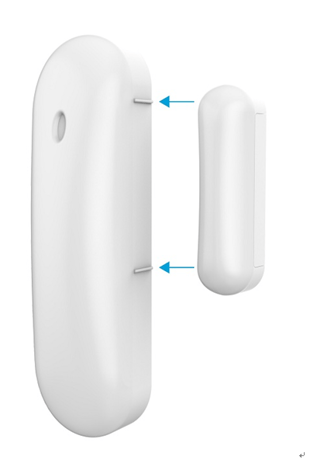
For Adding in (Inclusion) a network: Put the Z-Wave Interface Controller into “Add (Inclusion)” mode, and following its instruction to add EH-DS-01 to your controller. This Door/Window sensor needs to be included before installation. 1. Pull the exposed plastic tab from the sensor. 2. Press the button three times within 2 seconds, The Red LED indicator will be flashing three times to indicate scanning the network. 3. If network is not found after 30 seconds, the sensor will go into sleep mode. To Adding again, you need repeat steps 2
For Removing from (Exclusion) a network: Put the Z-Wave Interface Controller into “Remove (Exclusion)” mode, and following its instruction to delete EH-DS-01 to your Z-Wave controller. 1. Remove device front cover and pressing the button three times within 2 seconds, The Red LED indicator will be flashing three times and enter exclusion mode. 2. If remove (exclusion) successful, go auto Adding procedure. 3. Node ID has been remove.
1. Pressing the button before power on, do not release the button and power on and keep on ten seconds, and the LED will turn ON. 2. After over 1 seconds the Red LED indicator will turn OFF, then go auto Adding procedure. 3. IDs are excluded and all settings will reset to factory default. 4. Device begin auto Adding (Inclusion) mode. Note: Use this procedure only in the event that the primary controller is lost.
| Type | Value(s) |
|---|
| Sensor type |
|---|
| General Purpose |