GoControl
WS15Z5-1
WS15Z5-1
On/Off Power Switch
HW: 255 FW: 1.26
ZM5202
6.51.09
0x014F (335)
0x5753 (22355)
0x3535 (13621)
ZC10-17045537
2016-12-14 03:18:30.919565
N/A
Enhanced 232 Slave
Always On Slave
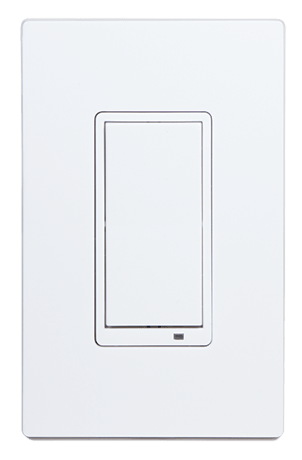
WS15Z5-1 Smart in-wall switch controls the connected load and can run up to 8 scenes using the Central Scene Command Class creating the perfect whole house environment.
The WS15Z5-1 is a Smart in-wall switch designed providing the ideal mood for every situation for the entire home. Not only can this switch control the connected load, with Central Scene support it can run up to 8 scenes created by the Hub, making the familiar light switch the most versatile Home Automation light switch available. It can essentially control lights and devices throughout the entire home. With Over The Air upgrading supported, this device can be seamlessly updated to the most recent firmware and software features. Finally, as a Z-Wave plus product, it’s 30% longer range is ideal for easily creating a strong Z-Wave mesh network for an easier installation and more reliable operation.


3 - Night Light
The LED Night Light on the WS15Z5-1 will turn OFF when the load attached is turned ON. To make the LED turn ON when the load attached is turned ON.Size: 1 byte
Default: 0
Minimum: 0
Maximum: 0
Possible values
| From | To | Desription |
|---|---|---|
| 0 | 4 | 0 - LED OFF when the load is on, and ON when the load is off. 1 - LED ON when the load is on, and OFF when the load is off. 2 - LED is always on. 3 - LED is always off. 4 - LED blinks during RF transmissions from or to the device. |
4 - Invert Switch
To change the top of the switch to OFF and the bottom of the switch ON.Size: 1 byte
Default: 0
Minimum: 0
Maximum: 0
Possible values
| From | To | Desription |
|---|---|---|
| 0 | 1 | 0 - Top of switch is ON, bottom of switch is OFF. 1 - Bottom of switch is ON, top of switch is OFF |
With your Controller in Discovery or Add Mode, tap the switch. The LED will blink slowly when in ADD Mode. You should see an indication on your Controller that the “device was added” to the network and the LED will stop blinking. The device will appear in the list of Switches. It should display as a switch.
Set the Controller into Removal Mode and follow its instruction to delete the WS15Z5-1 from the Controller. Remove the switch by tapping the paddle 2 times. The LED will begin blinking slowly for 10 seconds indicating that it has been removed. You should see an indication on your Controller that the “device was removed” from the network.
To reset the WS15Z5-1 and clear all network information, follow these steps: 1. Tap the top of the switch fi ve (5) times. 2. Press and hold the bottom of the switch for 15 seconds. The LED will increasingly blink faster to indicate that a Reset is taking place.
| Type | Value(s) |
|---|