Siterwell Technology
SiterOne
STW-GS190B
Central Controller
HW: 1 FW: 4.38:01.00:00.80
ZM5202
6.51.09
0x0266 (614)
0x0001 (1)
0x0001 (1)
ZC10-17015407
2017-01-06 01:56:39.796254
N/A
Static Controller
Central Static Controller
SiterOne is a smart home controller offering device control, instant alert notification and intelligent home automation.
This product can be included and operated in any Z-Wave network with other Z-Wave certified devices from other manufacturers and/or other applications. All non-battery operated nodes within the network will act as repeaters regardless of vendor to increase reliability of the network. This device is a security enabled Z-Wave Plus product that is able to use encrypted Z-Wave Plus messages to communicate to other security enabled Z-Wave Plus products.
SiterOne can be added to an existing Z-Wave controller as a “secondary/inclusion” controller. (this process is also called ""copy"" or ""replication""). To include controller as a secondary/inclusion controller for an existing Z-Wave network: Note: a. If a SiterOne does not belong to any Z-Wave network, and another controller try to remove the SiterOne, it requires 30 seconds to complete the remove process. b. If a SiterOne has been added into another controller, but the controller does not sent association_set commands, it requires 30 seconds to complete the add process. - Navigate to the setting menu - Enter the Setting Menu, and tap the Z-Wave page. - Enter PIN code: default is 1234 - At the Z-Wave setting page, tap Learn mode. The SiterOne enter Learn mode, and waits for a signal from the primary SiterOne. After the include done, it will show Successfully. Tap OK.
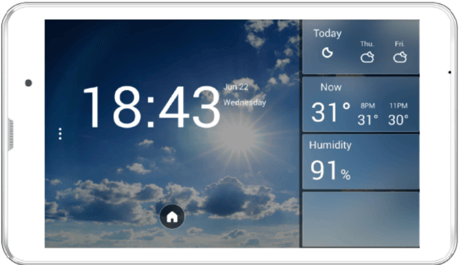
Click the power button on the tablet. It is on the upper-right hand side.
Reset SiterOne will remove all Z-Wave device and reset the controller status to factory default. If this SiterOne is the primary controller for your network, reset controller will result in all added devices in your network being orphaned and you have to force exclude all devices and then add them again. If this SiterOne is a secondary controller in the network, reset controller will reset this controller only , so the primary controller will no longer see the secondary controller. - Navigate to the setting Menu - Enter the Setting Menu, and tap the Zwave page. - Enter PIN code: default is 1234 - At the Z-Wave setting page, tap Reset Controller - At the Reset Controller Dialog, tap Reset While the controller is being reset, it will show Reseting When the controller is reset, it will show Successfully. Tap OK and the reset is done.
To include a Z-Wave device to the network: (this process is also called ""replicate the information on a new controller"") - Navigate to the setting Menu - Enter the Rooms Menu, tap Add Device - Select device type (if your device is not on the list ex, other controller. Select any of them and continue) and press Next Controller start to include device. Trigger the device. For example, if you are adding a Z-Wave light, turn the light ON. When the system discovers a device, it will show Including. The included device appears in the Include Device Page, and it will show Include Successful. It can enter device name in the naming box. On the naming box, enter a new device name. For example, enter: Light. After setup device name, tap Next it will go to the done page. Tap Done. The system will show you what added in the Room. The device will be list in the room.
To exclude a Z-Wave device from the network: - Navigate to the setting Menu - Enter the Rooms Menu, select the device want to exclude and enter setting page. - At the device editing page, tap Exclude device. Trigger the device on the network, For example, if you are excluding a Z-Wave light, turn the light ON. When the system successfully excludes the device, it will show Exclude Successfully. Tap OK to return to the Room page.
| Type | Value(s) |
|---|