Remote Technologies Incorporated
Z-Wave Interface Module
ZW-9 (EU)
Gateway
HW: 193 FW: 4.38:01.00
ZM5304
6.51.09
0x0255 (597)
0x0001 (1)
0x0001 (1)
ZC10-17035479
2017-03-14 00:47:57.993928
N/A
Static Controller
Central Static Controller
Z-Wave Interface Controller for EU Region
Utilizes Z-Wave communication to control and monitor Z-Wave enabled products such as lights, door locks, shades, thermostats and more via an RTI control system. • Wireless control and monitoring of Z-Wave lighting devices via the RTI control system. • Compatible with a broad range of Z-Wave certified electronics including door locks, security devices, window shades, thermostats and more. • Expandable and scalable system allows control of more than 200 devices. • Programmed using Z-Wave Manager tool from within RTI proprietary programming software (Integration Designer) allowing easy integration into RTI systems.
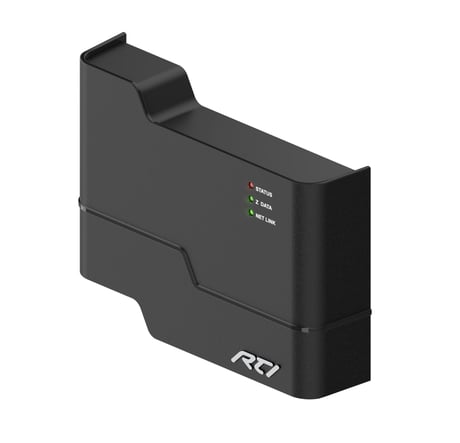
Product Picture
To Become a Secondary Controller (Learn Mode): First activate the Include process on the third-party Primary Controller device. Then select Learn Mode on the Controller toolbar to activate the Learn Mode on the ZW-9. To Become a Primary Controller (Learn Mode): First activate the Include process on the other Primary Controller to add another controller as the Primary Controller. Then select Learn Mode on the Controller toolbar to activate the Learn Mode on the ZW-9.
USE THE RESET PROCEDURE ONLY WHEN THE PRIMARY CONTROLLER IS MISSING OR INOPERABLE. Start the Product Reset process by selecting Reset Controller/Start New Installation from the main menu or by selecting the Reset Controller/Start New Installation button on the main toolbar. This is used to set the ZW-9 to Defaults. The ZW-9 will become the primary controller, all Z-Wave devices will be removed from its memory and a new HomeID will be assigned.
Start the Add/Include process by selecting Device-Add/Include from the main menu or by selecting the Add/Include button on the main toolbar. It may take a few moments for the device to show up in the list depending on how many devices are already in the network and what type of device is being added. When a device is successfully added you will also hear a beep sound from the computer.
Start the Remove/Exclude process by selecting Device-Remove/Exclude from the main menu or by selecting the Remove/Exclude button on the main toolbar. Once the dialog box appears, activate the exclude process on the device usually in the form of some type of button press (see the device documentation for more details). As devices are removed from the Z-Wave network they are removed from the Device List.
| Type | Value(s) |
|---|