Zooz
Zooz Z-Wave Plus Water Sensor
ZSE30
Notification Sensor
HW: 48 FW: 2.40
ZM5202
6.51.06
0x027A (634)
0x0003 (3)
0x0085 (133)
ZC10-17025433
2017-02-14 06:48:54.095709
N/A
Routing Slave
Reporting Sleeping Slave
Yes
The Zooz Water sensor detects leaks and sends notifications to your Z-Wave controller so you can prevent water damage in monitored areas.
Product features: - Reliable water and leak detection - Wireless notifications and event triggers (when included to a Z-Wave gateway controller) - Built-in audio and visual alarms - Low battery alerts - Z-Wave Plus with improved 500 chip for faster and safer wireless communication - Flexible installation with 2 mounting options Specifications: Model Number: ZSE30 Z-Wave Signal Frequency: 908.42 MHz Power: 1 CR2 battery (included) Power Consumption: 0.13W Operating Temperature: 32 – 104 F Range: Up to 100 feet line of sight Installation and Use: Indoor only Dimensions: 2.5” x 0.9” Weight: 2 oz
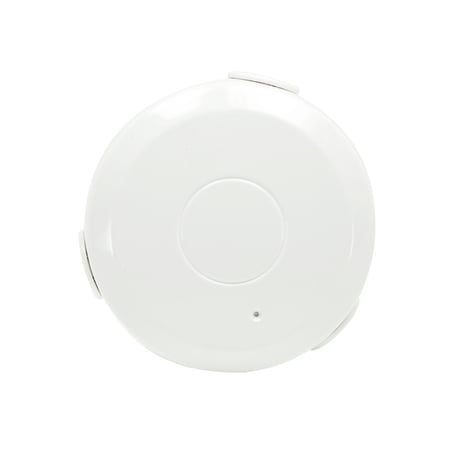
Product Picture


1 - Total Alarm Duration
Use this parameter to set the total duration of audio and visual alarm each time water is detected. If the value is set to 0, the alarm will continue until water is no longer detected. Use parameters 2 – 4 to customize the alarm.Size: 1 byte
Default: 120
Minimum: 0
Maximum: 0
Possible values
| From | To | Desription |
|---|---|---|
| 0 | 0 | alarm will continue until water is no longer detected |
| 1 | 255 | minutes |
2 - Audio Alarm: Beep Interval
Set the beeping frequency for the sensor’s audio alarm. The interval between beeps can be as low as 1 minute.Size: 1 byte
Default: 1
Minimum: 0
Maximum: 0
Possible values
| From | To | Desription |
|---|---|---|
| 1 | 255 | minutes |
3 - Audio Alarm: First Beep Duration
Adjust the duration of the initial sound the alarm will produce after a leak is detected.Size: 1 byte
Default: 60
Minimum: 0
Maximum: 0
Possible values
| From | To | Desription |
|---|---|---|
| 10 | 255 | seconds |
4 - Audio Alarm: Beep Duration
Adjust the duration of the beeps the alarm will sound after a leak is detected and the first “long” beep is produced.Size: 1 byte
Default: 5
Minimum: 0
Maximum: 0
Possible values
| From | To | Desription |
|---|---|---|
| 5 | 255 | seconds |
5 - Enable / Disable Audio Alarm
Enable or disable the audio alarm by adjusting these parameter settings. The visual alarm will NOT be disabled and the LED indicator will always light up each time water is detected.Size: 1 byte
Default: 1
Minimum: 0
Maximum: 0
Possible values
| From | To | Desription |
|---|---|---|
| 0 | 0 | alarm disabled |
| 1 | 1 | alarm enabled |
6 - Enable / Disable Water Detection
Enable or disable water detection for the sensor by adjusting these parameter settings.Size: 1 byte
Default: 1
Minimum: 0
Maximum: 0
Possible values
| From | To | Desription |
|---|---|---|
| 0 | 0 | sensor disabled |
| 1 | 1 | sensor enabled |
7 - Trigger Action
You can choose if your Water Sensor turns an associated device on or off when sending the basic set command. Use value 0 to turn the associated device OFF and value 255 to turn it ON. Adjust brightness level for a Z-Wave dimmer (Multilevel switch) by putting in any value between 1 and 99.Size: 1 byte
Default: 255
Minimum: 0
Maximum: 0
Possible values
| From | To | Desription |
|---|---|---|
| 0 | 0 | OFF |
| 1 | 99 | % of light |
| 255 | 255 | ON |
1. Bring the Water Sensor within direct range of your controller 2. Carefully remove the cover from the sensor 3. Remove the plastic pull-tab from the battery slot. The LED indicator will blink slowly 5 times 4. Put your Z-Wave controller into inclusion mode 5. Press and release the Z-Wave button on the Water Sensor 3 TIMES quickly. The LED indicator will flash quickly 6. A new water (leak) sensor will appear on your controller's device list Troubleshooting Tips If you are unable to include the Z-Wave Water Sensor to your controller, try one of the following: - Bring the sensor closer to your hub or use a hand-held secondary controller to perform inclusion - Once in inclusion mode, press and release the Z-Wave button quickly 6-7 TIMES to ensure the command has gone through - Put your controller in EXCLUSION mode. Press and release the Z-Wave button quickly 3 TIMES, and then try adding the sensor to your network again - You may need to change the device type manually if the sensor is not recognized correctly (email us for more info: [email protected])
1. Make sure the Water Sensor is powered on and located within direct range of your Z-Wave gateway controller 2. Put your Z-Wave controller in exclusion mode 3. Press and release the Z-Wave button 3 TIMES quickly. The LED indicator will flash quickly 4. The Water Sensor should disappear from your controller's device list If the first attempt is unsuccessful, please repeat the process following all steps carefully.
If you change settings and parameters for the sensor, you may need to wake it up manually for the changes to be recorded. Press and release the Z-Wave button THREE TIMES to wake the device up. The LED indicator will flash ONCE. The sensor’s wake-up interval is set to 12 hours by default to save battery life. Though not recommended, you can change the wake-up interval using your controller’s advanced settings if available. Minimum value: 300s (5 minutes), maximum value: 16,777,200s (around 194 days). Accepted values need to match minute intervals, so 300, 360, 420, etc.
When your network’s primary controller is missing or otherwise inoperable, you may need to reset the device to factory settings manually. To complete the process, make sure the Water Sensor is powered on, then PRESS AND HOLD the Z-Wave button for AT LEAST 10 SECONDS until the LED indicator flashes ONCE. Release the button. NOTE: All previously recorded activity and custom settings will be erased from the device’s memory.
| Type | Value(s) |
|---|
| Sensor type |
|---|
| Moisture |