NuTone
Standard Controller
NHUB100
Gateway
HW: 4 FW: 4.05:03.07
ZM5202
6.51.06
0x008C (140)
0x0037 (55)
0x0023 (35)
ZC10-17035493
2017-03-20 18:03:39.537684
N/A
Static Controller
Central Static Controller
NuTone Smart Home Series Standard Smart Home Series Controller can monitor, control or schedule anything connected through the hub from anywhere with one, easy-to-use app.
NuTone Smart Home Series Standard Smart Home Series Controller Monitor, turn on/off or schedule anything connected through the hub from anywhere in the world with one, easy-to-use app. Pick 100 of your favorite Wi-Fi and Z-Wave devices to connect. Easily control your entire home with one touch settings for Home, Away, Night and Vacation. Works with major brands including nest, Schlage, Yale, NuTone, Kwikset, First Alert, plus many more
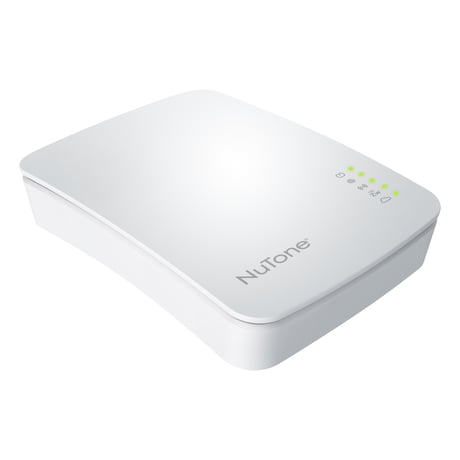
Product Picture
To include the controller into an existing Z-Wave network, use the UI and follow the steps below. Click on Settings -> Z-Wave Settings -> Advanced, select 'Copy Z-Wave network from a primary controller. This will shift the controller to have a secondary controller role and will receive data from the primary controller in the network.
If this controller is the primary controller for your network, resetting it will result in the nodes in your network being orphaned and it will be necessary after the reset to exclude and re-include all of the nodes in the network. If this controller is being used as a secondary controller in the network, use this procedure to reset this controller only in the event that the network primary controller is missing or otherwise inoperable. To reset the controller, press the reset button for 20 seconds. This will reset it to factory default.
To include a Z-Wave product into the network, you can use the UI and follow the on- screen instructions that read as follows: Select Add device -> Pick the device to be included in the network from the list -> Follow the steps for inclusion of the device -> Once the device is detected, save the name of the device and the device completes the configuration process. [Attached images along with the manual]. For an installer who wishes to carry out a manual setup of devices, tap the Sync button on the controller. To exit the inclusion mode on the controller, tap the Sync button again.
To exclude a Z-Wave product into the network, you can use the UI and follow the on- screen instructions that read as follows: Navigate to the device -> Select the delete device option -> Choose to un-pair and follow the instructions. [Attached images along with the manual]. For an installer who wishes to manually exclude a Z-Wave product from the network, hold the Sync button down for 3 seconds.
| Type | Value(s) |
|---|