GoControl
WI15VZ-1 Smart Irrigation Controller
WI15VZ-1
Irrigation Control
HW: 2 FW: 99.12
ZM5101
6.51.08
0x014F (335)
0x5749 (22345)
0x3135 (12597)
ZC10-17075704
2017-07-26 05:03:13.904222
N/A
Enhanced 232 Slave
Always On Slave
Residential irrigation controller supporting 15 valves using the Irrigation Command Class. Supports rain / moisture sensors to optimize watering schedule. Integrated diagnostics and flow sensor support help determine improper operation.
The WI15Z5-1 Smart Irrigation Controller supports up to 15 valves using the Irrigation Command Class. A Z-Wave hub can use local weather conditions and connected rain and moisture sensors to optimizes the use of the scheduled watering cycles. As a connected device, sprinklers can be turned on or off from anywhere there is internet connectivity. Integrated diagnostics and flow sensor support help determine breaks or improper operation of the irrigation system.
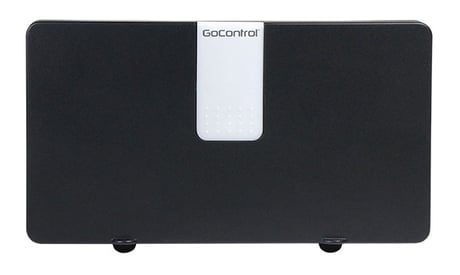
Product Picture


2 - Master Valve Delay
A 3rd party Master Valve/Pump can connect directly to the inputs of the Irrigation Controller. If the Master Valve is using a relay to drive a pump, the relay coil needs to be rated for 24VAC at up to 15W. Some systems require a delay time for the pump to pressurize the water.Size: 2 bytes
Default: 2
Minimum: 0
Maximum: 0
Possible values
| From | To | Desription |
|---|---|---|
| 1 | 255 | Delay in seconds |
12 - Flow Sensor K value
Used to enter in the unique K Factor of an optional flow sensor. Refer to the flow sensor manual for this entry.Size: 4 bytes
Default: 0
Minimum: 0
Maximum: 0
Possible values
| From | To | Desription |
|---|---|---|
| 0 | 0 | Unique to flow sensor |
13 - Flow Sensor Offset value
Used to enter in the unique Offset Value of an optional flow sensor. Refer to the flow sensor manual for this entry.Size: 4 bytes
Default: 0
Minimum: 0
Maximum: 0
Possible values
| From | To | Desription |
|---|---|---|
| 0 | 0 | Unique to the flow sensor |
When the WI15VZ-1 is first powered up, the Status LED should be Red. If the Status LED is Green, the WI15VZ-1 needs to be reset (see below). To add it to your network refer to your controller operating instructions. 1. With your controller in Discovery or Add Mode, tap the button (See Figure8). 2. You should see an indication on your controller that the “device was added” to the network and the Green LED will blink. The device will appear in the list of switches. It should display as a switch. If the controller shows the addition failed, repeat Steps 1-3.
The GoControl Irrigation Controller can be removed from the network by the controller. Refer to the controller operating instructions for details. 1. Set the controller into Removal Mode and follow its instructions to delete it from the controller. 2. Remove the Irrigation Controller by tapping the button 2 times. 3. You should see an indication on your controller that the “device was removed” from the network and the Green LED will blink then turn Red.
In the event that your Hub is lost or otherwise inoperable, to reset the GoControl Irrigation Controller and clear all network information, follow these steps: 1. Tap the button five (5) times. 2. Then press and hold the button for 15 seconds. The Status LED will increasingly blink faster to indicate that a Reset is taking place.
| Type | Value(s) |
|---|
| Group | Type |
|---|---|
| Irrigation | (Refer to parameters): State idle |