URC
URC Z-Wave Gateway
TRF-ZW2
Gateway
HW: 4 FW: 4.05:03.07
ZM5202
6.51.06
0x008C (140)
0x0014 (20)
0x0023 (35)
ZC10-17035516
2017-03-29 18:04:35.177756
N/A
Static Controller
Central Static Controller
URC Z-Wave Gateway for Total Control® and MX HomePro™
The URC Z-Wave® Gateway expands Total Control® and MX HomePro™ system control for Z-Wave based products such as lighting, thermostats, door locks, motorized shades and security devices. It connects to the LAN (Local Area Network) via Wi-Fi or wired Ethernet. It incorporates WPS (Wi-Fi Protected Set-Up) for fast, secure programming. Web-based dealer and end user portals make it easy to set up accounts, integrate products and create Z-Wave scenes. The TRF-ZW2 features remote user device management which enables off-site control, SMS/email notifications, door lock history and automation/scene creation. It features one RJ-45 Ethernet port and one USB port, plus a 12V external power supply. Professional programming required. Learn more at www.universalremote.com.
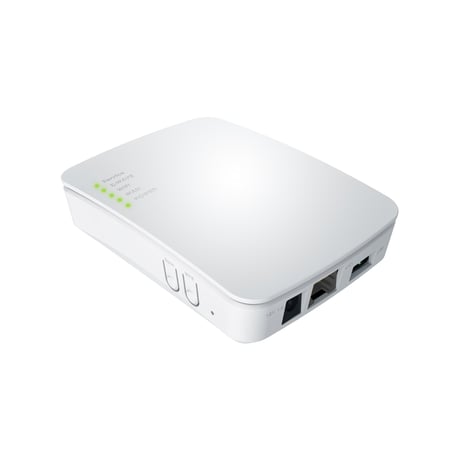
Product Picture
To include the controller into an existing Z-Wave network, use the UI and follow the steps below. Click on Settings -> Z-Wave Settings -> Advanced, select 'Copy Z-Wave network from a primary controller. This will shift the controller to have a secondary controller role and will receive data from the primary controller in the network.
If this controller is the primary controller for your network, resetting it will result in the nodes in your network being orphaned and it will be necessary after the reset to exclude and re-include all of the nodes in the network. If this controller is being used as a secondary controller in the network, use this procedure to reset this controller only in the event that the network primary controller is missing or otherwise inoperable. To reset the controller, press the reset button for 20 seconds. This will reset it to factory default.
To include a Z-Wave product into the network, you can use the UI and follow the on- screen instructions that read as follows: Select Add device -> Pick the device to be included in the network from the list -> Follow the steps for inclusion of the device -> Once the device is detected, save the name of the device and the device completes the configuration process. For an installer who wishes to carry out a manual setup of devices, tap the Sync button on the controller. To exit the inclusion mode on the controller, tap the Sync button again.
To exclude a Z-Wave product into the network, you can use the UI and follow the on- screen instructions that read as follows: Navigate to the device -> Select the delete device option -> Choose to un-pair and follow the instructions. For an installer who wishes to manually exclude a Z-Wave product from the network, hold the Sync button down for 3 seconds.
| Type | Value(s) |
|---|