Talk-Z
Smart Home Bridge
MPU100ZW
Central Controller
HW: 1 FW: 1.00
ZM5202
6.51.10
0x0222 (546)
0x0010 (16)
0x0010 (16)
ZC10-17045572
2017-04-27 17:16:53.135196
N/A
Static Controller
Central Static Controller
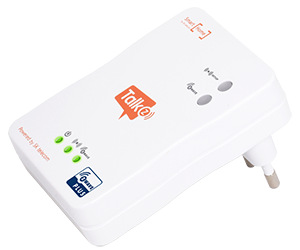
MCT’s Talk-Z is designed to optimize wireless communication bridging Z-Wave to WiFi. Talk-Z is ideal for home and office automation applications.
Talk-Z is a network device bridging communications between Z-Wave devices and Wi-Fi AP in the customer premises which allows for customers to monitor and control Z-Wave devices everywhere through Smart phone and PC. Talk-Z can be conveniently installed in AC power outlets at home, which extends the network accessibility of Z-Wave devices beyond home though seamless communication with Wi-Fi AP connected to Internet. Built-in AC plug of Talk-Z supports Plug & Play style installation with two buttons, that one for Z-Wave pairing and another for Wi-Fi connection. Talk-Z hosts internal web-server, referred to as Talk-Z control panel, for status monitoring and execution of Z-Wave commands such as inclusion, exclusion, adding device, learn mode, and reset, etc. This user guide is intended to be used for testing, developing, or generally using MCT’s Talk-Z device.
How to add Talk Z as a secondary controller into an existed established network. 1. From the Talk Z page(web page) select Learn Mode. 2. Click Go button. 3. Enter Add Mode on the primary or inclusion controller. 4. If this mode is successful, you can see the device’s information in the Talk Z page(web page)
Use this procedure only in the event that the primary controller I missing or otherwise inoperable. If Talk Z is your primary controller, use of this procedure could result in your Z-Wave devices being orphaned and having no central controller to communicate with; use this procedure with caution. This implies that Z-Wave network back to its factory settings. 1. From the Talk Z page, press the Reset button. 2. To confirm reset, press the yes button. 3. If this process is successful, all node information disappeared in Talk Z.
1. From the Talk Z page(web page), select Add device of Add device(secure). 2. Click Go button. Now that the Talk Z is looking for a device, the device must allow itself to be found. This process depanes on the device. Some have a button, perhaps labeled ""Add"" or ""Include"" that you must press. Others enter the Add mode simply by inserting a battery or removing a plastic strip separating the battery from a contact. Consult the manufacture's documentation packaged with the device for details; Instructions for many devices can be found on manufacturer's websites. 3. After the device is connected, you can see the device's information in the Talk Z Page(web page).
1. From the Talk Z page, Select Remove Device. 2. Click Go button. Now that the gateway is locking for a device to remove, the device must allow itself to be found. This process depends on the device. Putting the device into remove mode may require pressing a button or removing a battery. Consult the manufacturer’s documentation packaged with the device for details. Instructions for many devices can be found on manufacturer’s websites. 3. After the device is disconnected, the deleted device is disappeared in the Talk Z page.
| Type | Value(s) |
|---|