Hank
Smart Switch
HKZW-SW02
On/Off Power Switch
HW: 1 FW: 1.00
ZM5101
6.51.09
0x0208 (520)
0x0101 (257)
0x000D (13)
ZC10-17045544
2017-11-08 22:24:21.720779
N/A
Enhanced 232 Slave
Always On Slave
Smart Switch is a Z-Wave Switch module specifically used to enable Z-Wave command and control (on/off) of any plug-in tool.
Smart Switch is a Z-Wave Switch module specifically used to enable Z-Wave command and control (on/off) of any plug-in tool. It can report wattage consumption or kWh energy usage.
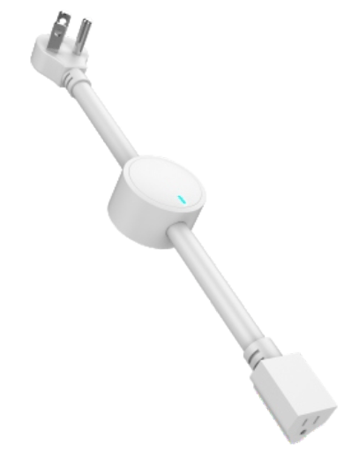
Product Picture


20 - Overload protection
Smart Switch keep detecting the load power, once the AC current exceeds 16.5A for more than 5s, Smart Switch's relay will turn off.Size: 1 byte
Default: 1
Minimum: 0
Maximum: 0
Possible values
| From | To | Desription |
|---|---|---|
| 1 | 1 | The function is enabled. |
| 0 | 0 | The function is disabled |
21 - Setting device status after power failure
Define how the Plug reacts after the power supply is back on.Size: 1 byte
Default: 0
Minimum: 0
Maximum: 0
Possible values
| From | To | Desription |
|---|---|---|
| 0 | 0 | Smart Switch memorizes its state after a power failure. |
| 1 | 1 | Smart Switch does not memorize its state after a power failure. Connected device will be on after the power supply is reconnected. |
| 2 | 2 | Smart Switch does not memorize its state after a power failure. Connected device will be off after the power supply is reconnected. |
24 - Notification when Load status change
Smart Switch can send notifications to association device (Group Lifeline) when state of Smart Switch’s load change.Size: 1 byte
Default: 1
Minimum: 0
Maximum: 0
Possible values
| From | To | Desription |
|---|---|---|
| 0 | 0 | The function is disabled. |
| 1 | 1 | Send Basic report. |
| 2 | 2 | Send Basic report only when Load condition is not changed by Z-WAVE Command. |
27 - Indicator modes
After Smart Switch being included into a Z-Wave network, the RGB LED indicator will indicator the situation of load.Size: 1 byte
Default: 0
Minimum: 0
Maximum: 0
Possible values
| From | To | Desription |
|---|---|---|
| 0 | 0 | The Smart Switch will work in Power indication mode. |
| 1 | 1 | The Smart Switch will work in Power indication mode for 5 seconds, when the state of Smart Switch’s load changed. RGB LED indicator will turn off if there is no more switch action in 5 seconds. |
151 - Threshold of power report
Power threshold to be interpreted, when the change value of load power exceeds the setting threshold, the Smart Switch will send meter report to association device (Group Lifeline).Size: 2 bytes
Default: 50
Minimum: 0
Maximum: 0
Possible values
| From | To | Desription |
|---|---|---|
| 0 | 0 | The function is disabled. |
| 1 | 65535 | The threshold value |
152 - Percentage threshold of power report
Power percentage threshold to be interpreted, when change value of the load power exceeds the setting threshold, the Smart Switch will send meter report to association device (Group Lifeline).Size: 1 byte
Default: 10
Minimum: 0
Maximum: 0
Possible values
| From | To | Desription |
|---|---|---|
| 0 | 0 | The function is disabled. |
| 1 | 255 | The threshold value |
170 - Reset parameter No.171 and 172
Parameter NO.171 and 172 will be restored to default settings.Size: 1 byte
Default: 0
Minimum: 0
Maximum: 0
Possible values
| From | To | Desription |
|---|---|---|
| 85 | 85 | Parameter NO.171 and 172 will be restored to default settings. |
171 - Power report frequency
The interval of sending power report to association device (Group Lifeline).Size: 4 bytes
Default: 30
Minimum: 0
Maximum: 0
Possible values
| From | To | Desription |
|---|---|---|
| 5 | 2678400 | The interval time of power report |
| 0 | 0 | The function is disabled. |
172 - Energy report frequency
The interval of sending energy report to association device (Group Lifeline).Size: 4 bytes
Default: 300
Minimum: 0
Maximum: 0
Possible values
| From | To | Desription |
|---|---|---|
| 0 | 0 | The function is disabled. |
| 5 | 2678400 | The interval time of energy report |
173 - Voltage report frequency
The interval of sending voltage report to association device (Group Lifeline).Size: 4 bytes
Default: 0
Minimum: 0
Maximum: 0
Possible values
| From | To | Desription |
|---|---|---|
| 0 | 0 | The function is disabled. |
| 5 | 2678400 | The interval time of voltage report |
174 - Electricity report frequency
The interval of sending electricity report to association device (Group Lifeline).Size: 4 bytes
Default: 0
Minimum: 0
Maximum: 0
Possible values
| From | To | Desription |
|---|---|---|
| 0 | 0 | The function is disabled. |
| 5 | 2678400 | The interval time of electricity report |
Add for inclusion(non-security) 1. Set the Z-Wave network main controller into learning mode. 2. Power up smart switch. 3. RGB LED will blink in blue for less than 5 seconds, and then keep on for 3 seconds to indicate that the add for inclusion is successful. RGB LED will be in power indication mode after it is included into Z-Wave network. Add for inclusion(security): 1. Set the Z-Wave network main controller into learning mode. 2. Press Z-button for more than 3 seconds. 3. RGB LED will blink in green for less than 5 seconds, and then keep on for 3 seconds to indicate that the add for inclusion is successful. RGB LED will be in power indication mode after it is included into Z-Wave network.
Remove for exclusion: 1. Set the Z-Wave network main controller into removing mode. 2. Short press Z-button thrice (within 1 second). 3. RGB LED will blink in orange for less than 5 seconds, and then keep on for 3 seconds to indicate that the remove for exclusion is successful. RGB LED will be in power indication mode after it is removed from Z-Wave network.
Press and hold for more than 20 seconds. RGB LED will keep on for 3 seconds in yellow and Smart switch will send Device_Reset_Locally” to the main controller and exclude from the Z-Wave network, this procedure will reset Smart switch to factory default. Please use this reset procedure only when the primary controller is missing or inoperable.
| Type | Value(s) |
|---|
| Meter type |
|---|
| Electric Meter Consumption |