Leak Intelligence, LLC
Leak Gopher Z-Wave Leak Detector
LGZWLD
Notification Sensor
HW: 255 FW: 1.06
ZM5202
6.71.01
0x0173 (371)
0x4c47 (19527)
0x4c44 (19524)
ZC10-17055593
2017-05-17 22:31:03.76992
N/A
Enhanced 232 Slave
Reporting Sleeping Slave
Yes
Detects water leaks and reports them to the Z-Wave controller.
Detects water leaks and reports them to a Z-Wave Controller 6 water sensro pins are located in the bottom of the device. Powered by battery or wall cube. If powered by wall cube the battery serves as a battery backup Easy Installation. Install battery, include in your Z-Wave network and place the device where you want to detect water.
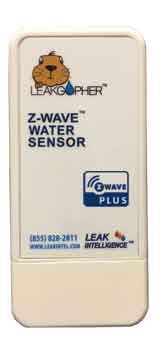
Product Picture
Z-Wave Inclusion How to Add the Leak Gopher Leak Detector to your Z-Wave Controller - Plug the wall cube power adapter (included) into the receptacle on the bottom of the Leak Gopher Z-Wave Valve Control marked “5 VDC”. Plug the wall cube into a 110 VAC outlet. This provides power to the Leak Gopher Z-Wave Leak Detector. - Configure the Z-Wave Controller to Include/Add a device. - When the Z-Wave Controller is ready to include/add a device, it will display a message like “waiting to add device”. Press and release the Z-Wave button on the front of the LGZWLD. - The Z-Wave Controller will acknowledge that the LGZWLD has been added to the Z-Wave network. - Your Leak Gopher Z-Wave Leak Detector is ready to use. Inclusion without Security If your home automation hub is does not support the Z-Wave Security Command class, tap the Z-Wave button two times. Tapping the button twice will send a simpler message to the hub which will not include the security command classes. Inclusion Legacy Mode If your home automation hub does not support the Z-Wave Notification Command Class, the LGZWLD can substitute the simpler Binary Switch command class. To enable Legacy Mode, tap the Z-Wave button three times during inclusion. Virtually all hubs support the Binary Switch command class.
Z-Wave Exclusion How to Remove the Leak Gopher Z-Wave Leak Detector from your Z-Wave Controller - Plug the wall cube power adapter (included) into the receptacle on the bottom of the Leak Gopher Z-Wave Valve Control marked “5 VDC”. Plug the wall cube into a 110 VAC outlet. This provides power to the Leak Gopher Z-Wave Valve Control. - Configure the Z-Wave Controller to Exclude a device. - When the Z-Wave Controller is ready to exclude a device, it will display a message like “waiting to exclude device”. Press and release the Z-Wave button on the LGZWLD - The Z-Wave Controller will acknowledge that the LGZWLD has been excluded from the Z-Wave network. - Your Leak Gopher Z-Wave Leak Detector is excluded from this controller.
Reset to Factory Defaults How to reset the Leak Gopher Z-Wave Leak Detector - If the exclusion process above is not working or the Z-Wave controller was lost or not available, the following process can be used to factory reset the device to the same state it has when shipped new. - To reset the Leak Gopher Z-Wave Leak Detector Z-Wave radio and routing tables, press and HOLD the Z-Wave button for 15 seconds. The LED will blink very quickly while holding the Z-Wave button down. Once the LED turns off, release the Z-Wave button.
| Type | Value(s) |
|---|
| Group | Type |
|---|---|
| Water Alarm | (Refer to parameters): State idle |