AMADAS
AMADAS Smart Lock
ADSL-1001
Door Lock - Keypad
HW: 1 FW: 1.12
ZM5101
6.51.09
0x029F (671)
0x0003 (3)
0x0001 (1)
ZC10-17075679
2017-06-05 19:50:34.725123
N/A
Enhanced 232 Slave
Listening Sleeping Slave
Yes
AMADAS Smart Lock is a truly user-centric connected smart lever lock equipped with emergency battery recharge, keyless entry, do-it-yourself installation. Made of a stainless steel, AMADAS is a very sturdy and secure door lock. With its unique App, users can allow guests in safely, either remotely or by assigning unique pin codes.
AMADAS Smart Lock is a truly user-centric connected smart lever lock offering all-in-one solution including left/right handed lever, keypads, unique App, wire-free and a solar panel in a solid stainless steel casing. ● AMADAS Smart Lock offers D.I.Y. installation. There is no need to call a professional installer. Users can install it by themselves without any professional technique. Also, it works for 100% of the time even when the batteries run out. AMADAS can be powered by shining a smart phone flash light on the built-in solar panel for 20 seconds. ● AMADAS Smart Lock connects to user's smartphone. For better security, users can check door lock condition, access log, etc., via its unique app whenever or wherever they are. ● With its high compatibility, AMADAS Smart Lock can be installed on the most comprehensive standard doors regardless of a thickness, material and in/outdoor. ● Made for both tech-savvy and non tech-savvy users, they can easily enter their homes via Smartphone or the button (Touch/Push) configuration on AMADAS' lever, whichever way is most convenient.
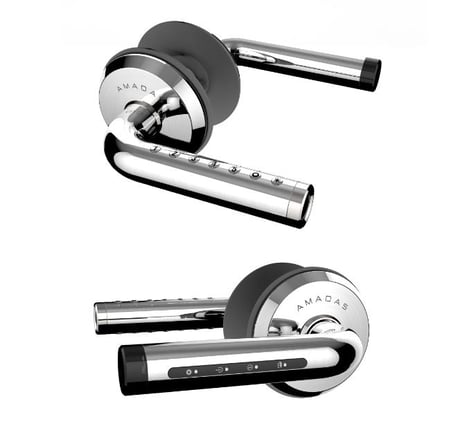
Product Picture


1 - set door open notification On or Off
if configuration value is 0x01 then set door open notification on and configuration value is 0xFE then set door open notification offSize: 1 byte
Default: 0
Minimum: 0
Maximum: 0
Possible values
| From | To | Desription |
|---|---|---|
| 1 | 1 | set door open notification on |
| 254 | 254 | set door open notification off |
- Z-Wave inclusion: i. Press “Z-Wave Settings” button in the inner side for 3 seconds. (toggle status) ii. Then “Blue LED” will turn on. iii. When the inclusion is complete, the led is turned off and the beep sounds. Please wait. * Beep : Success (Beep), Fail (Beep~) * The inclusion results can be found in the controller or in your app.
- Z-Wave exclusion i. Press “Z-Wave Settings” button in the inner side for 3 seconds. (toggle status) ii. Then “Blue LED” will turn on. iii. When the exclusion is completed, the led is turned off and the beep sounds. Please wait. * Beep : Success (Beep Beep), Fail (Beep~) * The exclusion results can be found in the controller or in your app.
- Through the Z-Wave network generates an order, the product will receive the wakeup call and starts to operate. - The product will receive the wakeup call when the buttons on the outer lever are touched (pushed) to open the door. - The product will receive the wakeup call when the buttons on the inner lever are pushed.
1. Factory default setting i. Press “Settings, Input” button in the inner side for 3 seconds. ii. Press “④ - Reset” button in the outer side. iii. Enter “1004” and press the “*” button. 2. Z-Wave device reset locally i. Press “Z-Wave Settings” button in the inner side 3 times within 1.5 seconds. ii. Then “White LED” will turn on. iii. When the “network reset locally” is complete, the led is turned off. Please wait. * Beep : Success (Ring), Fail (Beep~) * Z-Wave network information is initialized. * Please use this procedure only when the network primary controller is missing or otherwise inoperable.
| Type | Value(s) |
|---|
| Group | Type |
|---|---|
| Access Control | (Refer to parameters): State idle |
| Sensor type |
|---|
| Air Temperature |
| General Purpose |