LG Uplus
IoT DoorCam
DCH-01
On/Off Power Switch
HW: 1 FW: 39.58
ZM5101
6.61.00
0x023D (573)
0x0043 (67)
0x0001 (1)
ZC10-17065651
2017-05-31 21:50:50.689561
N/A
Enhanced 232 Slave
Listening Sleeping Slave
Yes
LG Uplus IoT DoorCam streams live video feed to your phone remotely.
LG Uplus IoT DoorCam streams live video feed to your phone remotely. The app receives push notifications of different activities and record motion videos when visitors arrive. It also checks the battery life with the app and receives reminders when the battery is low.
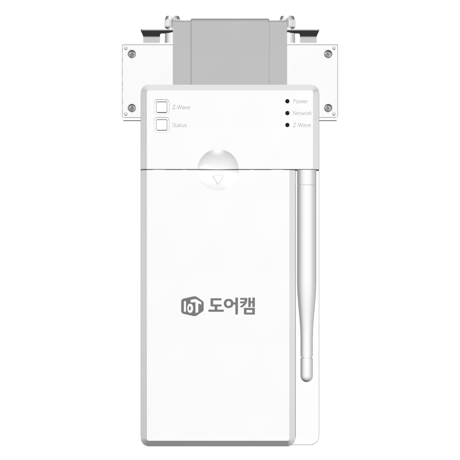
This must be done when the DoorCam is in an excluded status, which means that it is not a part of any Z-Wave network; you will know this because the Z-Wave LED will remain on. After starting the inclusion process on your Z-Wave controller, please do the following: a. Press & hold the Z-Wave inclusion button for 5 seconds. b. When the Z-Wave LED blinks rapidly, release the Z-Wave inclusion button. c. The DoorCam will try inclusion for 30 seconds. d. If inclusion was successful, the Z-Wave LED will turn off.
This must be done when the DoorCam is in an included status, which means that it is a part of any Z-Wave network; you will know this because the Z-Wave LED will remain off. After starting the exclusion process on your Z-Wave Controller, please do the following. a. Press & hold ‘Z-Wave’ button for 5 seconds when DoorCam is inclusion status. b. When Z-Wave LED blinks with 250ms interval, Release ‘Z-Wave’ button to try exclusion. c. DoorCam will try exclusion for 30sec. d. Z-Wave LED will be turned on if exclusion is successful.
a. Hold the ‘Z-Wave’ button for 10 seconds. (Z-Wave LED will blink after 5 seconds with 250ms interval then Z-Wave LED will be turned off after another 5 seconds.) b. When Z-Wave LED stops blinking after 10 seconds, release Z-Wave button. c. When factory reset is successful, LED will be on. Please use this procedure only if the network primary controller is missing or inoperable.
| Type | Value(s) |
|---|
| Sensor type |
|---|
| General Purpose |