eZLO
eZLO Controller
EZ0001-3
Central Controller
HW: 1 FW: 4.38:00.35
ZM5202
6.51.09
0x025B (603)
0x0001 (1)
0x0001 (1)
ZC10-17085754
2017-06-23 17:19:29.493644
N/A
Static Controller
Central Static Controller
The eZLO Hub is a static controller for automatic heating, air-conditioning, window coverings, security systems, lighting, and many other integrated devices.
eZLO hub is a Z-Wave (soon also to have Bluetooth, BLE Mesh and WiFi protocols) central static controller. It can be paired with any Z-Wave network and run with Z-Wave certified devices from other manufacturers. All Z-Wave devices within the network range act as Z-Wave repeaters (regardless of brand) to deliver maximum network reliability. eZLO Smart Home hub lets you adjust your thermostat, lock your door, and dim your lights, and you can turn it on and off while you’re on a vacation. You can also easily control the eZLO Smart Home hub from your laptop, tablet and other mobile devices.
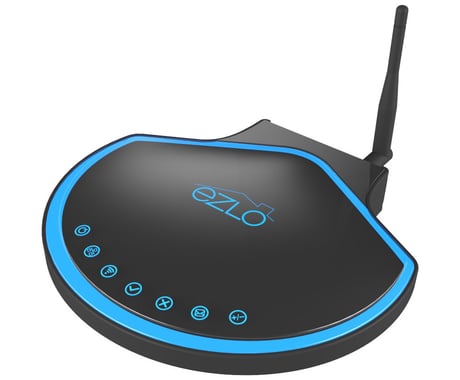
Product Picture
1. Make sure both controllers are excluded from any Z-Wave networks (see the ""How to clean an eZLO"" section of User Guide). 2. Select ""Devices"" from the My eZLO menu. The ""Devices"" page is displayed. 3. Click the ""Z-Wave"" option. 4. Click ""Controller Learn Start"" in drop-down menu “Zwave Actions” Note: if you want to interrupt this process, you can select ""Controller Learn Stop"" option in the Z-Wave Actions dropdown menu. 5. To start Inclusion process on Controller to which eZLO Hub is connecting, see this controller’s user guide. Note: if you want to add third-party controller to eZLO Hub, start Controller Learn mode on third-party controller (see its user guide) and start Inclusion process on eZLO Hub After that, included Controller will be connected to your Primary controller and listed in its devices list.
If this controller is the primary controller for your network, resetting it will result in the nodes in your network being orphaned and it will be necessary after the reset to exclude and re-include all of the nodes in the network. If this controller is being used as a secondary controller in the network, use this procedure to reset this controller only in the event that the network primary controller is missing or otherwise inoperable. Steps to Reset eZLO Hub 1. Sign in to the eZLO app and select the eZLO hub you want your device to connect to. 2. Select""Settings"" from the My eZLO menu 3. Click ""Clean eZLO"" button. OR 1. Sign in to the eZLO app and select the eZLO hub you want your device to connect to. 2. Select""Devices"" from the My eZLO menu 3. Select Z-Wave to filter out only Z-Wave devices. 4. Open the ""Z-Wave Actions"" menu. 5. Click ""Reset""
1. Sign in to the eZLO app and select the eZLO Hub you want your device to connect to. 2. Select ""Devices"" from the My eZLO menu 3. Click ""+ Device"" button. The ""Add Device"" side menu is displayed. 4. Click Z-Wave. The eZLO app shows a Z-wave device addition in progress. The Z-Wave Indicator LED on the eZLO hub turns green to show that it is now in Adding Mode. 5. Follow the procedure described in the device’s user instructions to add it to the eZLO hub. The eZLO hub’s rim LED changes from a blue to a green-colored light. A progress bar indicates that the Z-Wave device addition is proceeding. Finally a notification appears on the screen to confirm that the device was added to the eZLO hub. The device is identified by its default name. 6. Click ""Save Changes"" to assign the new device to the selected room. 7. Click on the ""Rooms"" in the main menu to display a list of the rooms, choose the room with the new device and manage it from there. Alternatively, Go to ""Devices"" on the main menu and find your device in the lists in order to manage it. Note: To add another eZLO hub or a third-party controller (as an Inclusion Controller) to your current eZLO Hub, or third-party controller, enable Learn mode (for eZLO Hub see p.5 in the ""How to Connect one eZLO Hub to Another Z-Wave Hub"" section of eZLO User Guide) on the future Inclusion controller and follow the Inclusion procedure on your Primary Controller (eZLO Hub or third-party controller). For third-party controllers these procedures appear in the device documentation.
1. Sign in to the eZLO app and select the eZLO hub you want your device to connect to. 2. Select ""Devices"" from the My eZLO menu 3. Select the ""Z-Wave"" option to filter out only Z-Wave devices (your Z-Wave device will be visible in the list). 4. Open the ""Z-Wave Actions"" dropdown menu and select ""Start Excluding any Device"". This enables the exclusion mode on your current eZLO hub. 5. Go to your Z-Wave device and exclude it from the current network (follow the steps described in that device’s instructions). This enables the eZLO hub to locate your Z-Wave device and disconnect it from its network. Note: Unfortunately, the eZLO app cannot report if your Z-Wave device was excluded successfully since this is a one-directional operation, but you can refresh the application screen (by pressing Ctrl+R) to see if the slave device has been removed from the eZLO hub. 6. Press ""Stop Excluding"" button to halt the exclusion mode. Note: this option is also available in the Z-Wave Actions dropdown menu for easy access in case you have reloaded the eZLO app or switched to another (for example, a mobile) user interface. When this procedure is completed you can add your Z-Wave device to the desired eZLO hub as explained in How to Add a Z-Wave Device to the eZLO Hub.
| Type | Value(s) |
|---|