TP-LINK Smart Home Router
TP-LINK Smart Home Router
Smart Home Router (EU)
Gateway
HW: 0 FW: 4.32:01.24:01.00:01.00
ZM5101
6.51.06
0x0283 (643)
0x0001 (1)
0x0002 (2)
ZC10-17075676
2017-07-05 14:55:54.785912
N/A
Static Controller
Central Static Controller
TP-LINK Smart Home Router is an all-in-one router and Internet of Things (IoT) Hub.
TP-LINK Smart Home Router is an all-in-one router and Internet of Things (IoT). It can work as the central intelligence hub for devices throughout the home, enabling consumers to control their devices and automate functions tailored to their preferences. Key Features: Connect your smart home devices and have them work together to enhance your quality of life Four Gigabit Ethernet Ports for lightning-fast wired connections Advanced security encryption to protect data Supports 802.11ac and backwards-compatible with 802.11a/b/g/n
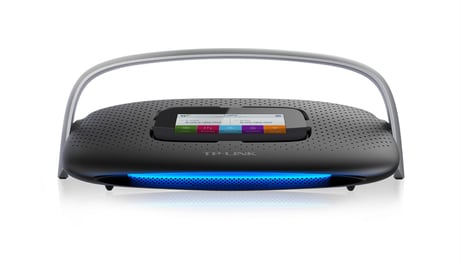
Product Picture
Smart Home Router has the build-in dedicated Z-Wave controller. SR20 Z-Wave controller can be added to another network, but it is not the recommended use and is only for advanced users. Note that this will cause all Z-Wave devices connected to the SR20 controller to be disconnected. To add the SR20 to another Z-Wave network, you must first select to enable Inclusion mode on the target Z-Wave controller. Then, from the display of the SR20, select the ""Learn Mode Set"" button. Refer the relevant support information from the online support section of the www.tp-link.com website or download the latest TP-LINK Kasa App from Play Store for Android devices or Apple Store for iOS devices
The SR20 can be reset to factory defaults through a menu option in the built-in touch screen display. Once confirmed, the SR20 will transmit a Device Reset Locally Notification to all connected devices. The SR20 will then clear all network and user settings and reboot into a factory. Note: If this controller is the primary controller for your network, resetting it will result in the nodes in your network being orphaned and it will be necessary after the reset to exclude and re-include all of the nodes in the network. If this controller is being used as a secondary controller in the network, use this procedure to reset this controller only in the event that the network primary controller is missing or otherwise inoperable Refer the relevant support information from the online support section of the www.tp-link.com website or download the latest TP-LINK Kasa App from Play Store for Android devices or Apple Store for iOS devices
You can add a new Z-Wave device to your Kasa smart home network using either the built in touch screen display of the SR20, or from the Kasa App (iOS or Android). To add a new device, simply press the + sign on the device page. This will start the Z-Wave Inclusion process and begin searching for any new devices. Follow the specific inclusion instructions for the device(s) you wish to add to your network. The SR20 will then automatically identify and add these devices your into smart home network. Once complete, these new devices will be available from within your Kasa control screens. Refer the relevant support information from the online support section of the www.tp-link.com website or download the latest TP-LINK Kasa App from Play Store for Android devices or Apple Store for iOS devices
You can remove an existing Z-Wave device from your smart home network using either the built-in touch screen display of the SR20, or from the Kasa App (iOS or Android). To remove a Z-Wave device that was previously added to your smart home network, go to the devices control page and select the Exclusion button. This will provide an option to Remove this device. Once the Remove option is confirmed, the Z-Wave exclusion process will start. Follow the device’s instructions to complete the removal. Once completed, the display will indicate that the device is no longer installed. Refer the relevant support information from the online support section of the www.tp-link.com website or download the latest TP-LINK Kasa App from Play Store for Android devices or Apple Store for iOS devices
| Type | Value(s) |
|---|