Samsung Electronics, Co., Ltd.
SAMSUNG Connect Home
ET-WV523
Central Controller
HW: 24 FW: 4.38:00.17
SD3503
6.51.09
0x0201 (513)
0x0003 (3)
0x0019 (25)
ZC10-17075707
2017-07-28 13:09:12.959
N/A
Static Controller
Central Static Controller
A connected smart home hub used to control a variety of Z-Wave sensors for home automation.
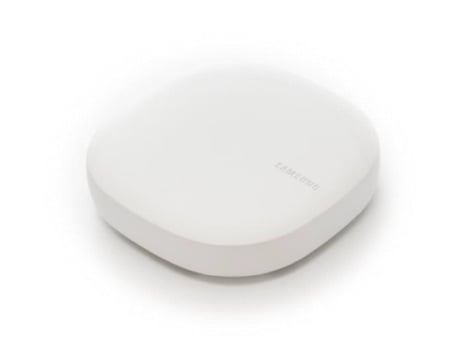
Product Picture
Because the Hub is a certified Z-Wave device, you can add it to another Z-Wave network. Note that adding a Hub to a different Z-Wave network will disconnect it from any previously connected Z-Wave devices, and they will have to be put through the exclusion process before being added to the network again. SmartThings strongly discourages adding the Hub to another Z-Wave network. We cannot offer support for disconnected Z-Wave devices or the inability to add devices through the Hub as a result of including the Hub into another Z-Wave network. Here are the steps to put the Hub into learn mode to receive network information from another Z-Wave controller: 1. Prepare the other Z-Wave controller to copy its network information to the Hub. This may be called include, add, transfer, copy, or replicate mode 2. In the SmartTings app,Tap the menu 3. Tap the Hub 4. Tap Z-Wave Utilities 5. Tap Include or Exclude Hub from an Existing Z-Wave Network 6. Tap OK This will start learn mode on the Hub. It may take longer to receive all the network info and load all the devices. Check the other controller for confirmation of whether the transfer was successful.
1. Tap the menu 2. Tap the gear icon beside the Location with the Hub you wish to reset 3. Tap Remove Location 4. Confirm deletion by tapping Delete (IMPORTANT: deleting a Location cannot be undone) NOTE: Resetting the Hub will restore factory settings. All device connections, automations, rules and configurations associated with that Hub will be lost in the reset. All devices connected to your Hub will have to be reset or excluded before they can be reconnected. The steps for resetting and reconnecting each smart device differ. After resetting, you can visit our Things category, find the devices you wish to set up, and follow the guides provided. Remember that you will likely need to reset or “exclude” every device before connecting.
Samsung SmartThings devices and many third-party devices that work with SmartThings require a connected SmartThings Hub (or compatible device with SmartThings Hub functionality). You can connect these devices manually with the steps below. 1. Tap the plus icon in the bottom right 2. Tap Add Device Manually 3. Select the device category and brand OR enter your device's name in the search field 4. Follow the in-app instructions to perform the connection process specific to that device 5. The app will indicate when the device connects 6. Tap Edit to rename the device, and tap Done to save the name 7. Tap Done to complete the setup
There are two ways that devices can be deleted in the app. This first method offers the option to delete multiple devices at once. 1. Tap My devices 2. Tap the three dots in the top right 3. Tap Delete devices 4. Select the device(s) to be deleted 5. Tap Delete 6. Tap Delete again to confirm 7. If only a Z-Wave device was selected, the app will prompt you to perform a Z-Wave exclusion on the device. Refer to the device's manual for specific exclusion steps Note: If multiple devices are selected, any Z-Wave devices will need to be excluded manually 8. Tap Done OR The second method deletes devices on an individual basis. 1. Tap My devices and swipe to your Place 2. Tap the three dots in the top right 3. Tap Edit 4. Select the device to be deleted 5. Tap Delete device 6. Tap Delete again to confirm 7. For Z-Wave devices, the app will prompt you to perform a Z-Wave exclusion on the device. Refer to the device's manual for specific exclusion steps 8. Tap Done
| Type | Value(s) |
|---|