Telguard
FlexHub
TGFX-HUB1
Central Controller
1.4.25.3.3
ZM5202
6.51.08
0x017E (382)
0x0001 (1)
0x0002 (2)
ZC10-17095767
2017-09-05 21:30:28.318902
N/A
Static Controller
Central Static Controller
Easily add new recurring monthly revenue to existing Telguard installations. The Telguard FlexHub™ Z-Wave Controller is a home automation device used to monitor and control Z-Wave devices within a home or business using Telguard’s HomeControl Flex service.
The Telguard FlexHub™ Z-Wave Controller enhances HomeControl Flex system control for Z-Wave based products such as lights, locks and thermostats. It is powered by a standard wall adapter and connects to the LAN (Local Area Network) via wired Ethernet. It serves as a Wi-Fi access point for other devices and incorporates WPS (Wi-Fi Protected Set-up) for quick and secure connecting. The FlexHub™ is a simple way to add home automation to any security panel and works with all Telguard alarm communicators and is easy to support via Telguard’s dealer portal. Learn more at Telguard.com.
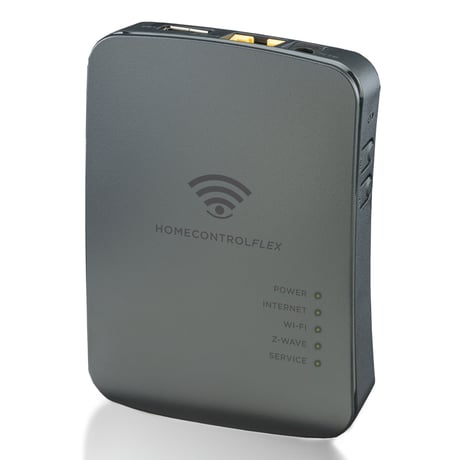
Product Picture
Follow the manufacturer's instructions to place another controller in inclusion mode. Then in the mobile app, select the right arrow at the upper right of the Devices tab. Tap the Op Learn Command button to place the FlexHub into learn mode.
To return the FlexHub to factory defaults, use a pin or paper clip to press the recessed Reset button for 15 seconds. Observe the marquee pattern on the LEDs indicating the factory default is complete. Note that if the FlexHub is the primary controller for your network, resetting it to factory defaults will result in the nodes in your network being orphaned. It will be necessary after the reset to exclude and re-include all of the nodes in the network. If the FlexHub is being used as a secondary controller in the network, return to factory defaults only in the event that the network primary controller is missing or otherwise inoperable.
In the mobile app, tap the Add button. A flashing Z-Wave LED indicates the FlexHub is in inclusion mode. Follow the device manufacturer's instructions to place the device in learn mode. The FlexHub will remain in inclusion mode for 1 minute or until the new device is found.
In the mobile app, tap the icon of the device to be removed. From the device details page tap the Delete Device button. A flashing Z-Wave LED indicates the FlexHub is in exclusion mode. Follow the device manufacturer's instructions to place the device in learn mode. The FlexHub will remain in exclusion mode for 1 minute or until the device is removed.
| Type | Value(s) |
|---|