DMP
738Zplus
738Zplus
Central Controller
HW: 1 FW: 3.00:01.02
ZM5202
6.61.00
0x0127 (295)
0x0738 (1848)
0x0001 (1)
ZC10-17115827
2017-10-31 20:35:06.528927
N/A
Static Controller, No Repeater
Central Static Controller
Add the DMP 738Zplus module to DMP panels to provide mobile control over lighting, HVAC, doors and more via plug-in controllers.
The 738Zplus Z-Wave Interface Module allows DMP panels to communicate with up to 140 Z-Wave or Z-Wave Plus devices, such as light controls, light bulbs, door locks, garage door openers, and thermostats. The 738Zplus is automatically recognized by DMP panels, and no additional programming is required. Once the 738Zplus is connected to a DMP panel, users can immediately begin adding Z-Wave devices to their system. Devices can be remotely controlled from smart phones using the DMP Virtual Keypad™ app.
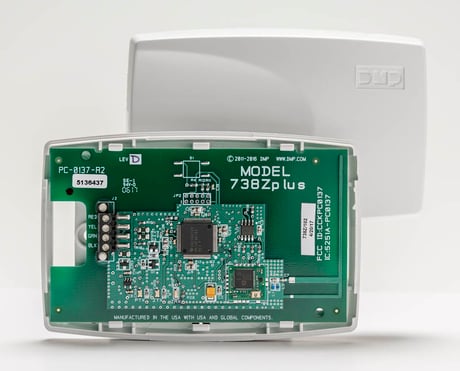
Product Picture
Note: To add the 738Zplus to an existing network, use the LRN (Learn) function. 1. Press CMD until MENU? YES NO appears, then press YES. 2. After accessing the User Menu, press CMD until ZWAVE SETUP? appears. Press any select key/area.
The 738Zplus can perform a Factory Default Reset by initializing defaults in the panel programming menu. Please use this procedure only when the network primary controller is missing or otherwise inoperable.
ADD DEVICES After wiring the 738Zplus to the panel, use a DMP keypad to program Z-Wave Plus devices into the panel through the User Menu Z-Wave Setup option. This allows users to add devices through the User Menu or the Virtual Keypad™ App after installation. When possible, have the Z-Wave device near the 738Zplus during setup and programming. When programming Z-Wave devices into an XT30, XT50, or XTLplus panel with Version 171 or higher, you can add multiple devices at once. If you add multiple devices at once, then you will name each device after they have all been added. Note: To add the 738Zplus to an existing network, use the LRN (Learn) function. 1. Press CMD until MENU? YES NO appears, then press YES. 2. After accessing the User Menu, press CMD until ZWAVE SETUP? appears. Press any select key/area. 3. Select ADD. The screen displays PROCESSING. 4. When prompted, press the button (or series of buttons if adding a thermostat) on the device you are adding. 5. The keypad displays that the device has connected to your system.
REMOVE OR REPLACE DEVICES If a device fails, users can remove or replace the device through the User Menu. 1. Press CMD until MENU? YES NO appears, then press YES. 2. After accessing the User Menu, press CMD until ZWAVE SETUP? appears. Press any select key/area. 3. Select LIST and press CMD until the device you are removing or replacing displays. Then, press any select key/area to select the device. 4. Select STATUS. The status of the device displays as either OKAY or FAILED. If the device fails, REMOVE FAILED DEVICE displays. 5. Select YES to remove the device. Press the second select key/area to replace the device. 6. If you chose to replace the device, PROCESSING displays. 7. When prompted, press the button (or series of buttons if adding a thermostat) on the replacement device. 8. The keypad displays that the device has connected to your system. Note: The replacement device keeps the orinigal device’s name.
| Type | Value(s) |
|---|
| Meter type |
|---|
| Electric Meter Consumption |