Ring
Ring Alarm Base Station
Ring Base Station
Central Controller
HW: 1 FW: 5.14:02.80:01.00:01.00
SD3503
6.80.00
0x0346 (838)
0x0001 (1)
0x0101 (257)
ZC10-18066168
2018-06-13 19:51:31.597358
N/A
Bridge Controller
Central Static Controller
The new Ring Protect security system adds a simple, smart, affordable professional security solution for your home.
The new Ring Protect security system adds a simple, smart, affordable security solution for your home. Set up your Protect Security Kit, sign up for 24/7 professional security monitoring, add accessory devices to build your system, and control access to your devices through Locations and Users. Ring Protect adds a ring of security inside your home for enhanced peace of mind and protection. The Ring Protect system together with Ring's video doorbells, cameras, and accessories, creates a stronger-than-ever Ring of Security that protects your home both inside and out. Whether you’re on vacation halfway around the world, or just too busy with the kids upstairs, Ring lets you watch over your home from anywhere. Because with Ring, you’re always home. Ring Features: - High-definition video - Wide-angle camera lens - Two-way talk - Advanced motion detection - Infrared night vision - Video recording - Lifetime purchase protection - 24/7 Professional monitoring - Monitor your doors and windows
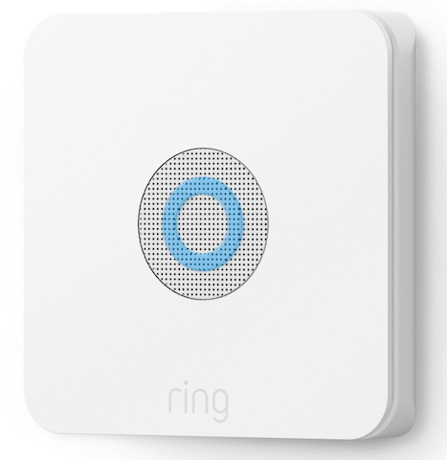
Product Picture
Classic Inclusion Steps: 1. Start inclusion mode on the primary controller 2. From the application’s UI, navigate to controller’s device setting screen -> select Advance options -> Select Z-wave from “Protocol Adapters” and Select “Learn Mode” – DSK will be displayed (refer to the picture below) 3. Select “Begin Learn Mode” in the UI 4. When the inclusion process in complete, the LED on the base station will be solid blue Note: Joining another Z-Wave network via learn mode is available only when the base station is not already paired to any other devices
Exclusion Instructions: 1. Start exclusion mode on the primary controller 2. From the application’s UI, navigate to controller’s device setting screen -> select Advance options -> Select Z-wave from “Protocol Adapters” and Select “Learn Mode” – DSK will be displayed 3. Select “Begin Learn Mode” in the UI 4. When the exclusion process in complete, the LED on the base station will be solid blue
*Learn Mode* Learn Mode allows you to add a controller to an existing Z-Wave network. When a controller enters Learn Mode, it looks for another controller to communicate with. To enter Learn Mode: 1. Open the menu, then tap Devices. 2. Tap Protect. 3. Tap the Ring Protect Base Station. 4. Tap Settings. 5. Tap Advanced Options. 6. Tap Z-Wave. 7. Tap Learn Mode. 8. Tap Enter Learn Mode.
Factory Default Instructions 1. Using a paper clip press and hold the reset button 2. Wait for the network and power LEDs on the back to start to blink amber color 3. Release the reset button Use this procedure only in the event that the network primary controller is missing or otherwise inoperable.
| Type | Value(s) |
|---|