baseCON
Central Home Unit
CHU00001-w
Gateway
HW: 1 FW: 4.37:02.61:01.00:01.00
OTHER
6.51.08
0x0348 (840)
0x0001 (1)
0x0001 (1)
ZC10-18036034
2018-03-01 22:53:43.524378
N/A
Bridge Controller
Central Static Controller
The Central Home Unit is the main entity to observe and control any other Z-Wave certified device available on the market.
The Central Home Unit is the main entity to observe and control any other Z-Wave certified device available on the market. The integrated User-Interface allows the user to fully monitor, configure and control devices. The user can get the actual values of any device actively or passively to not overload the network usage over the air. Additionally, the user can set values for devices which acts as actors in the network. The User-Interface also allows the user to create specific rules, e.g. to turn off a device if a consumption is reached or to shut down the curtains at a given point of time. Devices can be grouped together to act collectively on specific events, e.g. if a fire alarm was detected. The user can monitor the whole Z-Wave network and control it. In detail, the user can add, remove or replace devices to or from the network. He can configure connections and reset the whole network. Every node can be updated independently if needed. Every device can also be configured on its own. With this ability devices of the same type can act differently. To have a better monitoring overview each device can be associated with a human readable name and a location description. The User-Interface only allows to control and monitor the capabilities the device offers. The Central Home Unit can also be configured as slave device in a Z-Wave network to support any other Controller device.
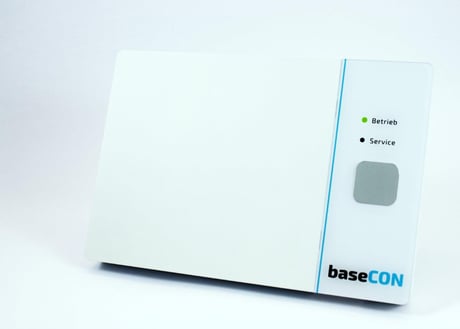
Product Picture
Learn mode To put the device into lern mode open the Configuration User-Interface with the URL provided in the manual. Fill in your login credentials and confirm. This opens up the Management view of your Z-Wave network. In the Main Menu under the section ""More"" you can find the entry ""Initiate"". This will start initiate mode. You now have to set inclusion controller into inclusion mode as described in the controller's manual. Due to S2 security you will have to provide the key. After successful inclusion to the main controller you should see an updated list of devices in the device section
Factory default Reset The Central Home Unit can reset the Z-Wave network and it's device list. To do so open the Configuration User-Interface with the URL provided in the manual. Fill in your login credentials and confirm. This opens up the Management view of your Z-Wave network. In the Main Menu under the section ""More"" you can find the entry ""Reset network"". This will start the reset network operation. If success the device section will only show the controller device. Please use this procedure only when the network is not working correctly. If this controller is the primary controller for your network, resetting it will result in the nodes in your network being orphaned and it will be necessary after the reset to exclude and re-include all of the nodes in the network. If this controller is being used as a secondary controller in the network, use this procedure to reset this controller only in the event that the network primary controller is missing or otherwise inoperable.
Inclusion To include a device into the Z-Wave network open the Configuration User-Interface with the URL provided in the manual. Fill in your login credentials and confirm. This opens up the Management view of your Z-Wave network. In the Main Menu under the section ""More"" you can find the entry ""Add New Device"". This will start inclusion mode and you now also have to set the device into inclusion mode as described in the device's manual. If success the device will be listed in the device section
Exclusion To exclude a device into the Z-Wave network open the Configuration User-Interface with the URL provided in the manual. Fill in your login credentials and confirm. This opens up the Management view of your Z-Wave network. In the Main Menu under the section ""More"" you can find the entry ""Remove Device"". This will start exclusion mode and you now also have to set the device into exclusion mode as described in the device's manual. Ff success the device will not appear in the device section.
| Type | Value(s) |
|---|