Axis Communications
Alert Button
T8343-JP
Notification Sensor
HW: 1 FW: 1.01:00.01
SD3502
6.71.01
0x0364 (868)
0x0005 (5)
0x0001 (1)
ZC10-18015971
2018-01-19 20:19:30.788124
N/A
Enhanced 232 Slave
Reporting Sleeping Slave
Yes
AXIS T8343 Alert Button is a wireless push button which relays events such as notification messages, illumination and much more.
AXIS T8343 Alert Button is a wireless push button which relays events such as notification messages, illumination and much more. With its support for wireless input/output connectivity, the alert button can communicate wirelessly with AXIS M5065 PTZ Network camera or other connected Z-Wave Plus® controllers, creating a small security solution with less cabling. Thanks to its integrated wireless I/O connectivity, AXIS T8343 enables flexible installation as the relay can easily be moved and adapted to your needs.
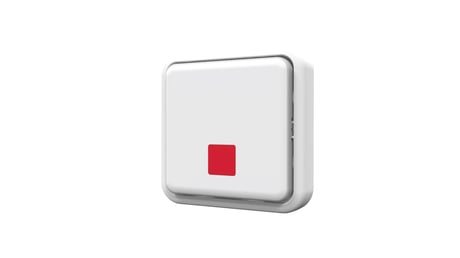
Product Picture
Auto inclusion The detector supports the auto inclusion feature where it will automatically enter Inclusion mode when first powered up. This will also apply when powered up after a factory reset. 1. Carefully remove the front cover by pulling the bottom of the front cover. There is a link button which is used to put the device in learning mode (inclusion/exclusion). 2. Put a Z-Wave controller into inclusion mode. 3. Insert 2 AAA-batteries (1,5V) into the battery compartment with the correct polarity. The LED on the device should turn ON 4. The inclusion process should be completed when the LED stops blinking Manual inclusion You can also choose to manually add the Z-Wave device to a control device. Please follow the steps described below. Note For best results, exclude the device before starting the inclusion process. For more details see the installation guide 1. Press the link button 3 times within 1.5 seconds to put the unit into learning (inclusion/exclusion) mode. 2. The inclusion process should be completed when the LED stops blinking 3. Perform a test before you refit the cover.
Manual exclusion Note For more details see the installation guide 1. Detach the battery cover. 2. Press the link button 3 times within 1.5 seconds to put the unit into learning (inclusion/exclusion) mode. 3. The exclusion process should be completed when the LED stops blinking 4. Refit the battery cover.
Wakeup Command Class After it has been included into a Z-Wave network, the detector will go to sleep but will send a Wakeup Notification Command periodically at preset period to the controller. The detector will stay awake for 10 seconds at least and then go back to sleep to conserve battery life. The time interval between Wakeup Notification Commands can be set in the Wakeup Command Class based on the range values below: Minimum Wake Up Interval 600s (10 minutes) Maximum Wake Up Interval 86400s (1 day) Default Wake Up Interval 14400s (4 hours) Wake Up Interval Step Seconds 600s (10 minutes)
Factory Reset (This procedure should only be used when the controller is inoperable.) 1. Press the link button 3 times within 1.5 seconds to put the unit into exclusion mode. 2. Within 1 second of step 1, press the link button again and hold for 5 seconds. 3. Node ID is excluded. The device reverts to factory default state.
| Type | Value(s) |
|---|
| Group | Type |
|---|---|
| Appliance | (Refer to parameters): State idle |