TechniSat
Zentraleinheit 2
0000/9531
Gateway
HW: 6 FW: 4.33:02.25:01.00:01.00
ZM5202
6.61.00
0x0299 (665)
0x0001 (1)
0x1645 (5701)
ZC10-18015984
2018-01-26 17:57:29.259162
N/A
Bridge Controller
Central Static Controller
TechniSat's standalone Z-Wave gateway - the central hub for your smart connected home.
TechniSat's standalone Z-Wave smart home gateway, with WiFi and LAN connectivity will be the central hub of your smart home. The CONNECT app by TechniSat for smartphones and tablets lets you easily setup, view and control your smart home, even when your not at home. Not a fan of apps? Not a problem! Select TechniSat TVs and set-top boxes can connect to TechniSat smart home gateways via the local network to bring your smart home to the big screen TV. Putting easy view and control of your smart home at you fingertips with the click of a button on your remote control.
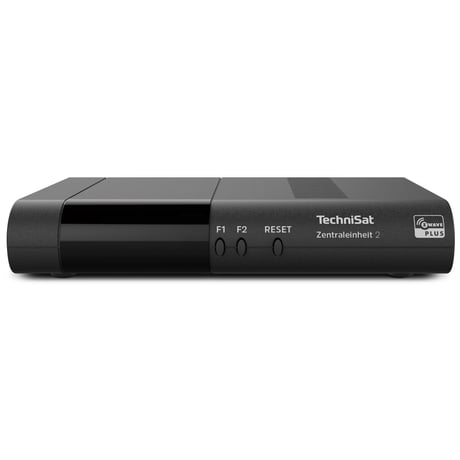
Product Picture
In the TechniSat CONNECT app, tap the ""three horizontal lines"" icon. Tap the ""gear"" icon button. In the settings menu, select ""Smart Home"". From the ""advanced Z-Wave settings"" menu select ""Central unit learn mode"", to start the ""learn mode"" on the controller.
Please note, if this controller is the primary controller for your network, resetting it will result in the nodes in your network being orphaned and it will be necessary after the reset to exclude and re-include all of the nodes in the network. If this controller is being used as a secondary controller in the network, use this procedure to reset this controller only in the event that the network primary controller is missing or otherwise inoperable. In the TechniSat CONNECT app, tap the ""three horizontal lines"" icon. Tap the ""gear"" icon button. In the settings menu, select ""Smart Home"". From the ""advanced Z-Wave settings"" menu select ""Reset central unit"".
Tap the ""wrench"" icon in the TechniSat CONNECT app. Select the ""Add new device"" option. A list of devices with additional inclusion instructions will be shown: Tap the device you would like to add. If your specific device is not listed, please select ""+/Generic"", to add a generic device. Tap ""NEXT"". Tap the round button, with the ""radio symbol"", to start the inclusion process on the controller. The learn/inclusion mode on the device must be started within 60 seconds to add the device.
In the TechniSat CONNECT app, go to app's ""All devices/scenes"" view. Tap the ""vertical three dots"" icon next to the device you would like to remove. From the opened context menu choose the ""Remove Device"" option. Tap the round button, with the ""radio symbol"", to start the exclusion process on the controller. The learn/exclusion mode on the device must be started within 60 seconds to remove the device.
| Type | Value(s) |
|---|
| Meter type |
|---|
| Electric Meter Consumption |