Bali
Multi-Channel Remote Control
MCZ1
Remote Control - Simple
HW: 255 FW: 11.14
ZM5101
6.71.01
0x026e (622)
0x4D43 (19779)
0x5A31 (23089)
ZC10-18066153
2018-02-13 06:51:00.251414
N/A
Portable Controller
Portable Controller
Yes
Automated custom window treatment for simplified, convenient lighting control featuring Z-Wave controlled motorized lift. Multi Channel Remote Control- Z-Wave
Enjoy the comfort, convenience and energy efficiency of beautiful custom motorized window treatments featuring Z-Wave protocol for easy integration. Lighting control has never been more simple. Window treatments can be automated using your favorite Z-Wave certified gateway or security system, or controlled by a remote control. Raise or lower the shades to control just the right amount of light, privacy and solar heat. Shades can be fully open, fully closed or anywhere in between, it’s up to you. In addition, some systems will also report back the state of the battery charge on battery operated versions.
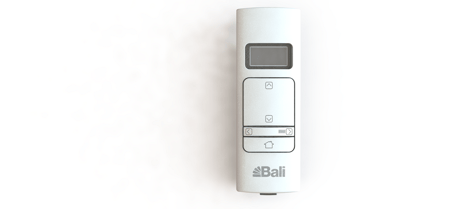
Product Picture
Pairs the multi-channel remote with an existing shade network as an additional remote. On the remote, press and hold the MENU/RIGHT button to enter the menu. 3. Select ZWAVE > LEARN.
Any button press will wake up the remote.
Restores the remote back to a factory state by removing all memory of shade and remote pairings from the remote. 1. On the remote, press and hold the MENU/RIGHT button to enter the menu. 2. Select ZWAVE > RESET. 3. With LIKE NEW? selected, press and hold the MENU/RIGHT button until the screen no longer tells you to wait. Please use this procedure only when the network primary controller is missing or otherwise inoperable.
Associate: Pair remotes with your shades. On the remote, press and hold the MENU/RIGHT button for 2 seconds to enter the menu. 2. Select ZWAVE > ASSOCIATE. On the shade, press and hold the program button for 3 seconds. When the shade LED flashes green, release the button. The shade will jog. Find- Locates existing shades in a shade network and adds the multi-channel remote as an additional control. Shift- Pairs the multi-channel remote with an existing shade network as the primary remote. Clear Channels- Clear all your current channel assignments and start over with assigning shades to channels, follow these steps. 1. On the remote, press and hold the MENU/RIGHT button for 2 seconds to enter the menu. 2. Select SHADE > CLR CHNLS > CONFIRM. At this point, the shade menu is cleared. This means you can’t select a shade from the remote or assign shades to a channel until you find them again.
Adding your shades and remotes to the same “shade network” (a group of shades and remotes that communicate with each other) or to a home automation system. 1. Press and hold the MENU/RIGHT button for 2 seconds to enter the menu. 2. Select ZWAVE > INCLUDE. 3. On the shade you want to pair, press and hold the program button for 3 seconds. When the shade LED flashes green, release the button. The remote’s screen will indicate
Removing the current pairing between your shades and remotes. 1. On the remote, press and hold the MENU/RIGHT button for 2 seconds to enter the menu. 2. Select ZWAVE > EXCLUDE. 3. On the shade, press and hold the program button for 3 seconds. When the shade LED flashes green, release the button. The remote’s screen will indicate that the shade has been removed from the remote. The shade will jog.
| Type | Value(s) |
|---|