Verizon
Fios Quantum Gateway
Fios-G1100-v1
Central Controller
HW: 1 FW: 5.10:02.25:01.00:01.00
SD3502
6.61.00
0x030C (780)
0x0001 (1)
0xA101 (41217)
ZC10-18026024
2018-02-21 01:18:32.535129
N/A
Bridge Controller
Central Static Controller
The Verizon Fios Quantum Gateway (Fios-G1100 ) lets you transmit and distribute digital entertainment and information to multiple devices in your home or office.
The Verizon Fios Quantum Gateway (Fios-G1100 ) lets you transmit and distribute digital entertainment and information to multiple devices in your home or office. Your gateway acts as an IoT hub for connecting Z-Wave devices and supports networking using cables, Ethernet, or Wi-Fi, making it one of the most versatile and powerful gateway routers available.
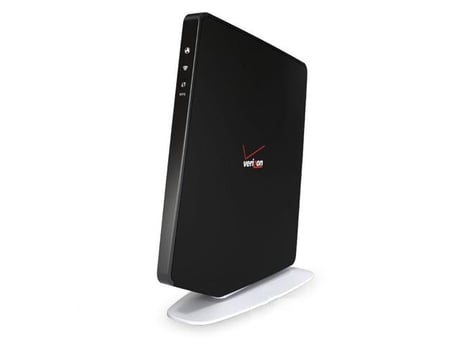
Product Picture
Bring up Verizon Connected Home mobile application (“CoHo App”). Navigate to the “Z-Wave Troubleshooting” page in one of the following ways: a) Triple bar icon -> Support -> “Z-Wave Troubleshooting”. b) Triple bar icon -> Device Screen -> Axon gateway -> “Z-Wave Troubleshooting Tools”. From there, press “Learn Mode” button to enter learning mode to enable the BHR router to be added to another Z-Wave controller network.
Bring up Verizon Connected Home mobile application (“CoHo App”). Navigate to the “Z-Wave Troubleshooting” page in one of the following ways: a) Triple bar icon -> Support -> “Z-Wave Troubleshooting”. b) Triple bar icon -> Device Screen -> Axon gateway -> “Z-Wave Troubleshooting Tools”. From there, press “Reset” button, to reset the Z-Wave network, this will remove all devices from the controller. BHR is the primary controller for Z-Wave network, resetting it will result in the nodes in your network being orphaned and it will be necessary after the reset to exclude and re-include all of the nodes in the network.
Bring up Verizon Connected Home mobile application (“CoHo App”). Proceed to the Device Screen. Press the “+” icon in the top left of the screen. Locate and select your device from the list. Walk through the instructions. Follow device instructions to place your device into Z-Wave inclusion mode. Wait for the device to be added to the system. Name the device. Follow prompts to configure device controls, permissions, and notifications.
Bring up Verizon Connected Home mobile application (“CoHo App”). Proceed to the Device Screen. Locate and select your named device from the list. Go to settings. Find and click the red “Delete this device from CoHo” button (scrolling down may be necessary). Confirm removal and initiate exclusion flow through device instructions.
| Type | Value(s) |
|---|