LifeShield
LifeShield S30 Base
S30
Gateway
HW: 1 FW: 6.14:02.81:01.00:01.00
ZM5202
6.81.01
0x0224 (548)
0x0001 (1)
0x0001 (1)
ZC10-18066143
2018-05-30 21:00:54.826208
N/A
Bridge Controller
Central Static Controller
The LifeShield S30 Base is the central hub for the LifeShield wireless home security system.
The LifeShield S30 Base is the central communication platform for security and automation devices in the LifeShield home security ecosystem. The S30 Base allows automation and security devices to interact to enhance the safety and home experience for LifeShield customers.
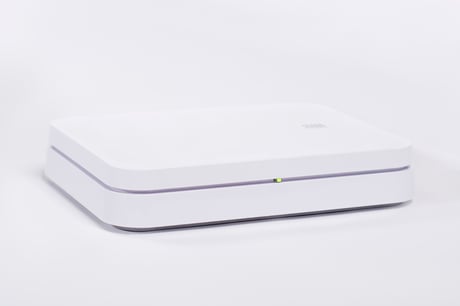
Product Picture
If you would like to add the LifeShield base into another Z-Wave network, you must first delete all Z-Wave devices from the LifeShield base before proceeding. Once all devices have been deleted, follow the instructions on the other controller to put it into add mode. Once the other Z-Wave controller is in add mode, you can place the LifeShield base into learn mode by navigating to the settings page and choosing Z-Wave Utilities. From this menu, select Z-Wave Learn Mode to put the LifeShield base into learn mode. Follow the instructions on the other controller to complete the add process. Once the add is complete, the LifeShield base will request a copy of the other Z-Wave network configuration, and the network devices will appear on the LifeShield IOS, Android, and web applications. When the LifeShield base is included in another Z-Wave network, it will ignore Basic Z-Wave commands that are sent to it.
RESETTING YOUR Z-WAVE NETWORK In order to factory reset your Z-Wave network, navigate to the Z-Wave Utilities page under Settings. Select “Z-Wave Reset Controller” After a few seconds, the LifeShield base will beep to indicate that your Z-Wave network has been reset. Any devices which were part of your Z-Wave network will need to be reset before they can be re-added. Use the Z-Wave General Exclusion menu under Z-Wave Utilities to do this. Please use this procedure only when the network primary controller is missing or otherwise inoperable.
1. To add a Z-Wave device, 3. Enter master code. Navigate to Settings. 2. Choose devices. 4. Click on the add button. 5. Choose the type of device you would like to add to the system. 6. The system willthen enter z-wave add mode. 7. Now follow the instructions provided by your device for including it in a Z-Wave network.
To remove a device from the Z-Wave network, go to settings -> Devices as you would when adding a new device, but instead of selecting the ‘+’ icon to add a new device, select the device you would like to remove Select ‘Remove’. The LifeShield system will enter exclusion mode to prepare for the removal. Follow the instructions provided with your device to exclude it from the Z-Wave network (this is often the same procedure you used to include the device). Once the device is removed, you will hear a confirmation beep from the LifeShield base to confirm that the device has been removed.
| Type | Value(s) |
|---|