smanos
smanos Smart Hub K2
K2
Central Controller
HW: 33 FW: 5.34:02.81
ZM5101
6.71.01
0x0280 (640)
0x0001 (1)
0x0001 (1)
ZC10-18066152
2018-06-14 17:33:02.98603
N/A
Bridge Controller
Central Static Controller
Yes
The smanos K2 gateway is a security-enabled Z-Wave Plus controller that connects to and controls all other Z-Wave certified devices on the same network from other vendors.
The smanos K2 gateway wirelessly connects to and controls all your Z-Wave sensors around the house so that they can send vital information or status reports to one another and to your K2 and ultimately your and your family’s smartphones. The smanos K2 is AC-powered, WiFi-based and has Z-Wave and RF modules built in, providing end users with endless possibilities to connect to a wide range of security sensors and smart home devices from smanos and beyond. In addition, the K2 has a backup, rechargeable battery, empowering you and your family with affordable, 24/7 protection and automation capabilities.
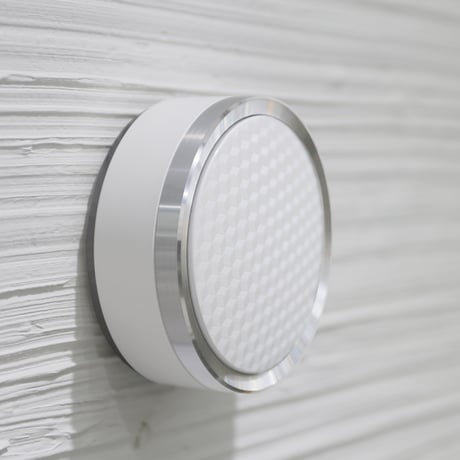
Product Picture
Click on “Connect the K2 to Other Controller” in “Other Z-Wave Settings” section on the “smanos home” app, and the K2 enters into Learn mode. The K2 will terminate Learn mode if the connection is not established right away. Note: The K2 must exclude other Z-Wave devices first, before it can be connected to another Z-Wave controller.
Note: If this controller is the primary controller for your network, resetting it will result in the nodes in your network being orphaned and it will be necessary after the reset to exclude and re-include all of the nodes in the network. If this controller is being used as a secondary controller in the network, use this procedure to reset this controller only in the event that the network primary controller is missing or otherwise inoperable. In “Other Z-Wave Settings” section on the “smanos home” app, click on “Reset Z-Wave Module” and a pop-up box will be displayed. Click on “Reset” and the Z-Wave module inside the K2 will be restored to factory settings.
After the controller is successfully connected to your home Wi-Fi network, on the “smanos home” app, enter into the Accessories list from the Main Page and find “Z-Wave Products”. Click/tap on “Z-Wave Products” and hit “START INCLUSION” to add the Z-Wave device of your choice.
On the “smanos home” app, enter into the Accessories list from the Main Page, click on the room type [Location] where the device was installed. Tap on the device you want to exclude and slide from right to the left, then click on the [Trash Can] icon. Click on “YES” in the pop-up box, and the controller enters into Exclusion mode. Set the Z-Wave device into Learn mode according to its user manual.
| Type | Value(s) |
|---|
| Meter type |
|---|
| Electric Meter Consumption |