Connectair
Controller
CW7
Gateway
HW: 1 FW: 6.01:02.81:01.00:01.00
ZM5202
6.81.01
0x0369 (873)
0x0001 (1)
0x0001 (1)
ZC10-18066170
2018-06-28 17:47:57.44308
N/A
Bridge Controller
Central Static Controller
The Connectair CC7 Controller is an open, scalable and secure digital device that allows you to easily manage connected objects in your home such as heat, lights or shutters wherever you are and at any time.
An open and flexible ecosystem Connectair uses the Z-Wave Plus technology, the most widely used wireless communication system in the world of connected devices. Whether it's heating appliances, lighting, door locks or any other electronic product, if the devices are compatible with Z-Wave or Z-Wave Plus, Connectair can integrate and operate them. An application to manage everything To manage your connected devices, use Connectair's simple, free, central and multiplatform interface. This allows you to manage directly from the Controller, your computer, your tablet or your smartphone the various features and connected devices in your ecosystem. The application is accessible from any place and at any time. Connectair is compatible with Windows, Chrome OS, iOS, MacOS and Android operating systems. Scenarios to simplify your life Program a series of comfort and supervision scenarios to simplify your life. You want your lights to come on when you get home? Connectair allows you to do it in just a few clicks. Use your connected devices, such as lighting, appliances, or heating to their full potential. Control your Convectair heating remotely Adjust the comfort of your home according to your schedule and lifestyle. Connectair allows you to easily and remotely control and make changes to your Convectair units. Adjust your heaters in Comfort, Eco, Frost-protection or Standby mode or adjust the set temperature according to your needs. Convectair compatible units Connectair is currently compatible with the Allegro II and Apéro (240V only) models. The Allegro II requires the use of the Connectair Module. The Apero requires a pilot wire’s connection to an Allegro II equipped with a Connectair Module. An evolving ecosystem Thanks to its cloud capabilities, Connectair is constantly adapting to stay on the cutting edge. Receive updates on new products, new features, or interface enhancements directly on your devices such as your smartphone. Secure Z-Wave Plus, the protocol used by Connectair, is highly secure to ensure a safe communication between connected devices and the controller. In addition, the Connectair Module is equipped with a manual switch that prevents anyone from remotely shutting down your Convectair heaters. Convectair’s warranty • 2 years against all manufacturing defects Due to our commitment to research and development, we reserve the right to change specifications without notice.
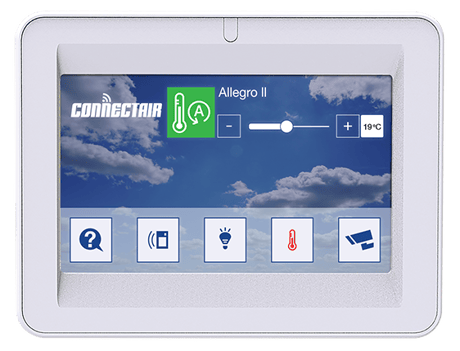
Product Picture
How to put the Controller into Learn mode to be added to another controller's network Learn mode is used to add or remove Smart Controller from another Z-Wave network and the steps to get the controller to achieve learn mode are as follows From the home page, click on the property Click the System status icon in the left menu Click the Smart controller card, which is the first card visible, to edit the smart controller settings Go to the Manage Z-Wave tab Open the Advanced options Select the Join or leave network card Click on the Start button Wait for the operation to finish The learn mode will be taking place on the controller and it might take couple of minutes to get all the nodes information and check the status after the progress is over. The message of successful addition should be visible.
Z-Wave Factory reset procedure The 2KLIC controller has an option to factory reset which allows the system to return back to its default settings, the steps are given below: From the home page, click on the property Click the System status icon in the left menu Click the Smart controller card, which is the first card visible, to edit the smart controller settings Go to the Manage Z-Wave tab Open the Advanced options Find the Reset card Click on the Reset button to start Click on the text input and type 'Confirm' in the box below Then click on the Confirm button You will see ""The controller is resetting. Please wait. It could take up to 1 minute."" message And then you will see ""The controller has been reset"", as soon as it is done resetting Now you have to start adding new devices to your controller and take all the necessary steps to get your system up and running. Resetting this controller will leave your Z-Wave devices orphaned in the network. Please remove all Z-Wave devices before performing this reset procedure. If this controller is a part of another Z-Wave network, please use this procedure only in the event that the network primary controller is missing or otherwise inoperable.
How to include a Z-Wave device: On the homepage, click on the property At the bottom of the page, click on the ""+"" Enter the name Select the added device template Select the location where this unit is located Select the device type Validate the addition by clicking on the button at the top right on mobile app or press ""Save"" button for the web app. Start adding the device by clicking on the ""Add"" button Put your device in learn mode Once found and the synchronization of the parameters made, the process should show its success. The page should go back to the dashboard after a few seconds. If not, click ""Back"" to return to the dashboard. 2KLIC controllers support all Z-Wave certified devices. 2KLIC platform allows couple of features that can be used to interact with Z-Wave devices. Let's look into each of them in detail
How to remove a Z-Wave device: From the device edit page Go to the edit device page Click on the delete device button On the modal click remove and wait for the controller to respond Physically click on the button of the device by reading your manufacturer's manual Wait for the system to respond with successful removal Repeat these steps to remove other devices From Manage Z-Wave Page Read your device manufacturers instruction manual to learn how to remove it from a network Go to the Manage Z-Wave page Reach out the Remove a device section Click on the remove button to start the process Repeat these steps to remove other devices
| Type | Value(s) |
|---|