Swiid
SwiidCam+
SW-ZCAM1
Central Controller
HW: 0 FW: 4.38:03.00:07.00:18.00
ZM5304
6.51.09
0x0166 (358)
0x0003 (3)
0x0001 (1)
ZC10-18076192
2018-07-18 18:06:27.697241
N/A
Static Controller
Central Static Controller
Energy-autonomous Z-Wave pan/tilt wireless IP camera gateway
Z-Wave Plus gateway/controller Works with Amazon Echo(Alexa) and Google Home and is IFTTT compatible Controls up to 60 Z-Wave devices Supports Z-Wave devices inclusion and control, room control and scene control via free iOS and Andoid View and Control App (SwiidCam+View) One mega-pixel camera, 1280x800, 30 fps with H.264 video compression 340 degree pan and 90 degree tilt control Up to 5 video view presets Day and night with IR led in-built light, sound and motion sensors Allows alarm notification for each Z-Wave devices and each scene Two-way audio Time lapse video recording SD card and Cloud storage Smart home iOS and Android App 802.11 n wireless with WEP and WPA/WPA2 security support. WPS (WiFi Protected Setup) support
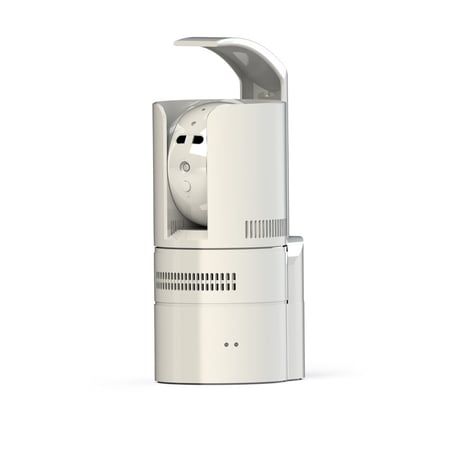
Product Picture
Open the App mCamviewZ+ and go to ""Home Settings"" > ""Camera settings"" > ""Admin"" > ""Z-Wave administration"" page, click ""Z-Wave Learn Mode"" will put the camera into learn mode
Open the App mCamviewZ+ and go to ""Home Settings"" > ""Camera settings"" > ""Admin"" > ""Z-Wave administrator"" page, click ""Z-Wave Reset"" will reset the Z-Wave Settings of the camera. If this controller is the primary controller for your network, resetting it will result in the nodes in your network being orphaned and it will be necessary after the reset to exclude and re-include all of the nodes in the network. If this controller is being used as a secondary controller in the network, use this procedure to reset this controller only in the event that the network primary controller is missing or otherwise inoperable.
Open the App mCamviewZ+ and press the ""+"" button under the ""Device"" menu, the camera will go into inclusion mode. User can now trigger the Z-Wave device into its inclusion mode and add it to the camera's Z-Wave network.
Open the App mCamviewZ+ and press the ""-"" button under the ""Device"" menu, the camera will go into exclusion mode. User can now trigger the Z-Wave device into its exclusion mode and remove it from the camera's Z-Wave network.
| Type | Value(s) |
|---|