ADT Security Services Inc.
ADTZWM - Wi-Fi® and Z-Wave® Module for Command
ADTZWM for Command
Central Controller
HW: 88 FW: 5.14:03.16
ZM5202
6.81.00
0x0094 (148)
0x000B (11)
0x010B (267)
ZC10-19016350
2018-09-14 17:34:30.532311
N/A
Static Controller
Central Static Controller
The ADT Command portfolio with modular Z-Wave home automation support.
The ADT Command portfolio is a series of panels that provides an integrated solution for fire/security monitoring in addition to home automation. The panel portfolio is easy to use, it comes in various panel form factors such as Self Contained and Hybrid, the system is optimized for use with home automation. The panels supports a range of wireless devices via SIX, WiFi and Z-Wave. Installers set up and configure the panel through a smartphone app and cloud-based portal. End users also interact with the system using an intuitive smartphone app or optional touchscreen/push-button keypad.
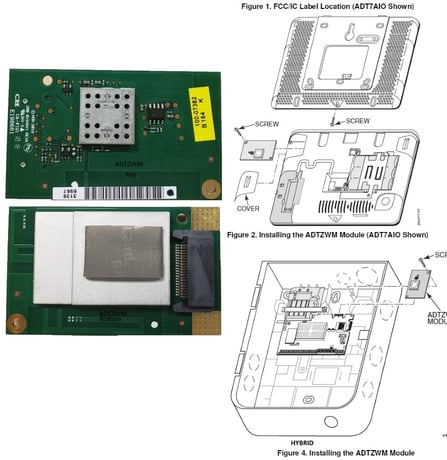
Product Picture
Adding a Device (Inclusion) 1. Power up your device per the manufacturer's instructions with the ADT Zwave-WiFi car installed. 2. Adding devices to the Alarm.com Z-WAVE DEVICE’s Z-Wave Network NOTE: This process leverages Network Wide Inclusion. In addition, any controllers added to the Alarm.com Z-WAVE DEVICE will have network information replicated over to them. 1. Using the Dealer Website a. Navigate to the Equipment page. b. Click the emPower Devices tab. c. Open the Advanced Z-Wave Commands menu below the Equipment List. d. Click Add Z-Wave Devices. e. Wait for the bolded message: Checking for new devices on the network. f. Trigger a device to add it to the network. g. When a device is added successfully, it will show up on this screen following a 30 second delay. h. Continue triggering devices. You may add many devices to the network without reentering Add Mode.
Editing or Removing a Device: Removing devices from the Alarm.com Z-WAVE DEVICE’s Z-Wave network 1. Using the Dealer Website a. Move all Z-Wave devices you plan to delete close to the Alarm.com Z-WAVE DEVICE. b. Navigate to the Equipment page. c. Click the emPower Devices tab. d. Open the Advanced Z-Wave Commands menu below the Equipment List. e. Click Delete Z-Wave Devices. f. Wait for the bolded message: Checking for deleted devices on the network. g. Trigger a device to remove it from the network. h. When a device is deleted successfully and its network information is erased, it will show up on this screen following a 30 second delay. i. Continue triggering devices. You may delete many devices to the network without reentering Delete Mode.
Controller Learn Mode Description: 1. You can set the panel to receive network information from another Z-Wave controller using the Learn Mode. Log into the Alarm.com administrator web portal (or Alarm.com Mobile Tech app), search for the customer account, when located then click ""Equipment"" , then click ""emPower® Devices"".
Reset Alarm.com Z-WAVE DEVICE to default state NOTE: This function will forcibly clear the Alarm.com Z-WAVE DEVICE’s Z-Wave node identification and will also remove all network information from the Z-WAVE DEVICE. Use this procedure only in the event that the network primary controller is missing or otherwise inoperable. 1. A Z-Wave factory reset must be triggered from the Alarm.com dealer site 2. Navigate to the Equipment page. 3. Click the “emPower Devices” tab. 4. Open the “Advanced Z-Wave Commands” menu by clicking the button below the Equipment List. 5. Towards the bottom next to the “Equipment List Label” text click on the “Remove All Z-Wave Devices” button. 6. Allow 3 minutes for the associated commands to go through and for the Z-WAVE DEVICE to act on them.
| Type | Value(s) |
|---|