Samsung Electronics, Co., Ltd.
Samsung Galaxy Home
SM-V510
Central Controller
HW: 38 FW: 5.03:00.22
SD3503
6.71.03
0x0201 (513)
0x0008 (8)
0x0026 (38)
ZC10-18116290
2018-11-01 20:07:56.061408
N/A
Static Controller
Central Static Controller
A connected smart home hub used to control a variety of Z-Wave sensors for home automation.
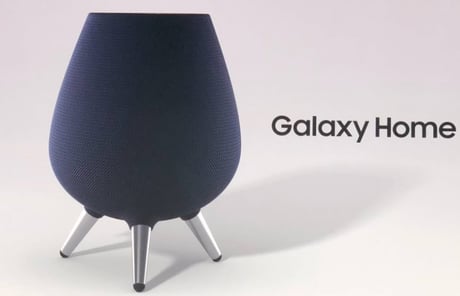
Product Picture
Depending on the other controller, it may not have transferred the primary controller role to the SmartThings Hub, and the Hub may not be able to add new devices. To remove the Hub from the other network and reset it to default, follow the same steps above, but put the other controller in remove or exclude mode instead. Here are the steps to put the Hub into learn mode to receive network information from another Z-Wave controller: 1 Prepare the other Z-Wave controller to copy its network information to the Hub. This may be called include, add, transfer, copy, or replicate mode 2 In the SmartThings app, Tap the menu 3 Tap the Devices 4 Tap SmartThigns hub Card 5 Tap Include or Exclude Hub from an Existing Z-Wave Network This will start learn mode on the Hub. It may take longer to receive all the network info and load all the devices. Check the other controller for confirmation of whether the transfer was successful.
If your speaker is frozen and unresponsive, press and hold the Power key and the Volume Down key simultaneously for more than 7 seconds to restart it. When the initialization has completed, the speaker reboots and displays a welcome message. Do not disconnect the power cable until it has rebooted. If this controller is the primary controller for your network, resetting it will result in the nodes in your network being orphaned and it will be necessary after the reset to exclude and re-include all of the nodes in the network. If this controller is being used as a secondary controller in the network, use this procedure to reset this controller only in the event that the network primary controller is missing or otherwise inoperable
This is an AI speaker, so you can control the product with voice commands. And this product provides high quality sound to consumer
To Include/Add a Z-Wave device: 1 On the dashboard, tap Add device. 2 Tap under ADD DEVICE MANUALLY. 3 Select a category of the device to register. Alternatively, enter the device’s name in the search input field and tap ADD next to your device. 4 Follow the on-screen instructions to complete the registration. • The Samsung SmartThings Hub feature may not be available depending on the region. Visit www.samsung.com for details. • Refer to the other devices’ user manuals for instructions on how to pair with them. • To learn more about the Samsung SmartThings Hub feature, visit support.smartthings.com.
To Exclude/Remove a Z-Wave device: 1 On the SmartThings screen, tap Devices. 2 Tap ALL DEVICES and scroll up or down to select a location. 3 Tap  → Edit and use the following options. REMOVE a Device:Remove a Device. If you reset the Wi-Fi hub, you should exclude the Z-Wave device and reconnect (re-include) it. For instructions on how to put the Z-Wave device into Exclusion Mode, please refer to the device manufacturer's user manual.
| Type | Value(s) |
|---|