Yale Locks & Hardware
Assure Lever Touchscreen with Z-Wave Plus
YRL226-ZW2
Door Lock - Keypad
HW: 255 FW: 1.78:28.00
ZM5101
6.51.07
0x0129 (297)
0x800C (32780)
0x0F00 (3840)
ZC10-18106272
2018-10-16 18:44:40.140642
N/A
Enhanced 232 Slave
Listening Sleeping Slave
Yes
Replace your lever or knob with this keypad lever lock. Lock and unlock your door with ease using the backlit, touchscreen keypad. Add the lock to your Z-Wave smart home or alarm system.
Replace your existing lever or knob with the Assure Lever, a touchscreen lever lock, and enjoy the convenience of unlocking and locking your door using the backlit touchscreen keypad; you'll never have to carry around your keys again. Create unique entry codes for friends and family and remove codes whenever you need to. Great for side entry doors, garage entry, basement doors, home offices - any door with a single hole prep. The lock is Grade 2 certified and backed Yale, one of the world's best known brands in the lock industry that's been securing homes since 1840, ensuring that your home and family is always safe. The Assure Lever features Z-Wave technology and seamlessly integrates into compatible home automation and alarm systems. When added to most Z-Wave automation systems, lock and unlock your door, create pin codes, view access history and receive notifications from anywhere. Easy to install and even easier to use! *Features may vary based on Z-Wave controller.
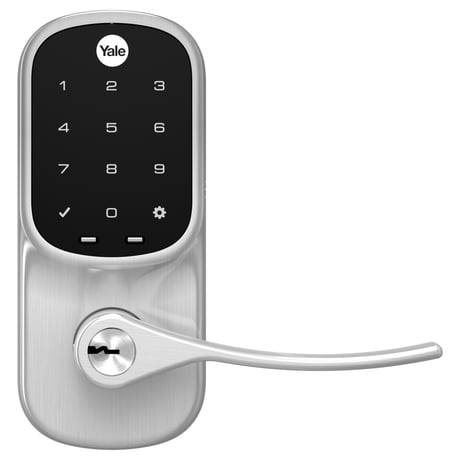
Product Picture


1 - Silent Mode on/off
Level control, 1, 2, 3 default is 2. Levels are 1 and 3 for models with no spoken prompts default is 1 or highSize: 1 byte
Default: 2
Minimum: 0
Maximum: 0
Possible values
| From | To | Desription |
|---|---|---|
| 1 | 3 | Sound level |
2 - Auto Relock on/off
0x00 = OFF, 0xFF = ON default is 0x00 or OFFSize: 1 byte
Default: 0
Minimum: 0
Maximum: 0
Possible values
| From | To | Desription |
|---|---|---|
| -128 | -128 | Auto Relock On |
| 0 | 0 | Auto Relock OFF |
3 - Relock Time
10 to 127 seconds default is 30 secondsSize: 1 byte
Default: 30
Minimum: 0
Maximum: 0
Possible values
| From | To | Desription |
|---|---|---|
| 10 | 127 | Seconds |
4 - Wrong Code Entry Limit
3 to 10 default is 5 timesSize: 1 byte
Default: 5
Minimum: 0
Maximum: 0
Possible values
| From | To | Desription |
|---|---|---|
| 3 | 10 | Times |
5 - Language
1=English, 2=Spanish, 3=French default is 1= EnglishSize: 1 byte
Default: 1
Minimum: 0
Maximum: 0
Possible values
| From | To | Desription |
|---|---|---|
| 1 | 1 | English |
| 2 | 2 | Spanish |
| 3 | 3 | French |
7 - Shut Down Time (After wrong codes)
10 to 127 seconds default is 60 secondsSize: 1 byte
Default: 60
Minimum: 0
Maximum: 0
Possible values
| From | To | Desription |
|---|---|---|
| 10 | 127 | Seconds |
8 - Operating Mode
00 = normal mode (this is the default mode) 01 = vacation mode, keypad lockout 02 = privacy mode, no keypad. RF Unlock will workSize: 1 byte
Default: 0
Minimum: 0
Maximum: 0
Possible values
| From | To | Desription |
|---|---|---|
| 0 | 0 | Normal Mode |
| 1 | 1 | Vacation Mode |
| 2 | 2 | Privacy Mode |
11 - One Touch Locking
0x00 = OFF, 0xFF = ON default is 0xFF or ON.Size: 1 byte
Default: 0
Minimum: 0
Maximum: 0
Possible values
| From | To | Desription |
|---|---|---|
| -128 | -128 | One Touch Locking On |
| 0 | 0 | One Touch Locking Off |
13 - Lock Status LED
0x00 = OFF , 0xFF=ON default is 0x00 or OFFSize: 1 byte
Default: 0
Minimum: 0
Maximum: 0
Possible values
| From | To | Desription |
|---|---|---|
| -128 | -128 | Lock Status LED On |
| 0 | 0 | Lock Status LED Off |
15 - Reset to Factory Defaults
01 = Lock will execute Reset To Factory. 02 = Reserved for future use (Lock will currently execute Reset To Factory same as 01). No default value Please use this procedure only when the network primary controller is missing or otherwise inoperable.Size: 1 byte
Default: 0
Minimum: 0
Maximum: 0
Possible values
| From | To | Desription |
|---|---|---|
| -128 | -128 | Reset to Factory ON |
| 0 | 0 | Reset to Factory Off |
Enter the 4-8 master Pin code followed by the gear key. Press the 7 key followed by the gear key Press the 1 key followed by the gear key
Enter the 4-8 digit master pin code followed by the gear key Press the 7 key followed by the gear key Press the 3 key followed by the gear key
Remove the battery cover and batteries. Remove the interior escutcheon to access the reset button. The reset button is located above the PCB cable connector. While pressing the reset button for a minimum of 3 seconds, reinstall batteries. Release reset button. Replace battery cover. Please use this procedure only when the network primary controller is missing or otherwise inoperable
| Type | Value(s) |
|---|
| Group | Type |
|---|---|
| Access Control | (Refer to parameters): State idle |
| Sensor type |
|---|
| General Purpose |