homee
homee Z-Wave Cube
HOMEE–0002
Gateway
HW: 2 FW: 6.01:02.81:01.00:01.00
ZM5202
6.81.01
0x0349 (841)
0x0013 (19)
0x3700 (14080)
ZC10-19016354
2018-12-05 18:53:43.234206
N/A
Bridge Controller
Central Static Controller
The Z-Wave Cube is a modular addition to the homee base cube - the "Brain Cube"
With Z-Wave Cube as a supplement to your Brain Cube you can control hundreds of smart home devices which use Z-Wave technology. You could use Z-Wave Cube to control your blinds and roller shutters by making them smart with the Fibaro Roller Shutter2 insert switch. You can define times when heating should be tuned to any chosen comfort temperature, saving you money on heating - this is no problem with the Danfoss LC-13 radiator thermostat. Via our homeegrams, radiator thermostats can automatically be switched off once a window is opened, helping you to prevent energy waste. If security is your concern, you can add devices such as smoke detectors to your home, which alert you via push notification of fire or smoke, while also opening the blinds and turning on lights in order to create escape routes. Once you leave your apartment, you can enable homeegrams alerting you if one of your door, window or motion sensors detect an unexpected event during your absence. Additionally, you could fire off an alarm siren like the Aeotec Siren.
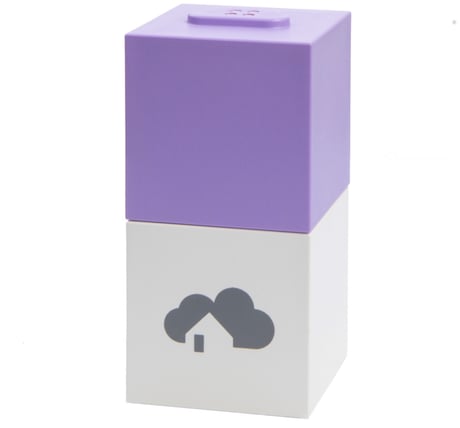
Product Picture
(1) Open the tab [Devices] in the homee app and press the plus icon [+] on the top right side. In order to add a Z-Wave device select the purple button and press [START] on the next screen. (2) A Countdown of 60 seconds begins. Within these 60 seconds, the device you wish to add need to be set in learn mode. Please refer to the documentation of the individual product on how to do this. (3) Once homee recognizes a product in learn mode the countdown stops and [initializing] is shown instead. The product you wish to add and homee are now exchanging some information, this may take a short while. After successful completion of this process the screen shows [success!]. (4) Finally you can choose an individual name for the device as well as an icon and a group. This makes it easier do manage your devices later on.
NOTE:❗If the Z-Wave cube is reset to factory defaults, all connected Z-Wave devices will be removed and the cube gets a new Home ID. If homee is the primary controller for your network, resetting it will result in the nodes in your network being orphaned and it will be necessary after the reset to exclude and re-include all of the nodes in the network. If this controller is being used as a secondary controller in the network, use this procedure to reset this controller only in the event that the network primary controller is missing or otherwise inoperable. NOTE:❗❗ This process does NOT reset the connected devices itself. They need to be reset manually following the manufacturers manual. To reset the Z-Wave Cube to its factory defaults you need to open the general homee settings. They are reachable via your homee’s icon in the top left corner and a subsequent press on the gear icon on the top right corner. Under the section [Cubes] > [Z-Wave] you can find all settings related to the Z-Wave cube. The menu entry [Reset Cube] resets the Z-Wave Cube back to its factory defaults after additional confirmation.
NOTE:❗ You can only add homee to another gateway if there are currently no devices associated with homee. (1) To add the homee Z-Wave Cube to another gateway, go to the general homee settings. They are reachable via your homee’s icon in the top left corner and a subsequent press on the gear icon on the top right corner. Under the section [Cubes] > [Z-Wave] you can find all settings related to the Z-Wave cube. A tap on [Activate learn mode], reveals the DSK security code which is needed by the other gateway to successfully add homee. (2) The UI of the other gateway informs you about the success of the operation.)
To remove homee from the other gateway the process is identical to the adding.
| Type | Value(s) |
|---|
| Meter type |
|---|
| Electric Meter Consumption |