ABUS
ABUS Z-Wave Wireless-Socket
SHHA10000
On/Off Power Switch
HW: 1 FW: 2.12
ZM5101
6.71.01
0x0403 (1027)
0x0003 (3)
0x0003 (3)
ZC10-18116297
2018-11-07 23:07:43.546433
N/A
Enhanced 232 Slave
Always On Slave
The ABUS Z-Wave Wireless Socket is a compact plug adapter for switching connected devices and power metering.
the ABUS Z-Wave Wireless Socket is a compact plug adapter for switching connected devices and power metering. It includes a repeater function for extending the range of the Z-Wave radio signal. The Socket can be triggered remotely via the contected Gateway or by a button on the device.
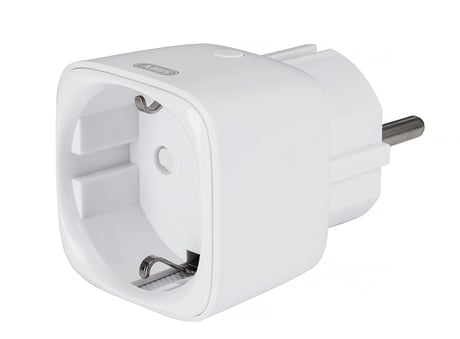
Product Picture


1 - Over current protection
Size: 1 byte
Default: 1
Minimum: 0
Maximum: 0
Possible values
| From | To | Desription |
|---|---|---|
| 0 | 0 | function is disabled |
| 1 | 0 | function is enabled (default) |
2 - Setting device status after power failure
Size: 1 byte
Default: 0
Minimum: 0
Maximum: 0
Possible values
| From | To | Desription |
|---|---|---|
| 0 | 0 | Smart Plug memorizes its state after a power failure. (default) |
| 1 | 0 | Connected device will be on after the power supply is reconnected. |
| 2 | 0 | Connected device will be off after the power supply is reconnected. |
3 - Notification when Load status changes
Size: 1 byte
Default: 1
Minimum: 0
Maximum: 0
Possible values
| From | To | Desription |
|---|---|---|
| 0 | 0 | function is disabled |
| 1 | 0 | send basic report (default) |
| 2 | 0 | Send Basic report only when Load status is not changed by Z-Wave command |
4 - LED Load indicator mode selection
Size: 1 byte
Default: 0
Minimum: 0
Maximum: 0
Possible values
| From | To | Desription |
|---|---|---|
| 0 | 0 | The LED status follows the load change (default) |
| 1 | 0 | when operating the load, the LED lights for 5 seconds and then turns off. |
16 - The value represents min. change in wattage (in terms of wattage) for a meter report to be sent
Size: 2 bytes
Default: 0
Minimum: 0
Maximum: 0
Possible values
| From | To | Desription |
|---|---|---|
| 1 | 65535 | Available settings (default) |
| 0 | 0 | function is disabled |
17 - The value here represents minimum change in wattage percent (in terms of percentage) for a meter report (watt) to be sent
Size: 2 bytes
Default: 0
Minimum: 0
Maximum: 0
Possible values
| From | To | Desription |
|---|---|---|
| -128 | 127 | Available settings (default) |
| 0 | 0 | function is disabled |
100 - Setting the parameters 101~104 to the default value.
Size: 1 byte
Default: 0
Minimum: 0
Maximum: 0
Possible values
| From | To | Desription |
|---|---|---|
| 85 | 0 | Setting the parameters 101~104 to the default value. |
| 0 | 0 | function is disabled |
101 - setting time for sending meter report (watt)
Size: 4 bytes
Default: 0
Minimum: 0
Maximum: 0
Possible values
| From | To | Desription |
|---|---|---|
| 5 | 2678400 | Available Settings (default) |
| 0 | 0 | function is disabled |
102 - setting time for sending meter report (KWh)
Size: 4 bytes
Default: 0
Minimum: 0
Maximum: 0
Possible values
| From | To | Desription |
|---|---|---|
| 5 | 2678400 | Available Settings (default) |
| 0 | 0 | function is disabled |
103 - setting time for sending meter report (voltage)
Size: 4 bytes
Default: 0
Minimum: 0
Maximum: 0
Possible values
| From | To | Desription |
|---|---|---|
| 5 | 2678400 | Available Settings (default) |
| 0 | 0 | function is disabled |
104 - setting time for sending meter report (current)
Size: 4 bytes
Default: 0
Minimum: 0
Maximum: 0
Possible values
| From | To | Desription |
|---|---|---|
| 5 | 2678400 | Available Settings (default) |
| 0 | 0 | function is disabled |
254 - Enable/disable the configuration command
Size: 1 byte
Default: 0
Minimum: 0
Maximum: 0
Possible values
| From | To | Desription |
|---|---|---|
| 0 | 0 | unlock (default) |
| 1 | 0 | lock |
A.) Plug the Wireless-Socket into an outlet. The Status-LED is flashing. B.) Click the + (Add) button in your Z-Wave App and follow the further instructions C.) Press the Network-Button on the Socket once. The App will show if the Add device process was successful. The Status LED does not flash anymore but indicates if device is switched on or off. Repeat the inclusion process from step B if it was not successful.
A.) Click the - (Remove) button in your Z-Wave App and follow the further instructions. B.) Press the Button on the socket 3 times. The App will show if the Remove Device process was successful. The Status-LED will now flash continuously. Repeat the exclusion process from step A if it was not successful.
1. Keep pressing the Button on the socket for more than 5 seconds (the flash interval of the Status LED is now accelerated) 2. The wireless socket is now restored to factory settings Note: 1, This procedure should only be used if the primary gateway is not capable of acting. 2, If the multi-sensor is set to the factory setting, the status is set to ""not included"", the association settings and possible configurations are reset to default.
| Type | Value(s) |
|---|
| Meter type |
|---|
| Electric Meter Consumption |